

Overview
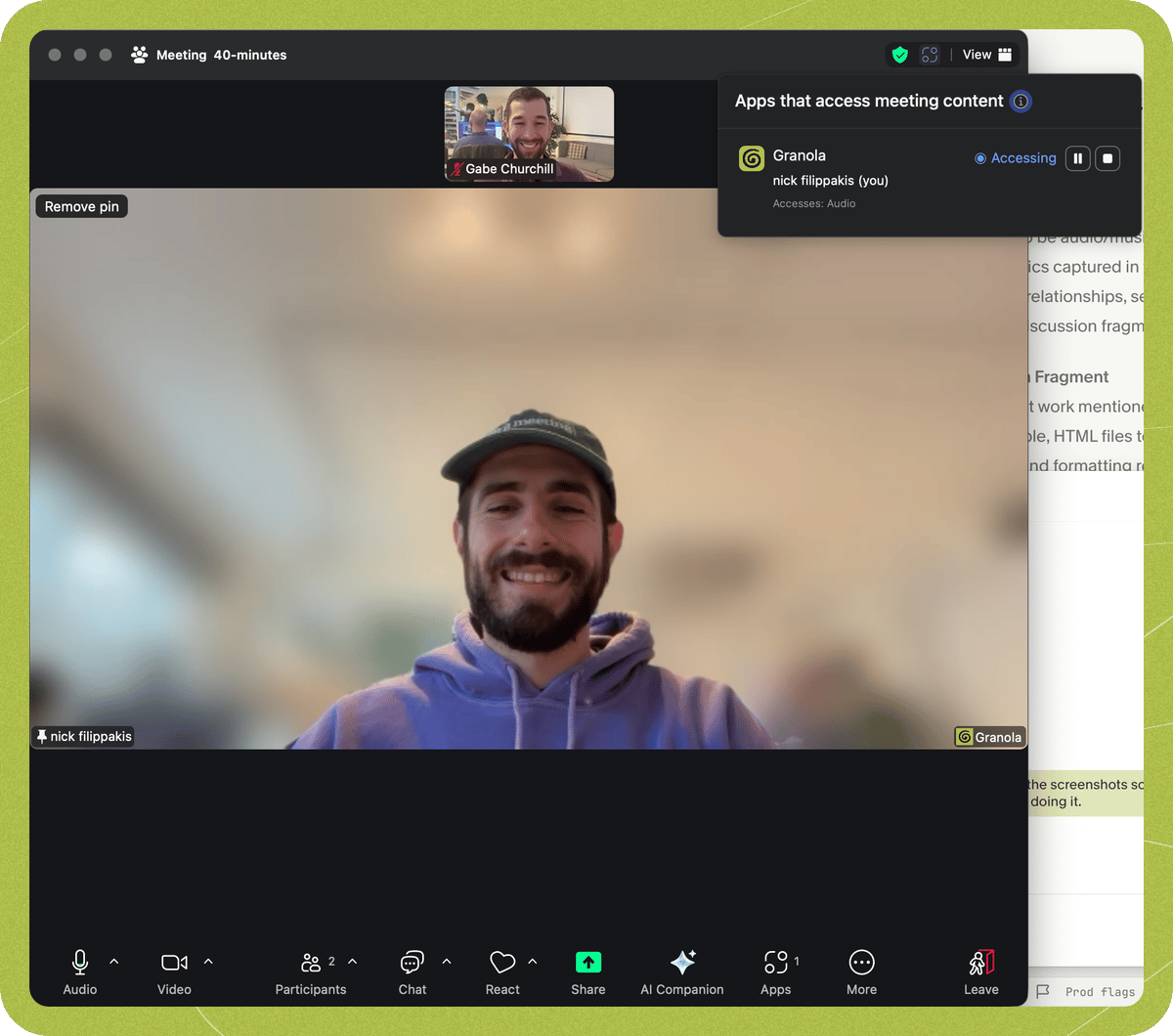
The Granola Zoom app lets participants know when Granola is being used during a Zoom meeting. Granola transcribes meeting content when your organisation has enabled it and the meeting host allows it. The in-meeting notice is part of Zoom’s native experience:- A notification appears: A banner appears at the top of the meeting with the message: “The content of this meeting is being shared with app(s).”
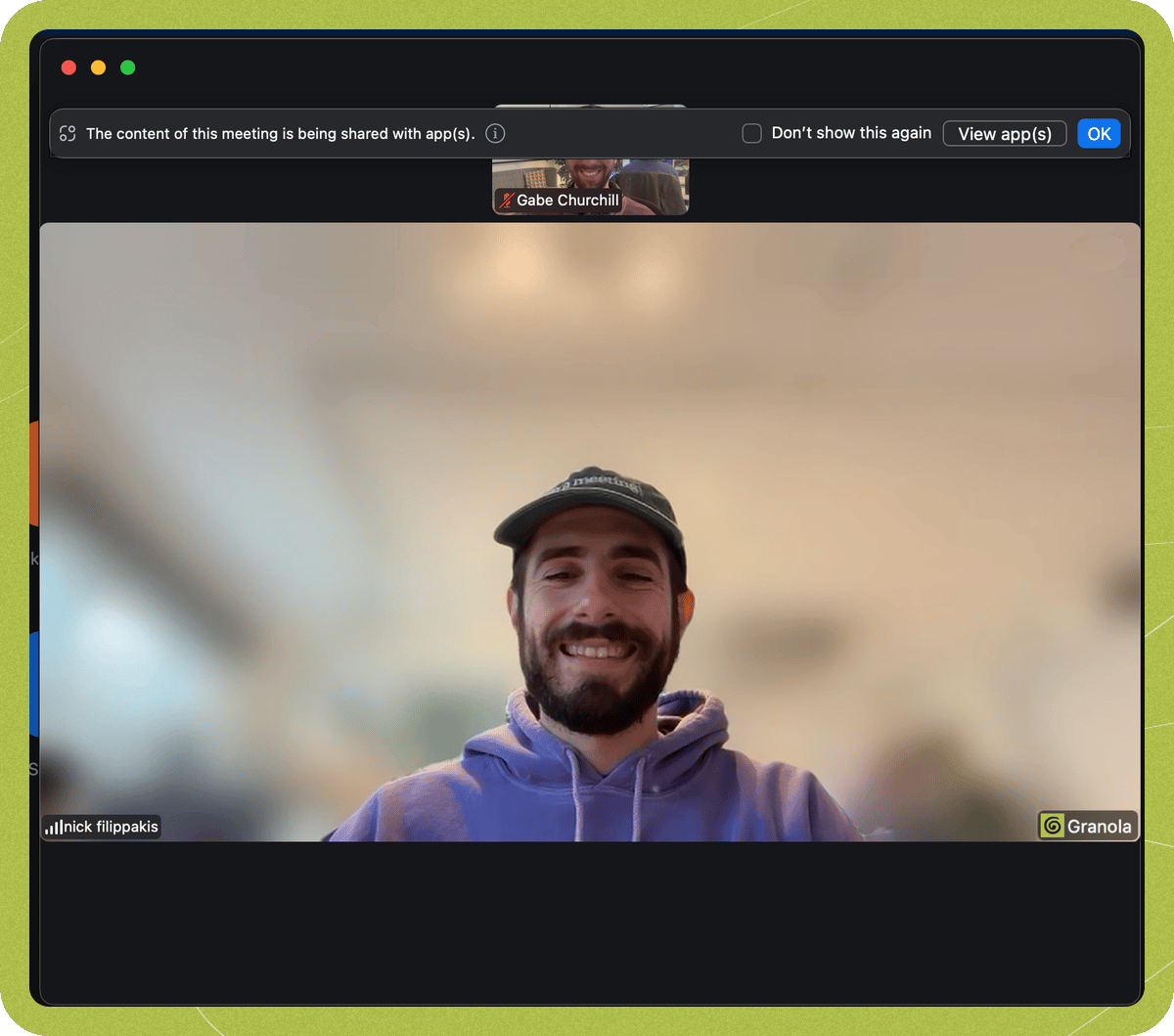
- Click to see the app: Participants can tap “View app(s)” in the banner or open the Zoom Apps panel to see that the Granola app is running and accessing the meeting. Zoom shows this so everyone knows which apps are receiving meeting content.
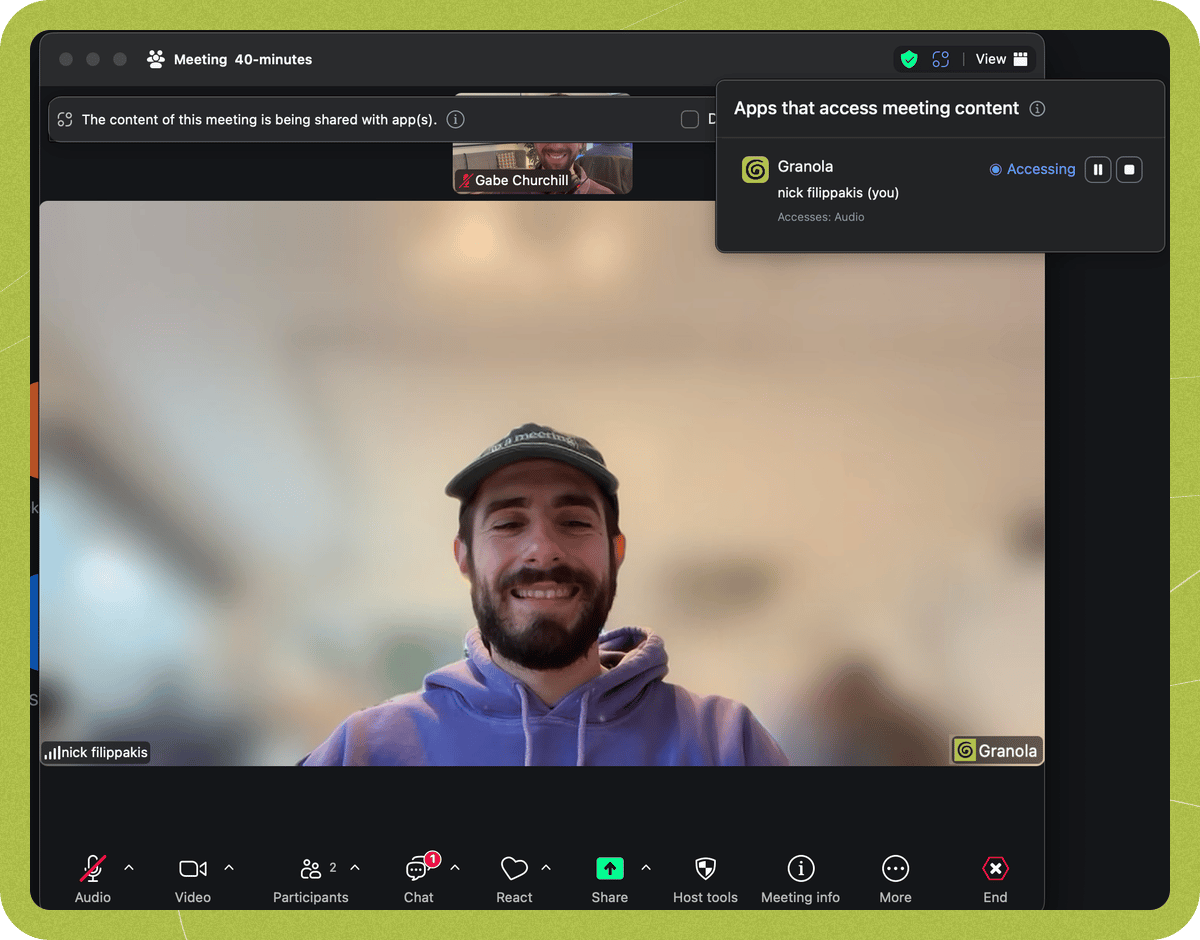
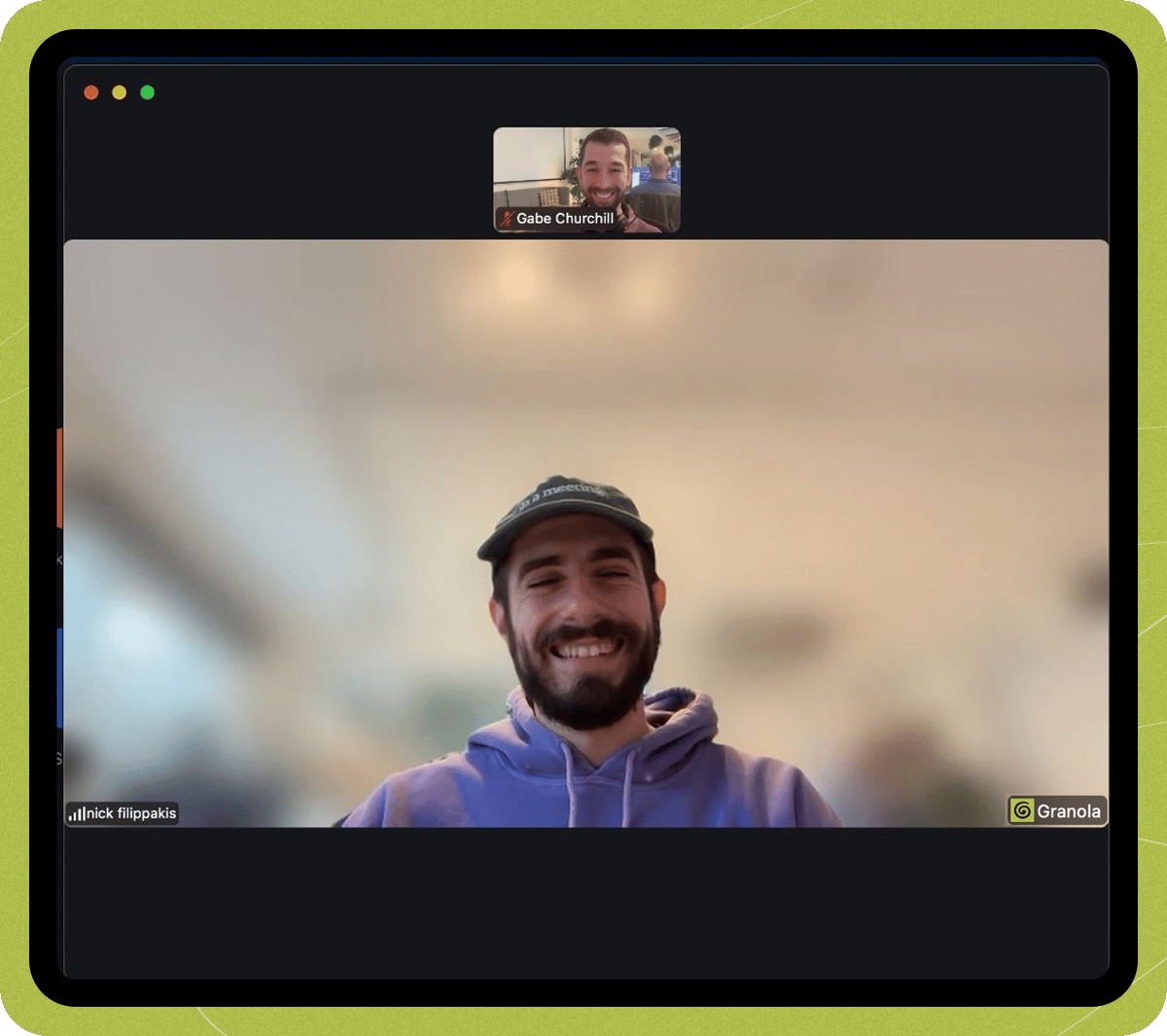
- A badge appears: Zoom shows a small Granola icon in the meeting interface so participants can see that an app is accessing meeting content.
Who controls whether Granola’s Zoom app transcribes
End to End Flow
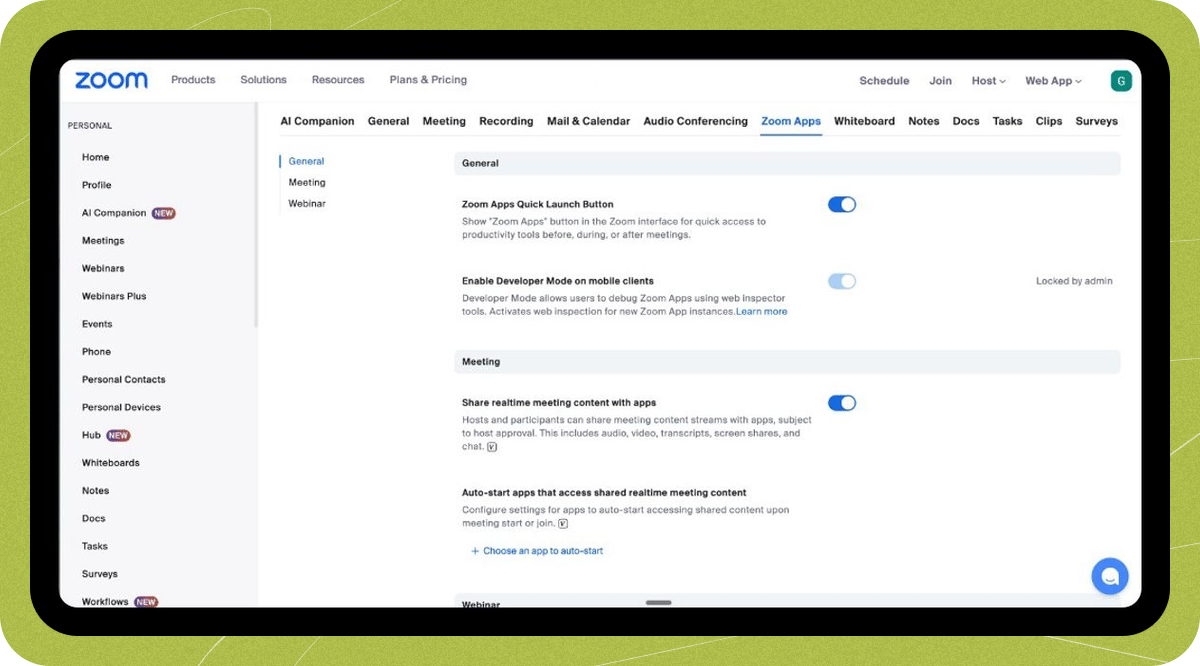
- Before the meeting: A Zoom admin enables “Share realtime meeting content with apps” for the organization (or group/user). Optionally, they can enable auto-start so approved apps (like Granola) can receive real-time content without the host approving each time.
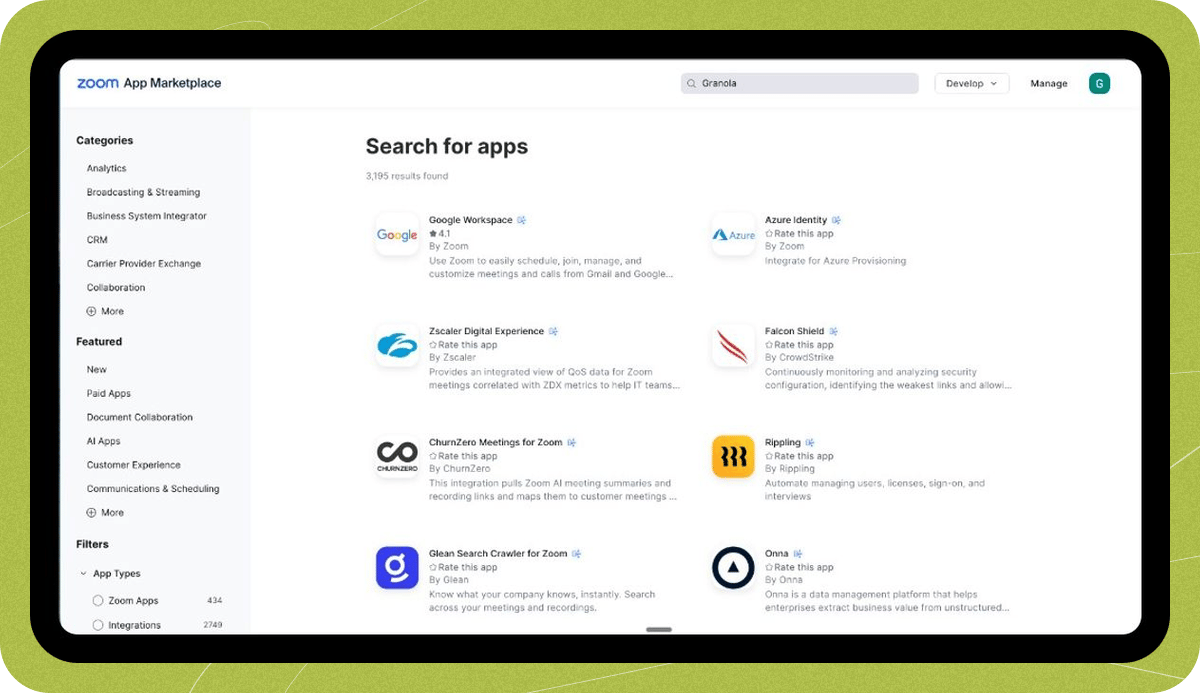
- Installing the Zoom app: To setup Granola’s Zoom app, a workspace admin must install the Granola Zoom app from the Zoom Marketplace for all employees.
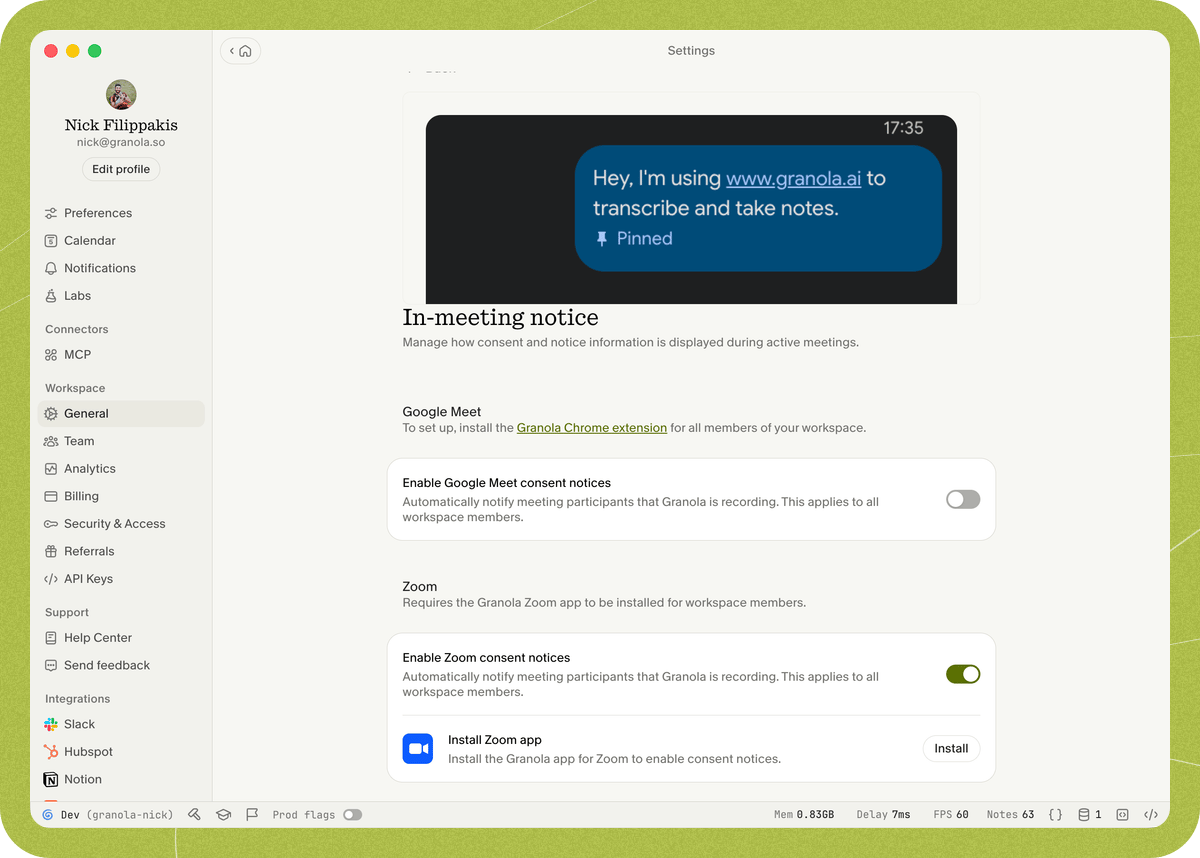
Install in the Install Zoom app section.
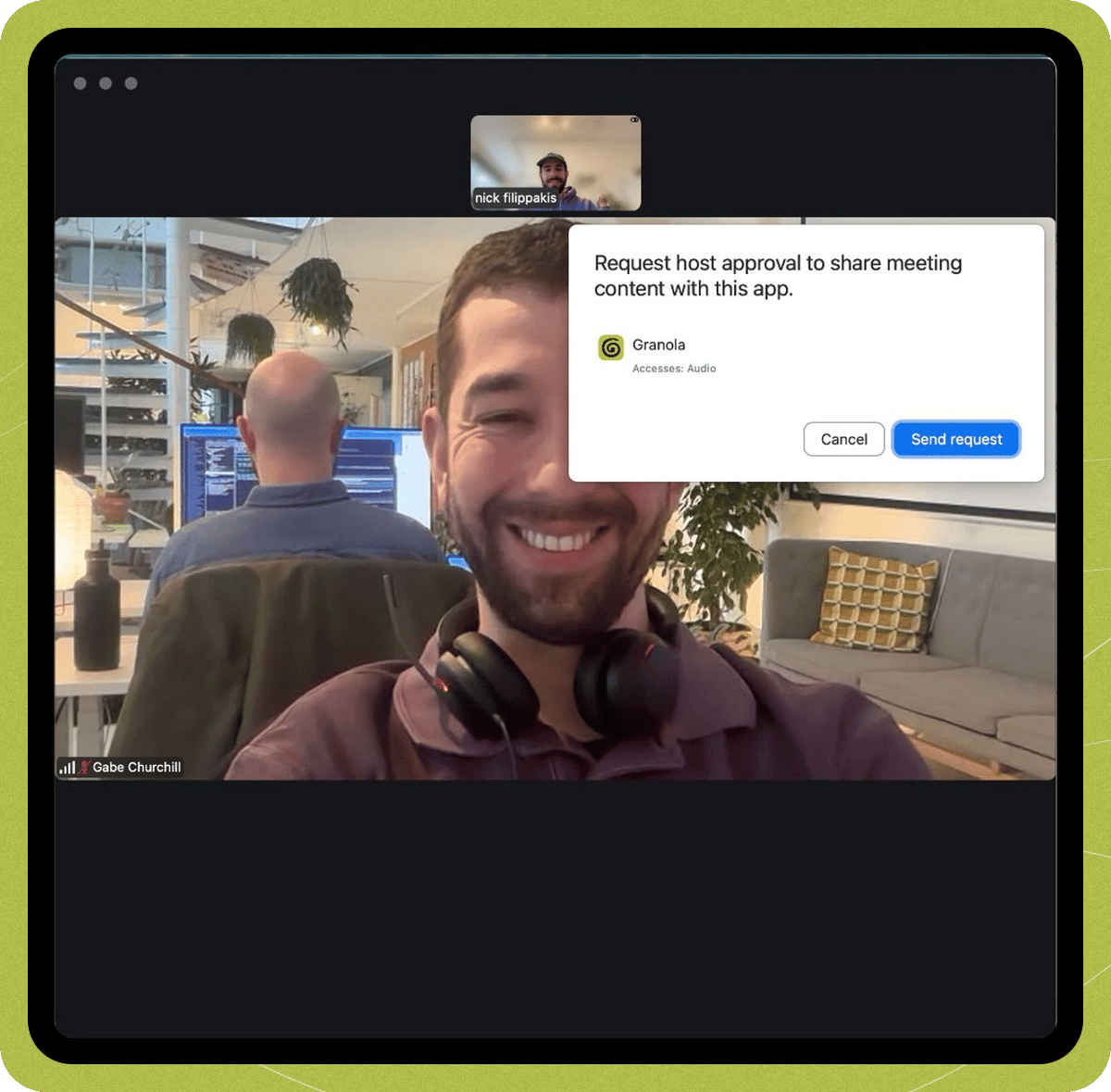
- Transcribing the meeting: If you’re the host and have the Granola Zoom app, it can connect and transcribe. If you’re a participant, you must request for the host to approve real-time sharing for Granola to connect - unless the host’s organisation has auto-approved Zoom apps that access meeting content, in which case no approval is needed.
- Each meeting that Granola is running: The badge and app visibility are shown for the duration of the meeting while the Granola Zoom app is connected and the meeting is being transcribed; if you leave and rejoin, Zoom will show the same when the app is connected again.
Things to know
Installing for your organization (Zoom admins)
Zoom workspace admins can install the app for all users and optionally auto-start it:- Go to the Granola app on the Zoom Marketplace.
- Click “Add for others” (or equivalent) to install the app for your Zoom account/org.
- Complete any Zoom authorization steps.
- In the Zoom app settings, scroll to “Auto-start apps that access shared realtime meeting content”.
- Click + Choose an app to auto-start and select Granola.
- In the Zoom app settings, enable “Share realtime meeting content with apps”
When the notice won’t appear
- The host’s Zoom organization hasn’t enabled “share realtime meeting content with apps”
- The host has not approved real-time sharing (and auto-start is not enabled).
- The host is not in the meeting (Zoom requires an active, eligible host for apps to access the meeting).
- You have not installed the Granola Zoom app or enabled Zoom consent notices in Granola.
What Granola does and doesn’t do with meeting content
- When the host and their organization allow it, Granola’s Zoom app receives real-time meeting content to provide transcription and meeting notes. The in-meeting notice is how we inform participants that this is happening.
- The in-meeting notice (badge and notification banner) is Zoom’s native way of showing which apps are accessing the meeting.
- How we use and protect meeting data is described in our Privacy Policy and related docs.