

How to share a note
After a note has been generated, you can use ‘Shared’ button to view who has access to the notes.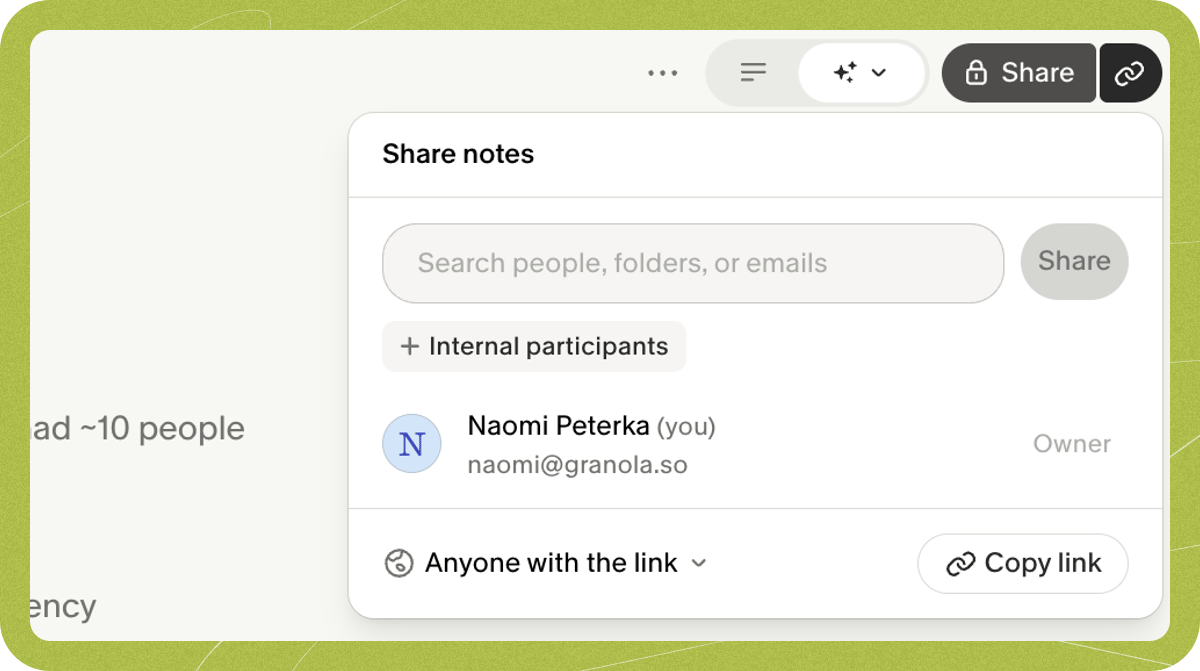
Sharing to an integration
You can also use the 3 dots to share to your preferred integrations: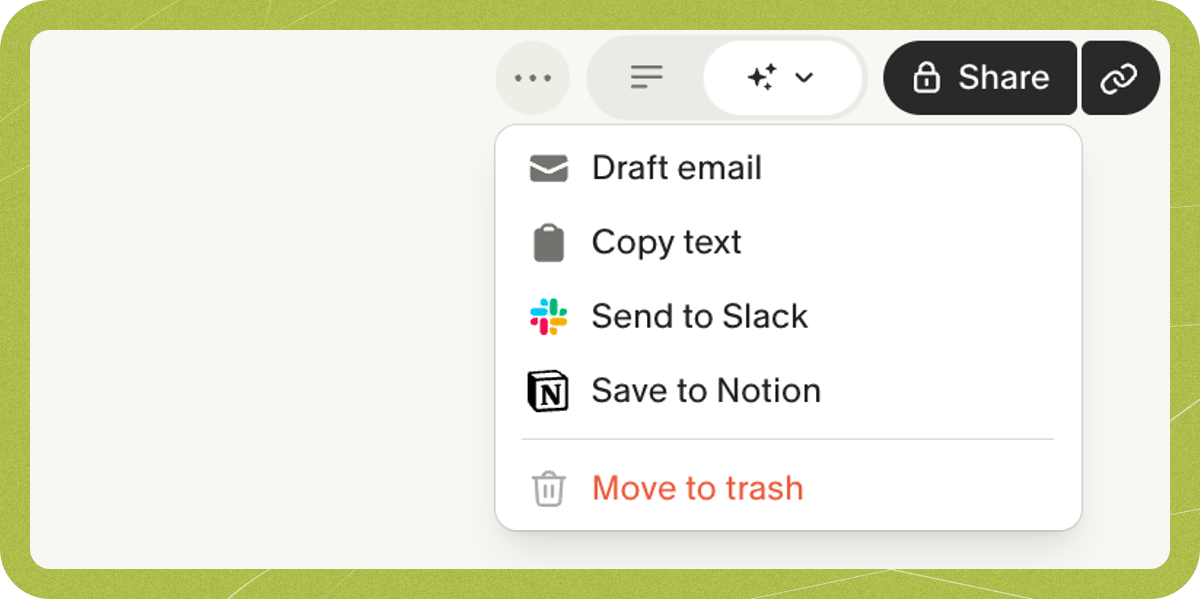
- Copy notes will copy your AI-enhanced notes onto your clipboard in markdown format, which works well with markdown-based tools like Obsidian. This copies the summary Granola generated — not the transcript. To copy the full transcript, use the copy icon in the transcript panel.
- Email will open a draft in your email provider (Gmail or Outlook) with the note contents copied in
- Our Slack, Notion, HubSpot, Affinity, Attio and Zapier integrations can be used to share a note to those platforms
What does someone else see?
When you share a note, recipients receive Viewer access by default. Viewers can:- Read the note
- Hover over a particular point to get more context from the transcript
- Use Granola Chat to ask more questions about the meeting
Can’t access a shared note?
If you received a shared note link but can’t view it, the note owner’s sharing controls may be restricting access. For example, if the owner’s link sharing is set to “Only people at my company” or “Private”, people outside their organization will not be able to open the link. To resolve this, ask the note owner to either:- Change the link sharing setting to “Anyone with the link can view”
- Explicitly invite you by email through the note’s sharing panel