

- iOS: Install from the App Store. Granola isn’t available in the App Store in China.
- Android: Install from the Google Play Store.
- iOS
- Android
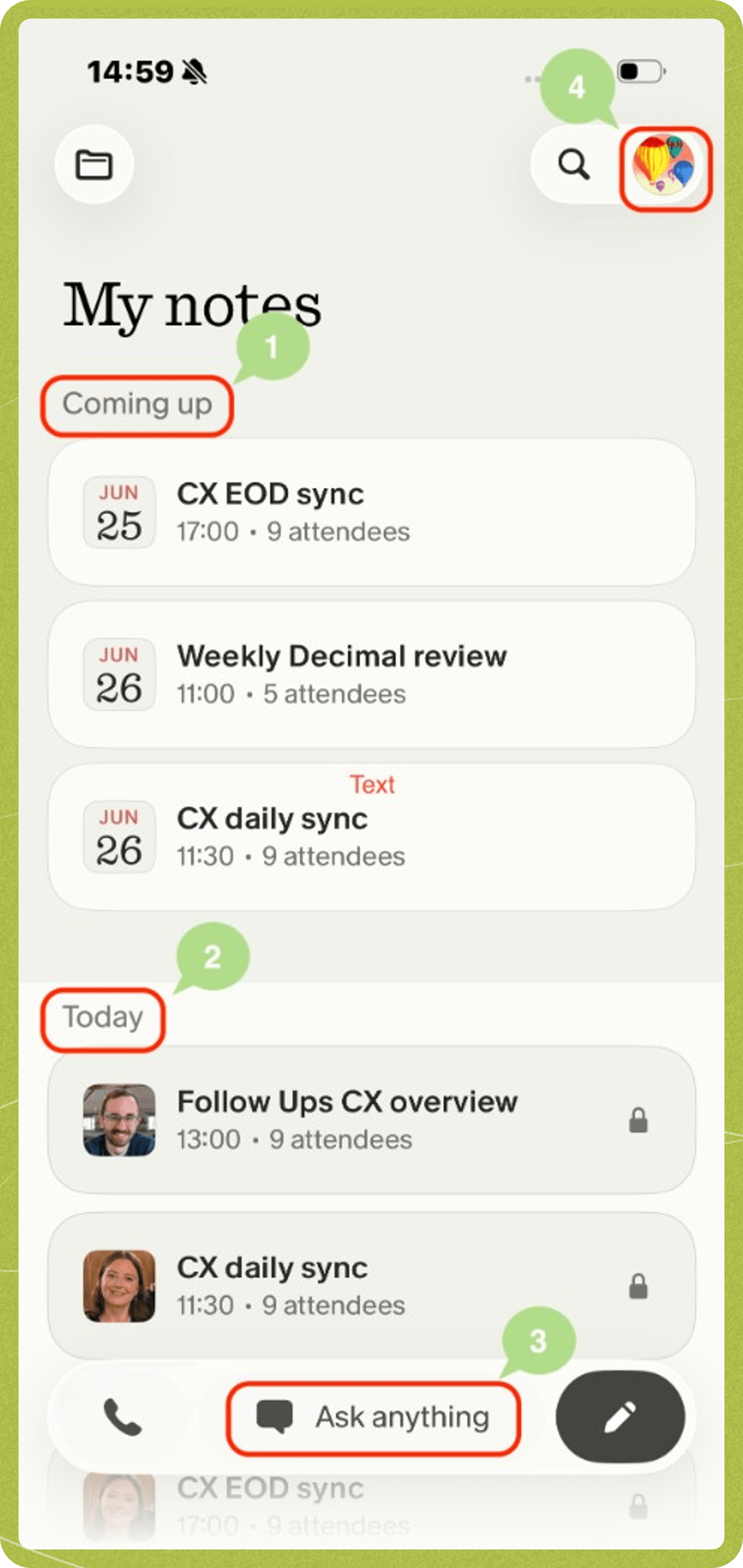
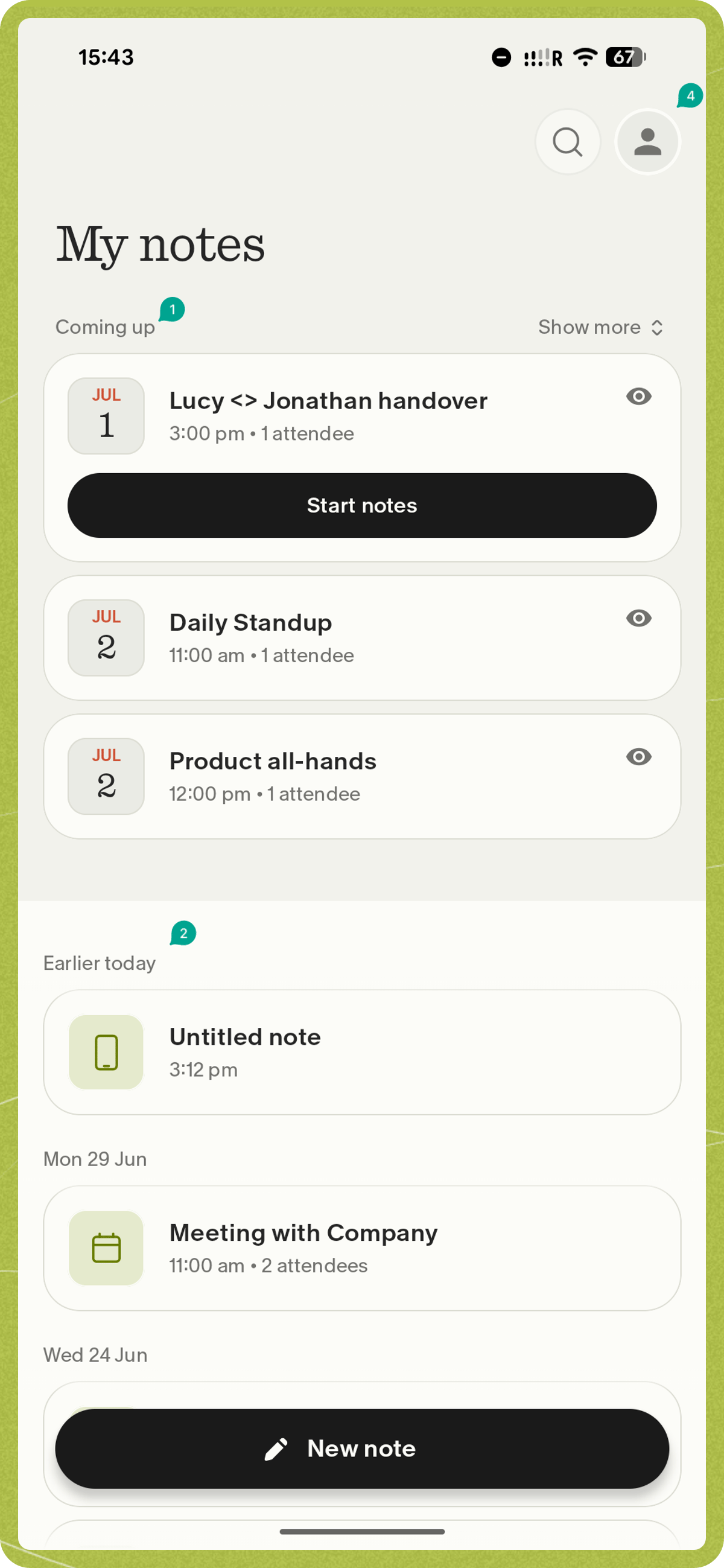
1. Coming up
Granola connects to your calendar to show your upcoming meetings. Tap a meeting to create a note — you can do this in advance to jot down pre-meeting thoughts, or when the meeting starts to begin transcribing immediately.2. Your notes
Once you’ve created a note (from a calendar event or an ad-hoc note), it appears here. Swipe across a note to delete it.3. Granola Chat
Chat with your meeting notes to recall details, spot patterns across calls, and draft follow-ups. Granola Chat is available on iPhone and Android (Granola for Android versionprod-260911.1 or later) — it isn’t available on iPad.
4. Settings
Customize how Granola works — complete your profile to give Granola context for your summarized notes, and choose your notification preferences.Signing out and switching accounts
Granola does not support having multiple accounts signed in at the same time on one device — sign out of one account before signing in to another. Before signing out, make sure recent notes have finished processing and appear in your note list. To sign out, tap your profile picture in the top-right corner and tap Sign Out. You can then sign back in with a different account (for example, switching from a personal email to your work email).Key features
- In-person meeting notes: Capture conversations happening around you
- Phone call notes: Take notes during outbound phone calls
- Apple Watch notes (iOS only): Start meeting notes from your wrist
- Speaker identification: Granola identifies different speakers in your conversations
- Sync with desktop: Your notes sync across all your devices
What’s different on mobile?
Some features work differently on mobile compared to the desktop app (both iOS and Android):- Virtual meeting calls: On macOS and Windows, Granola captures computer audio directly from supported meeting apps. Phones don’t let apps capture audio from other apps, so Granola can’t transcribe virtual meeting calls on mobile. On mobile, Granola is designed for in-person meetings and outbound phone calls made through Granola’s built-in dialer.
- Workspaces: You can’t create workspaces on mobile — create new workspaces from the desktop app. On Android, open Settings and tap Workspace to switch. On iPhone and iPad, workspace switching is coming soon; use the desktop app to switch for now.
- Templates: Custom templates can only be created and applied from the desktop app, though you can apply them to mobile notes after they sync.
- Integrations: Sharing to Notion, Slack, HubSpot, and other integrations requires the desktop app.
- Folders: You can create folders and add notes to them on mobile.
- Coming up: The mobile apps show a short list of upcoming events, while the desktop app shows the next 14 days.
- Calendar sync: Calendar changes must be made on desktop — they sync to your mobile device automatically.
Differences between iOS and Android
- Apple Watch: Taking notes from your wrist is available with Granola on iPhone and an Apple Watch running watchOS 11 or later. Learn how to set up Granola on Apple Watch.
- Recording indicators: On iOS, an active recording shows in a Live Activity on your Lock Screen and in the Dynamic Island. On Android, it shows as an ongoing “Taking notes” notification (with pause, resume, and end controls) and can be started from a Quick Settings tile.
Trouble signing in?
SSO: sign in on desktop first
If your company uses single sign-on (SSO), your first SSO sign-in must happen on the desktop app. That first sign-in connects your calendar, which can’t be done from your phone. Until then, Continue with SSO on iOS or Android shows Sign in on desktop.- Sign in with SSO on the Granola desktop app and connect your calendar when prompted.
- Return to the mobile app, tap Continue with SSO, and enter your work email again.
Sign-in screen won’t load on iOS
Granola uses Safari to handle sign-in on iOS. If you see a cookie-related error or the sign-in screen won’t load, your Safari privacy settings may be blocking it. Open the Settings app on your iOS device, tap Safari, and check:- Block All Cookies — turn this off. Granola’s sign-in flow requires cookies.
- Prevent Cross-Site Tracking — try turning this off temporarily, sign in to Granola, and turn it back on afterward.
Getting help
- iOS
- Android
If you run into issues with the iOS app, report a bug directly from the app:
- Tap your profile picture in the top-right corner.
- Tap Report a bug.
- Include logs when prompted.