

Setting up
- iOS
- Android
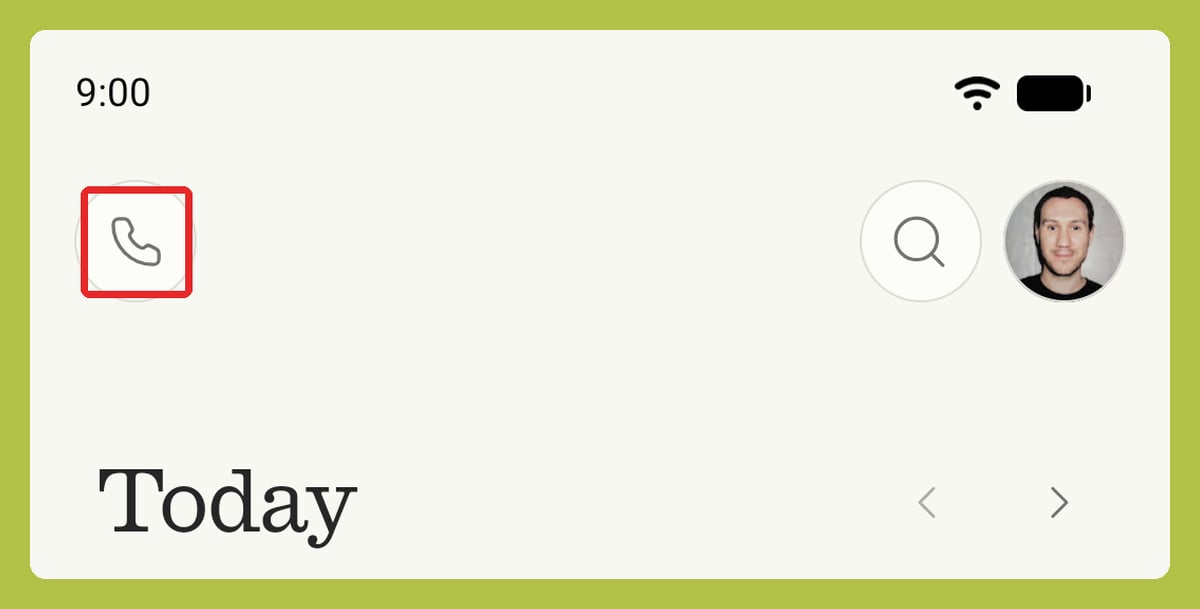
To start using Granola for outbound calls, tap the phone icon in the bottom-left corner to open the setup menu.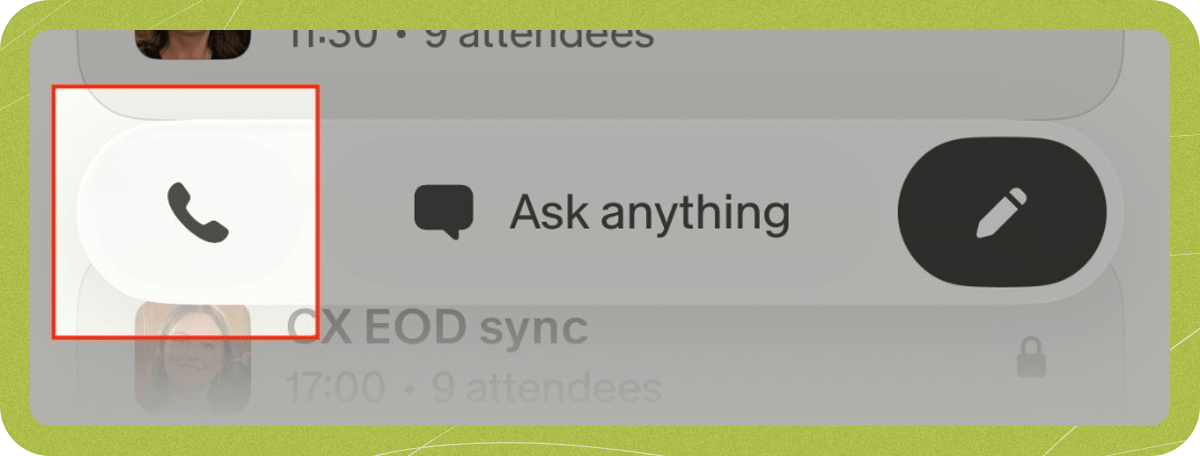
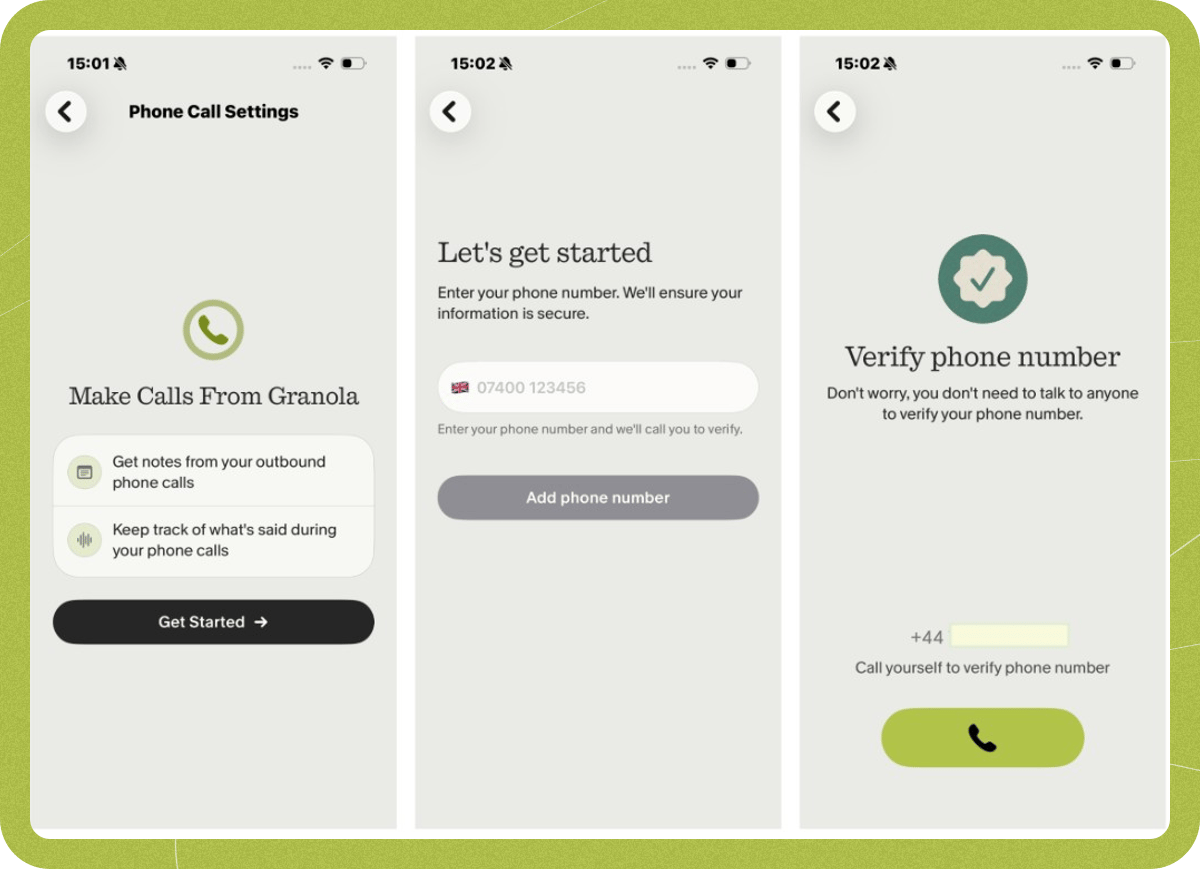
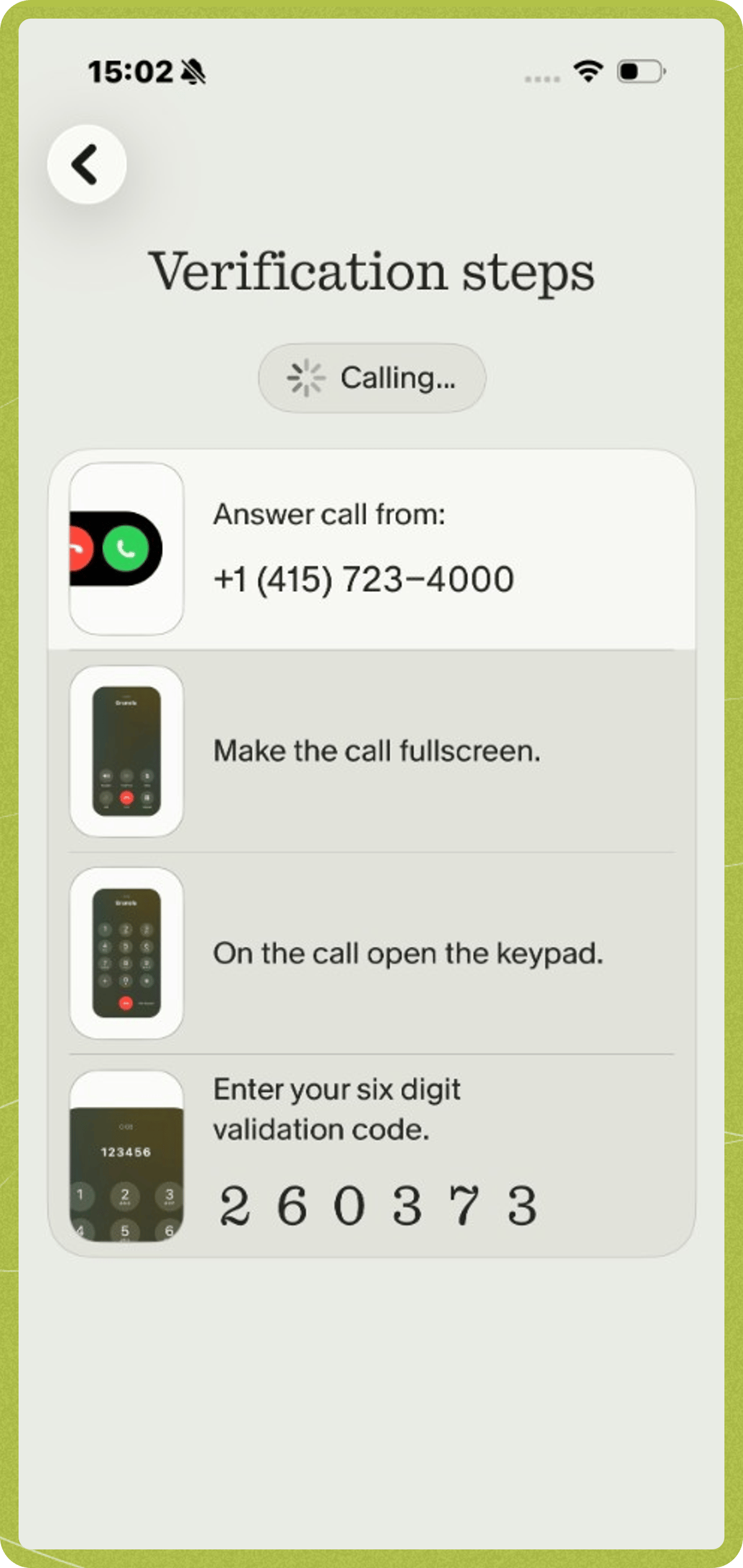
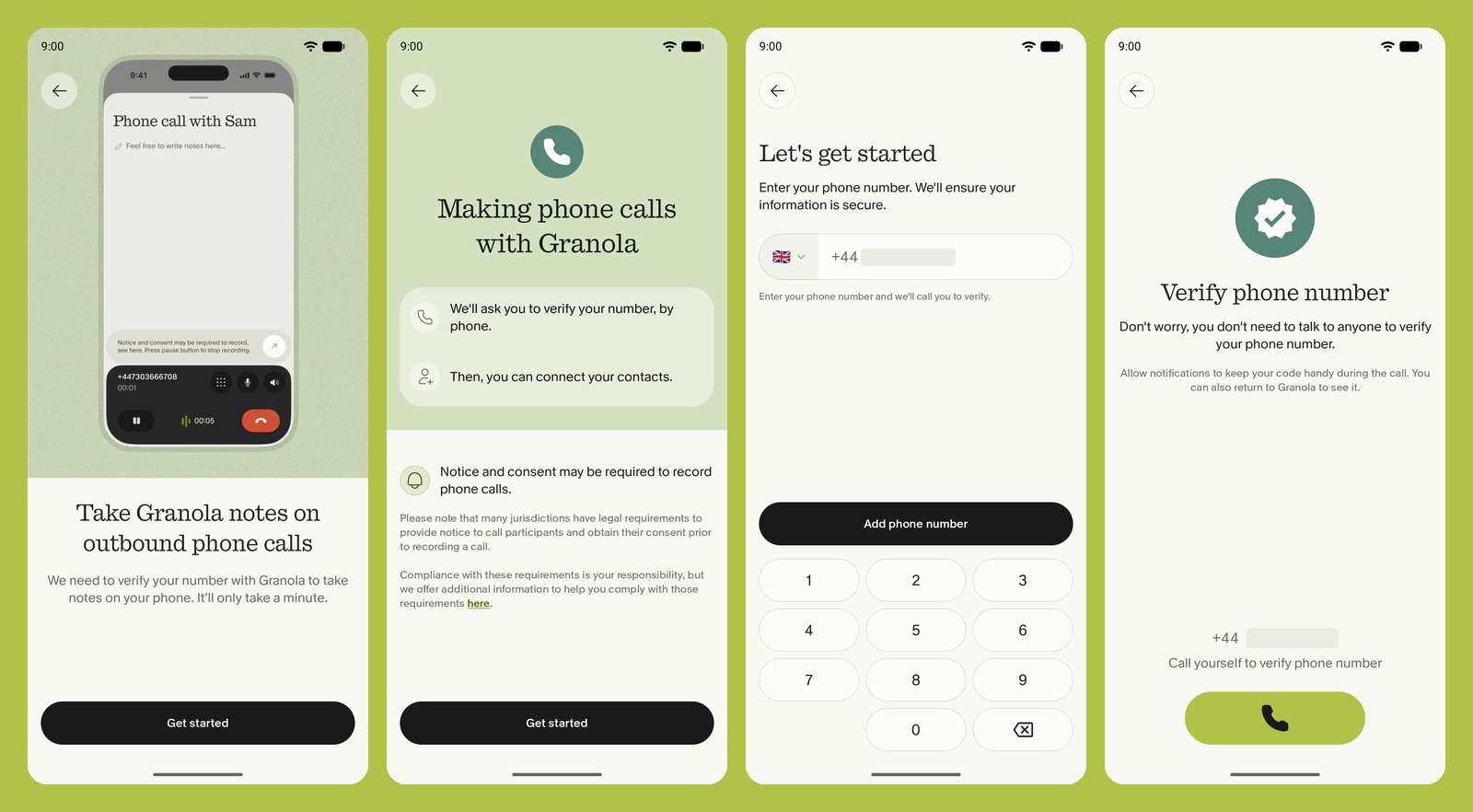
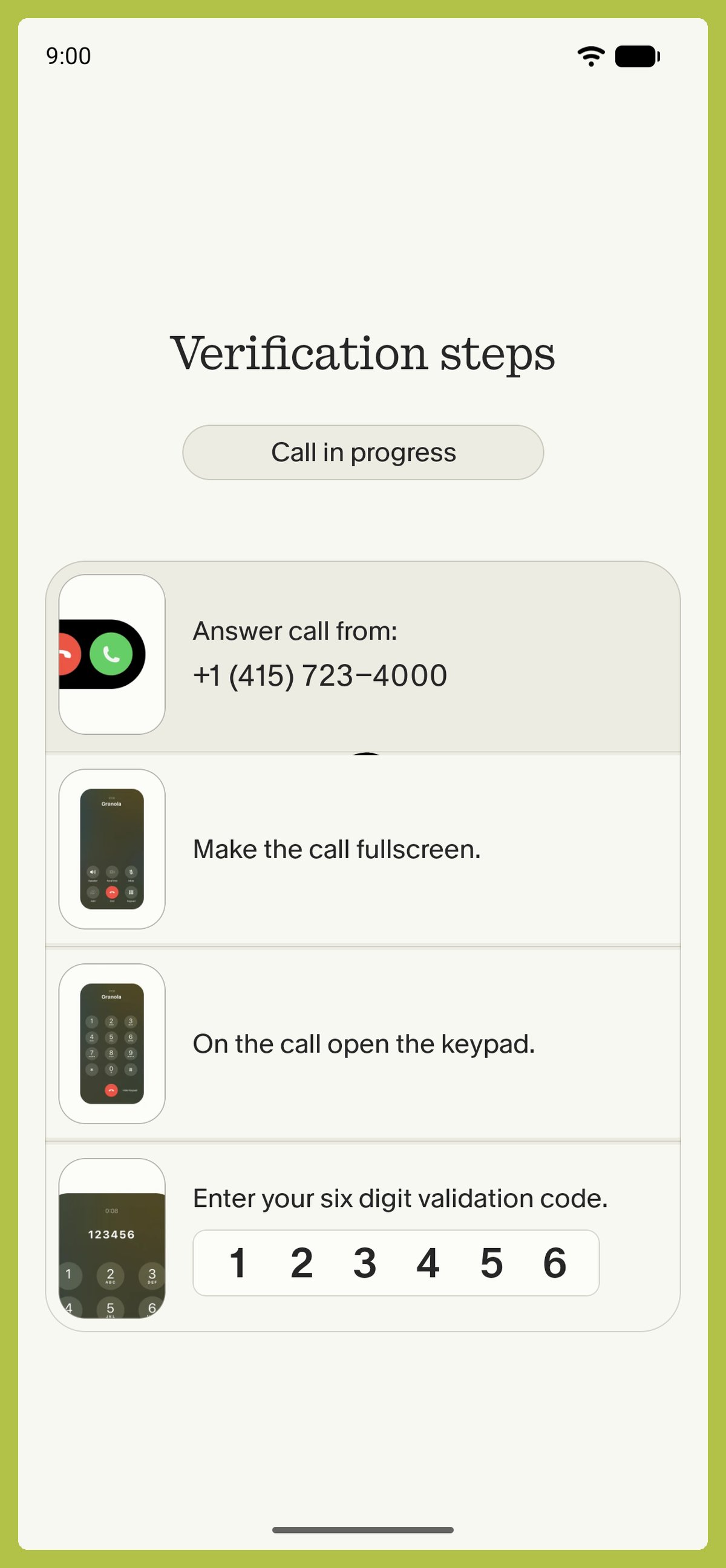
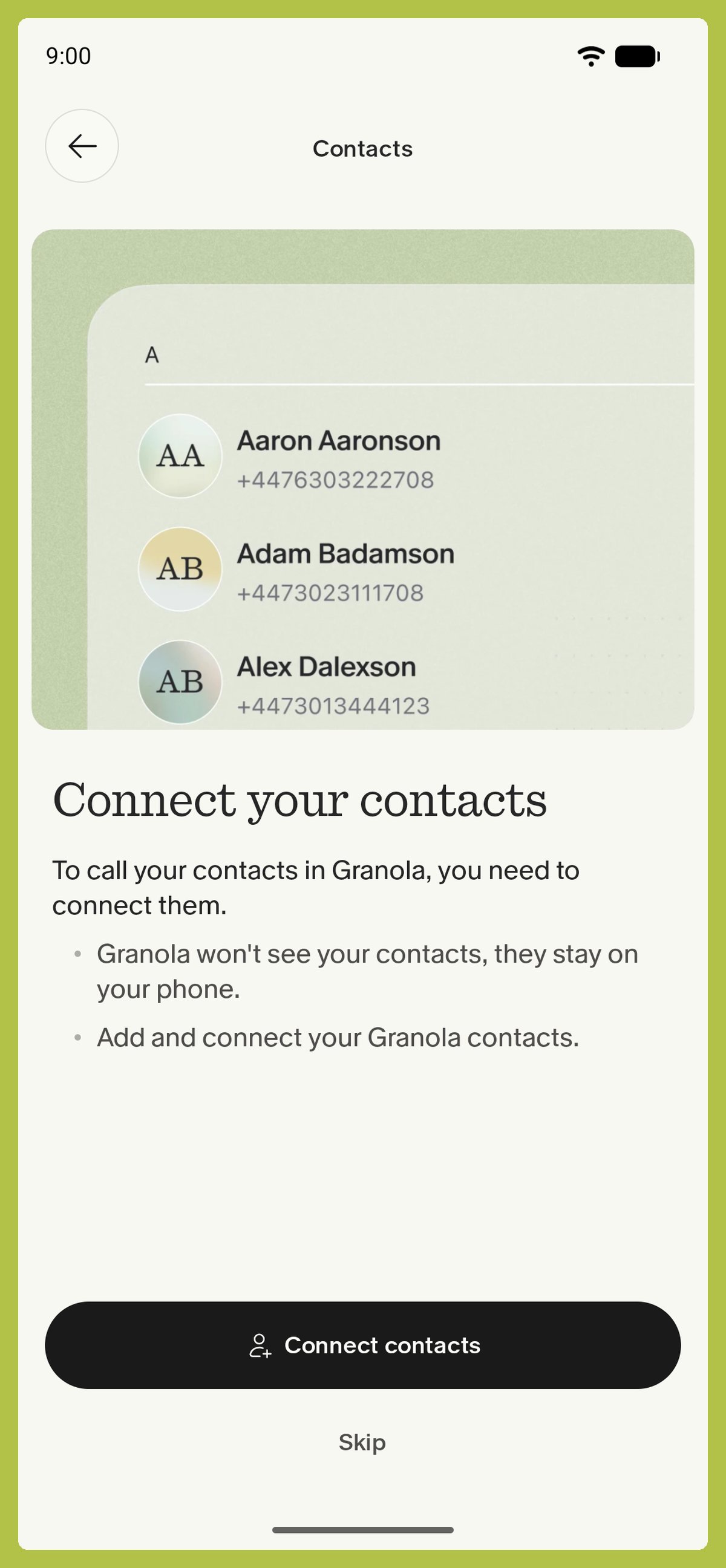
How to use
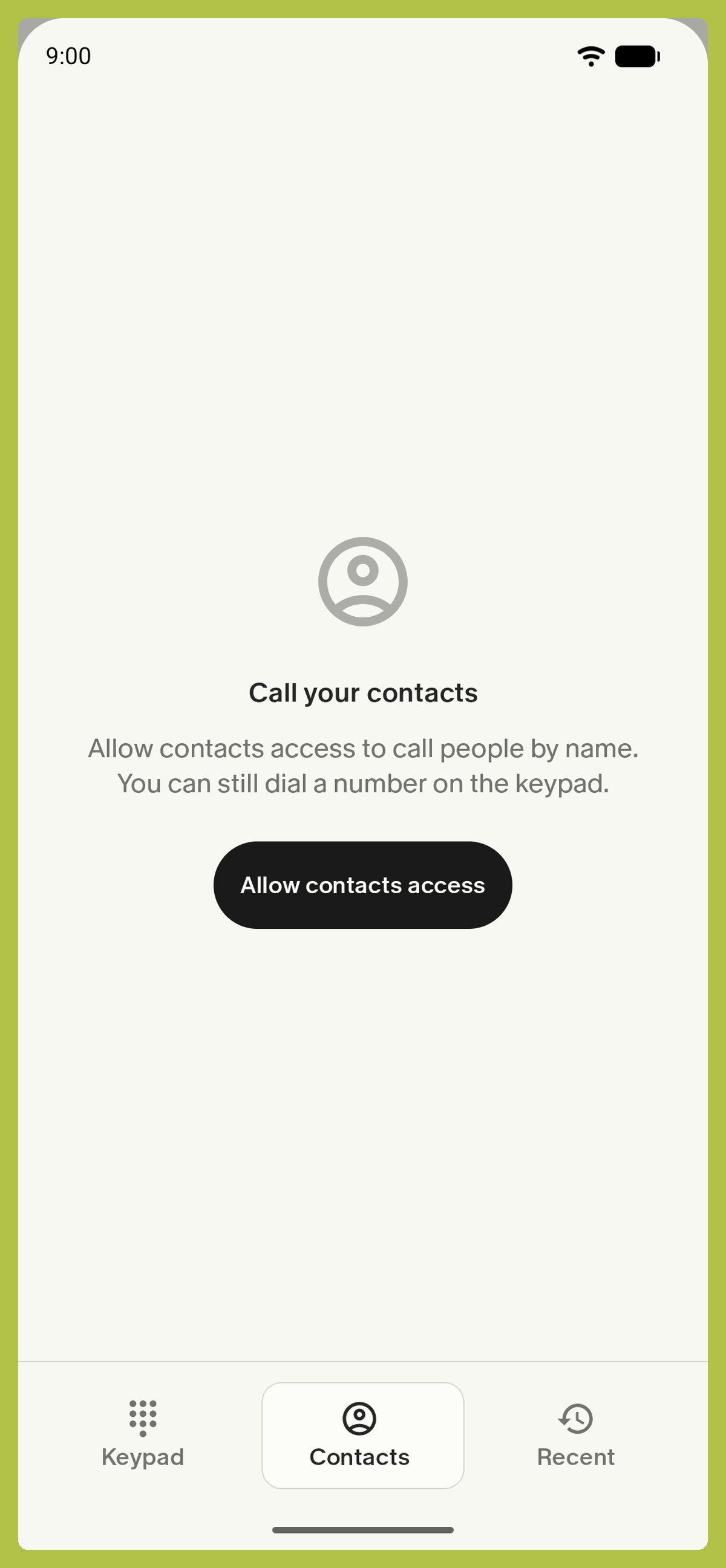
Make an outbound call by selecting one of your contacts or dialing a phone number. The person you call sees the phone number you registered during setup as the caller ID. Granola doesn’t charge for these calls. They use Wi-Fi or mobile data rather than your phone plan’s calling minutes, so standard carrier data rates may apply. On Android, the dialer has Keypad, Contacts, and Recent tabs. Your first call asks for microphone access (and nearby devices access on Android 12 and later for Bluetooth headsets). If you’ve verified more than one number, a Calling from pill above the keypad lets you choose the caller ID. During a call, tap the pause button to stop note-taking without ending the call.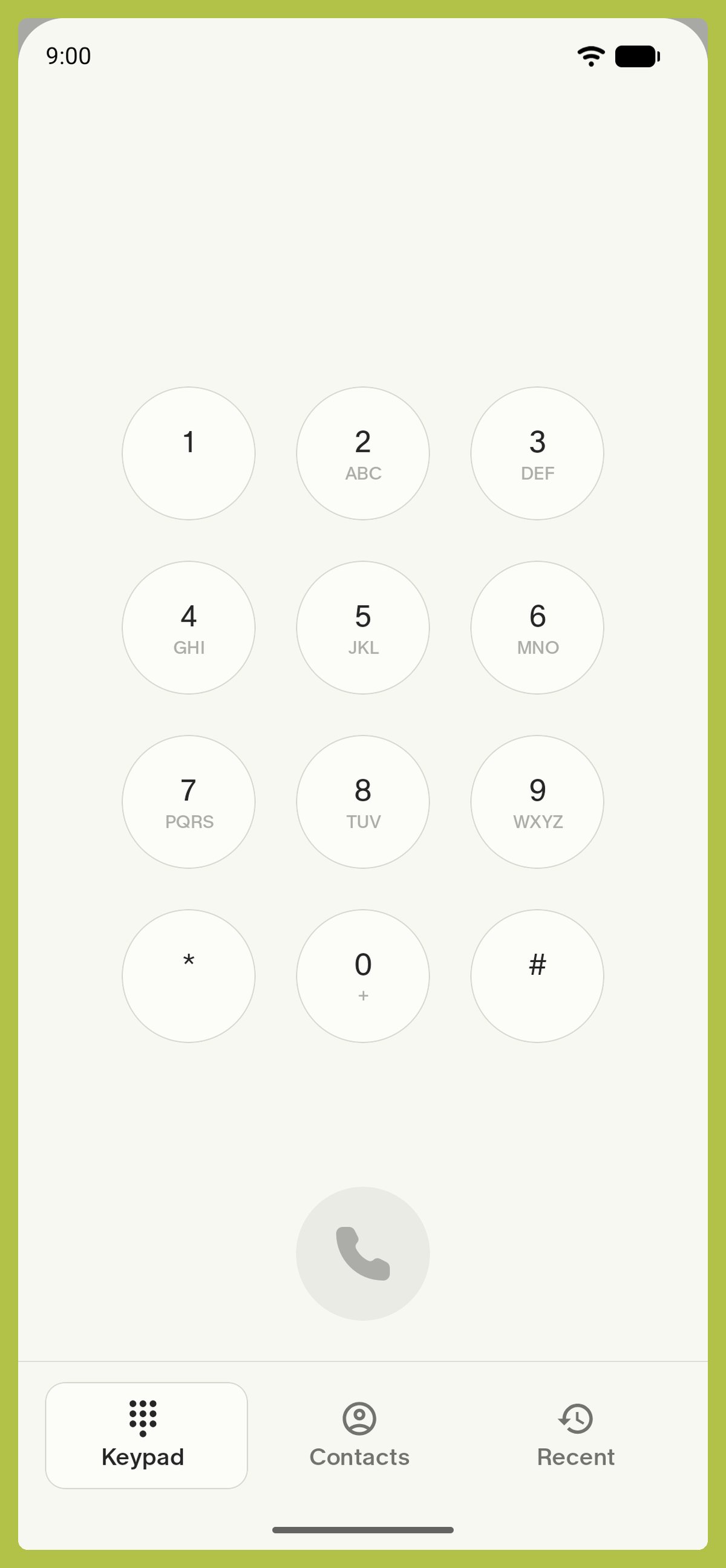
Updating contacts
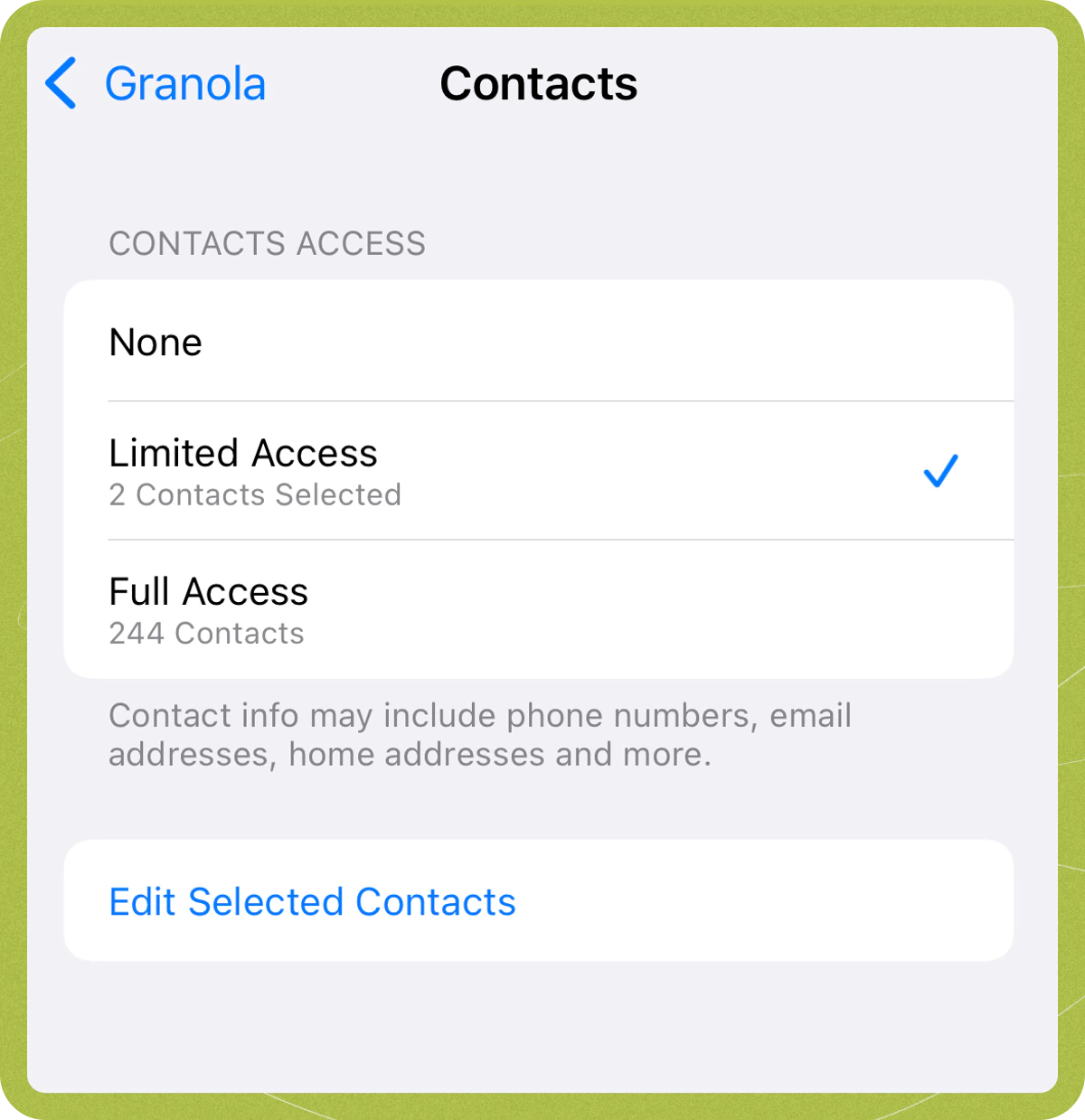
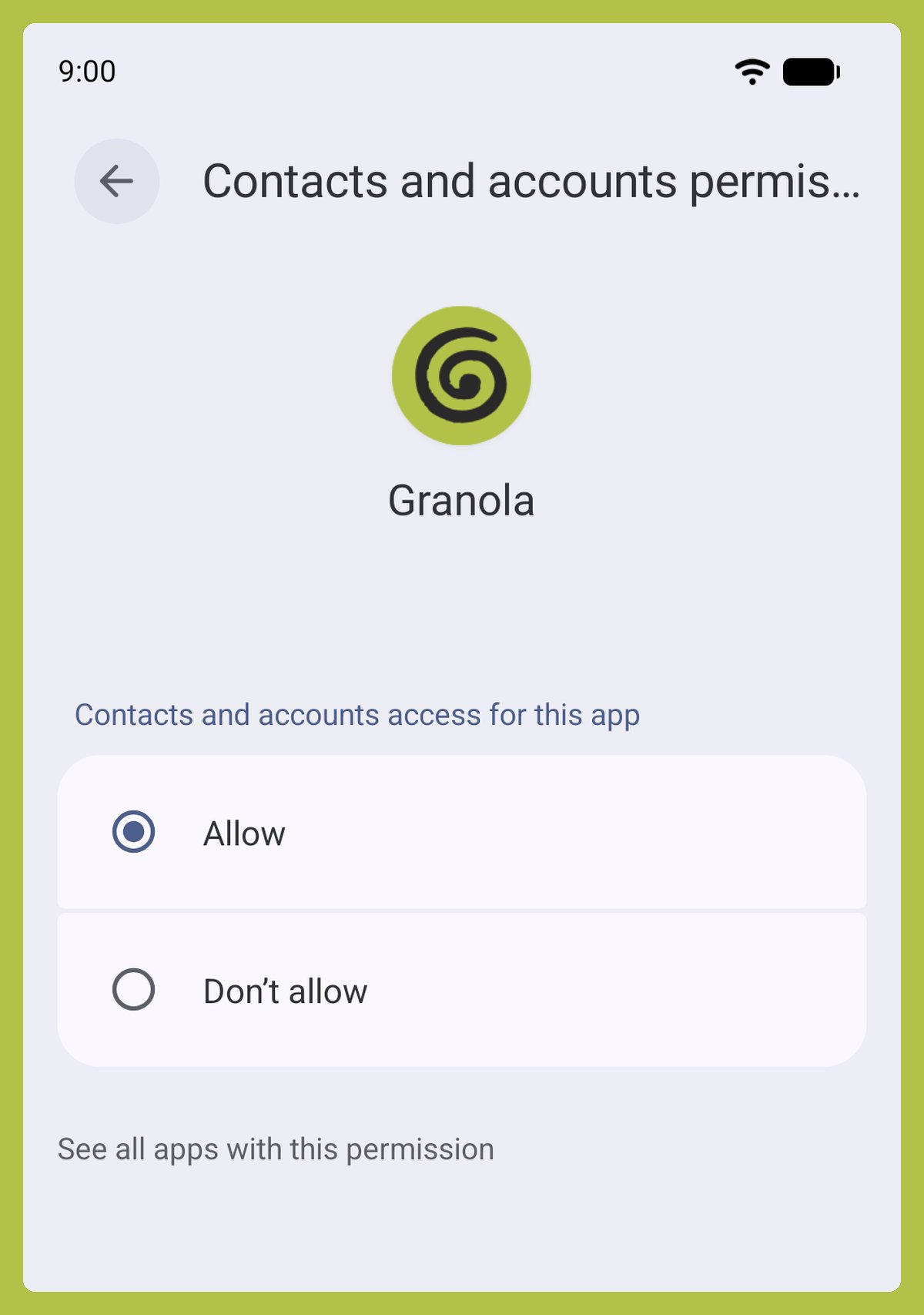
If you skipped connecting contacts during setup, you can grant access later:- iOS
- Android
- Open Settings on your iOS device.
- Select Granola.
-
Tap Contacts and choose Limited Access or Full Access. To update limited access, tap Edit Selected Contacts.
Inbound calls
Due to iOS and Android platform limitations, Granola can’t transcribe inbound phone calls. The best workaround is to ask the caller if you can quickly call them back through Granola.Availability
Phone calls are currently available in the following countries and territories: Americas- United States
- Canada
- Mexico
- Argentina
- Brazil
- Chile
- Colombia
- Venezuela
- Costa Rica
- Puerto Rico
- United Kingdom
- Ireland
- France
- Germany
- Spain
- Italy
- Netherlands
- Belgium
- Austria
- Switzerland
- Portugal
- Poland
- Czech Republic
- Hungary
- Romania
- Greece
- Sweden
- Denmark
- Iceland
- Luxembourg
- Australia
- New Zealand
- Japan
- South Korea
- China
- Hong Kong
- Singapore
- India
- Malaysia
- South Africa
+91) phone numbers to other India (+91) phone numbers are not supported due to local telecom restrictions. You can still call international numbers from India, and international numbers can call Indian numbers.
Calls to or from phone numbers on the Telstra network in Australia are not currently supported due to a Telstra carrier restriction.
If you try to call a number in an unsupported region, Granola displays an error message indicating that calls to that region are not currently available.
Troubleshooting
Adjust your spam settings
Adjust your spam settings
If you’re not receiving verification calls, your phone or carrier’s spam filtering may be blocking them.
1. Check carrier-level spam filtering
- Check whether your carrier offers spam-filtering settings and disable it or allowlist the verification number (
+1 (415) 723-4000).
2. Adjust iOS spam settings
- Open Settings on your iOS device.
- Select Phone > Call Blocking & Identification.
- Turn off any spam-filtering apps or settings that might block calls.
- Add
+1 (415) 723-4000to your contacts so iOS recognizes it.
3. Adjust Android spam settings
- Open your phone app’s settings and turn off spam call filtering (in the Google Phone app: Settings > Caller ID & spam > Filter spam calls).
- Turn off any other call-blocking apps that might block calls.
- Add
+1 (415) 723-4000to your contacts so Android recognizes it.
Multiple Granola accounts
Multiple Granola accounts
You can only register a phone number to one Granola account at a time. To use phone calls on another Granola account, remove the number from your original account first: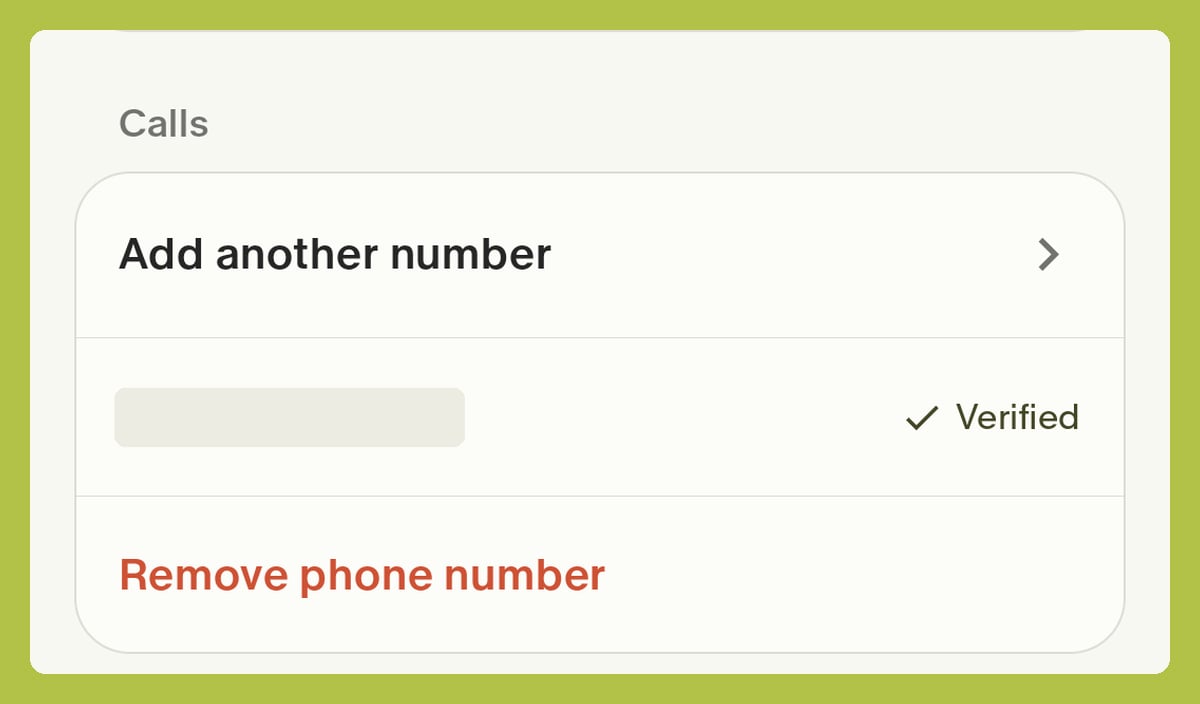
- iOS: Open Granola Settings > Phone Calls > Delete Phone Number.
- Android: Open your profile and go to Settings > Calls > Remove phone number.