> ## Documentation Index
> Fetch the complete documentation index at: https://docs.granola.ai/llms.txt
> Use this file to discover all available pages before exploring further.
# Calendar sync
> Troubleshoot Granola calendar sync. Fix Google Calendar or Outlook connection issues. See upcoming meetings.
## **How Granola Works with Calendars**
Granola integrates with both Google Calendar and Microsoft Outlook. Events from your connected calendar will be pulled through to Granola. You can sign in with either your Google or Microsoft account to connect your calendar. See below for troubleshooting calendar sync issues.
If you're using Granola for iPhone and want to change the calendars that show up in your upcoming meetings, follow these instructions in Granola on your computer. Any changes made via Granola on macOS/Windows will sync to your iPhone.
We'd expect your Granola home screen to look something like this:
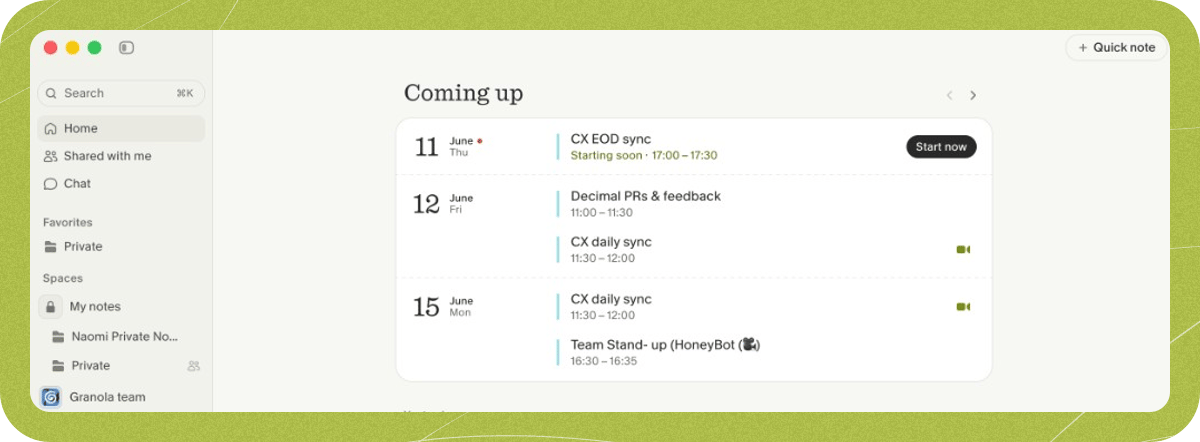 Not seeing the above as you expect? Follow the steps below.
# **Troubleshooting**
Make sure that:
* You can see events in your calendar ([Google Calendar](http://calendar.google.com "http://calendar.google.com") or [Outlook Calendar](https://outlook.office.com/calendar "https://outlook.office.com/calendar")) for the email address you're using to log in to Granola
* If you click the cog next to 'Coming Up', the right calendars are selected
If the above look right, it's likely that Granola doesn't have calendar permissions. To re-trigger the calendar permission prompt:
* Sign out of Granola by clicking the menu in the bottom left > Settings > Sign out
* Sign back in - you'll be prompted to give calendar permissions again
Lastly, if you're still having issues, it's likely that your network or IT permissions are restricting the calendar from connecting. We recommend trying to:
* Disconnecting from a VPN or other networking tool
* Talking to your company IT team if relevant
If you're trying to share a calendar to Granola but can't see events, this likely means the calendar is not correctly shared to the email address you're using to log in to Granola. If the calendar you're sharing is from a different provider than the one you signed in with (e.g. sharing a Google Calendar when signed in with Microsoft), the events must appear in your sign-in provider's calendar — sharing to your email address alone isn't enough. For Google Calendar, [**see how to share your calendar here.**](https://support.google.com/calendar/answer/37082?hl=en "https://support.google.com/calendar/answer/37082?hl=en")
The shared calendar should appear as a checkbox to tick in your calendar settings. Granola pulls from the calendar for the email address you're signed in with, so can only see what's visible in that calendar.
Once you're sure those events are shared across:
* In Granola, click the cog next to 'Coming Up' to view the calendars that it is able to see from your connected account.
* This might take a couple of minutes to sync!
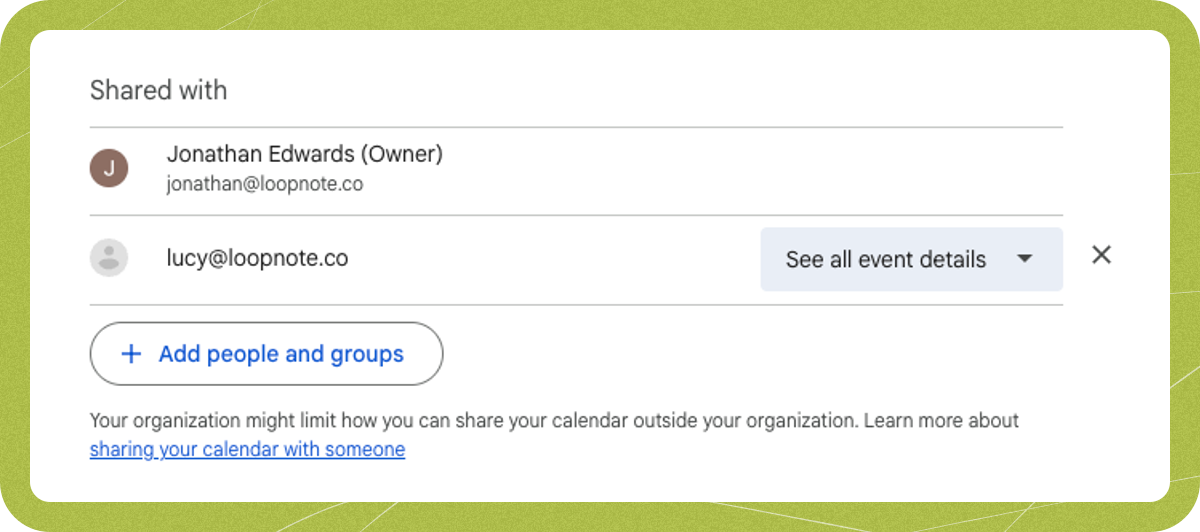
If you're still seeing issues, this may be due to the sharing permissions of the calendar (for instance, if your company has blocked sharing of calendars). You'll need to make sure that any calendars you're sharing to Granola have **permissions to see all event details** - Granola won't be able to see events if it's only able to see free/busy times:
Not seeing the above as you expect? Follow the steps below.
# **Troubleshooting**
Make sure that:
* You can see events in your calendar ([Google Calendar](http://calendar.google.com "http://calendar.google.com") or [Outlook Calendar](https://outlook.office.com/calendar "https://outlook.office.com/calendar")) for the email address you're using to log in to Granola
* If you click the cog next to 'Coming Up', the right calendars are selected
If the above look right, it's likely that Granola doesn't have calendar permissions. To re-trigger the calendar permission prompt:
* Sign out of Granola by clicking the menu in the bottom left > Settings > Sign out
* Sign back in - you'll be prompted to give calendar permissions again
Lastly, if you're still having issues, it's likely that your network or IT permissions are restricting the calendar from connecting. We recommend trying to:
* Disconnecting from a VPN or other networking tool
* Talking to your company IT team if relevant
If you're trying to share a calendar to Granola but can't see events, this likely means the calendar is not correctly shared to the email address you're using to log in to Granola. If the calendar you're sharing is from a different provider than the one you signed in with (e.g. sharing a Google Calendar when signed in with Microsoft), the events must appear in your sign-in provider's calendar — sharing to your email address alone isn't enough. For Google Calendar, [**see how to share your calendar here.**](https://support.google.com/calendar/answer/37082?hl=en "https://support.google.com/calendar/answer/37082?hl=en")
The shared calendar should appear as a checkbox to tick in your calendar settings. Granola pulls from the calendar for the email address you're signed in with, so can only see what's visible in that calendar.
Once you're sure those events are shared across:
* In Granola, click the cog next to 'Coming Up' to view the calendars that it is able to see from your connected account.
* This might take a couple of minutes to sync!
If you're still seeing issues, this may be due to the sharing permissions of the calendar (for instance, if your company has blocked sharing of calendars). You'll need to make sure that any calendars you're sharing to Granola have **permissions to see all event details** - Granola won't be able to see events if it's only able to see free/busy times:
 Granola uses whatever time is stored in the calendar connected to your account.
If your meetings are showing at the wrong times in Granola, check your calendar settings ([Google Calendar](http://calendar.google.com "http://calendar.google.com") or [Outlook Calendar](https://outlook.office.com/calendar "https://outlook.office.com/calendar")) and verify what times your meetings are stored in there. Fixing the time zone logic in your calendar should reflect in Granola (note that it can take a few minutes to sync).
Granola works with **cloud-based Microsoft 365 (Exchange Online)** calendars. On-premises Exchange servers are not supported. If you use Outlook with an Exchange server that isn't Microsoft 365, calendar sync may not be available. For connection issues with Microsoft 365, try signing out of Granola and [signing back in with Microsoft](/help-center/signing-in-and-connecting-your-calendar#sign-in-with-microsoft); you'll be prompted again for calendar permissions. If your org requires admin approval, your IT admin must approve Granola in the Microsoft admin portal — see [Sign in with Microsoft](/help-center/sign-in-with-microsoft#admins-how-to-approve-granola).
Outlook public folder calendars use a different system than regular calendars, so unfortunately Granola can't access them — even if your organization uses cloud-based Microsoft 365.
If events used to show up but have stopped, or you've changed calendar sharing:
1. Sign out of Granola (workspace name in bottom-left > **Settings** > **Sign out**).
2. Sign back in with the same Google or Microsoft account.
3. When prompted, grant calendar permissions again.
4. Open **Settings > Calendar** and ensure the right calendars are toggled on. Wait a few minutes for sync to catch up.
If your Google Calendar connection disconnects repeatedly after reconnecting, your organization's Google Workspace security policies may be revoking Granola's access. Ask your IT admin to allowlist Granola in the Google Workspace Admin Console under **Security > Access and data control > API controls > Manage third-party app access**.
Granola uses whatever time is stored in the calendar connected to your account.
If your meetings are showing at the wrong times in Granola, check your calendar settings ([Google Calendar](http://calendar.google.com "http://calendar.google.com") or [Outlook Calendar](https://outlook.office.com/calendar "https://outlook.office.com/calendar")) and verify what times your meetings are stored in there. Fixing the time zone logic in your calendar should reflect in Granola (note that it can take a few minutes to sync).
Granola works with **cloud-based Microsoft 365 (Exchange Online)** calendars. On-premises Exchange servers are not supported. If you use Outlook with an Exchange server that isn't Microsoft 365, calendar sync may not be available. For connection issues with Microsoft 365, try signing out of Granola and [signing back in with Microsoft](/help-center/signing-in-and-connecting-your-calendar#sign-in-with-microsoft); you'll be prompted again for calendar permissions. If your org requires admin approval, your IT admin must approve Granola in the Microsoft admin portal — see [Sign in with Microsoft](/help-center/sign-in-with-microsoft#admins-how-to-approve-granola).
Outlook public folder calendars use a different system than regular calendars, so unfortunately Granola can't access them — even if your organization uses cloud-based Microsoft 365.
If events used to show up but have stopped, or you've changed calendar sharing:
1. Sign out of Granola (workspace name in bottom-left > **Settings** > **Sign out**).
2. Sign back in with the same Google or Microsoft account.
3. When prompted, grant calendar permissions again.
4. Open **Settings > Calendar** and ensure the right calendars are toggled on. Wait a few minutes for sync to catch up.
If your Google Calendar connection disconnects repeatedly after reconnecting, your organization's Google Workspace security policies may be revoking Granola's access. Ask your IT admin to allowlist Granola in the Google Workspace Admin Console under **Security > Access and data control > API controls > Manage third-party app access**.