> ## Documentation Index
> Fetch the complete documentation index at: https://docs.granola.ai/llms.txt
> Use this file to discover all available pages before exploring further.
# Transfer notes between workspaces
> Move your meeting notes from one Granola workspace to another. Useful when changing teams or organizations.
This feature moves **all your notes** from your current workspace to another workspace you’re a member of. Use it when you’re switching teams, consolidating into one workspace, or moving to a personal workspace. You can’t transfer only some notes with this flow — for a few specific notes, use [Move to workspace](/help-center/workspaces#moving-notes-between-workspaces) on each note instead.
Looking to transfer notes from a different Granola account instead? See [Transfer notes between accounts](/help-center/transfer-notes-between-accounts).
## How to transfer your notes
To move your notes to a different workspace, follow these steps:
1. Click on your workspace name in the bottom left corner of the screen
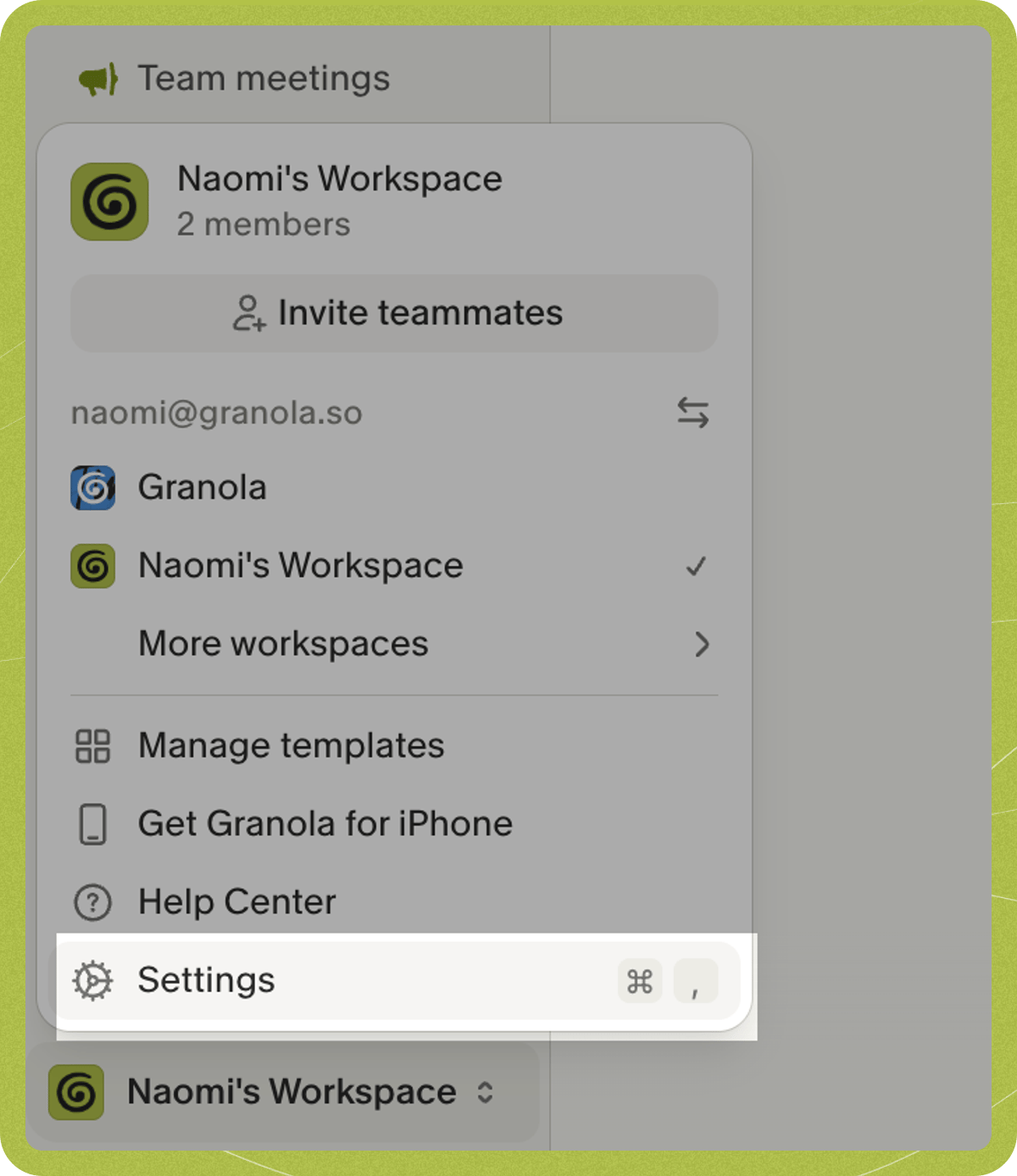 2. Select **Settings** from the menu
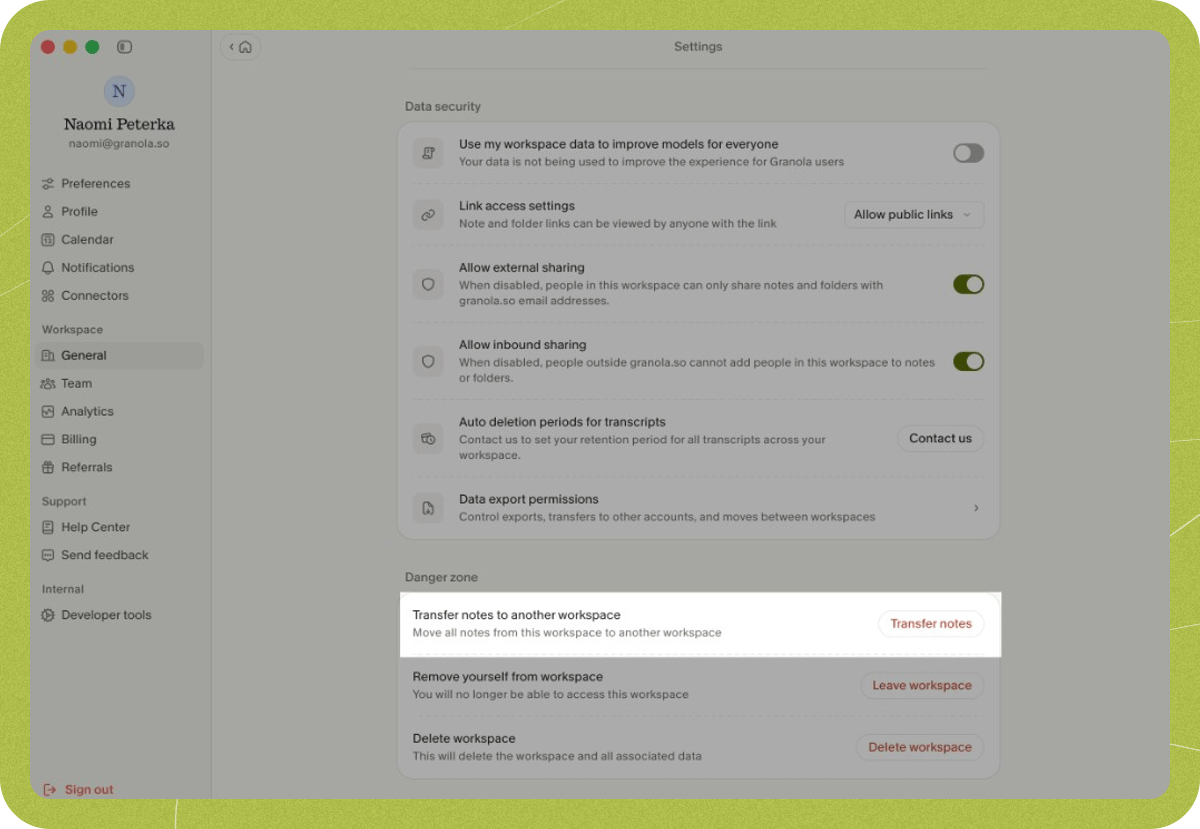
3. Click on **General** from the menu options on the left-hand side
4. Scroll down to the **Danger Zone** section
5. Find the option that says **Transfer notes to another workspace**
6. Click the **Transfer notes** button
2. Select **Settings** from the menu
3. Click on **General** from the menu options on the left-hand side
4. Scroll down to the **Danger Zone** section
5. Find the option that says **Transfer notes to another workspace**
6. Click the **Transfer notes** button
 7. Select which workspace you want to move your notes to from the dropdown menu
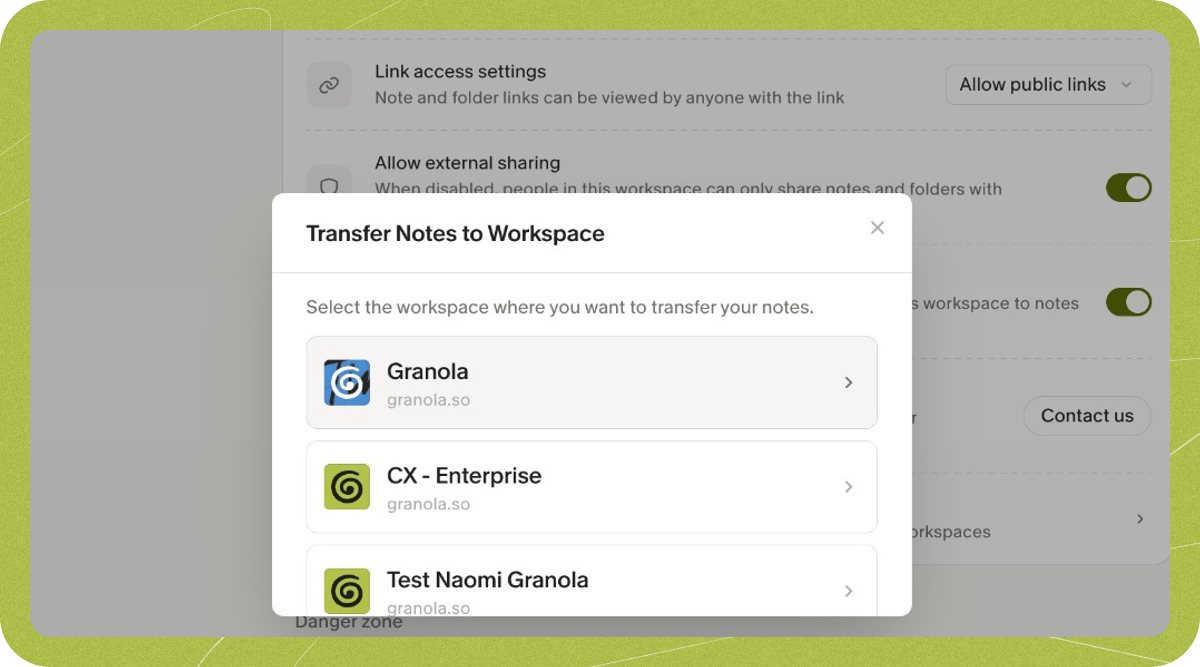 Once you complete these steps, **all** your notes in this workspace will be moved to the chosen workspace. If you only want to move certain notes, use the [Move to workspace](/help-center/workspaces#moving-notes-between-workspaces) option on each note (three dots on the note > Move to workspace) instead of this bulk transfer.
## Important limitations
**Subscriptions** — Your subscription stays with the original workspace. If you're moving to a different workspace, you'll need to cancel the subscription on the old workspace and subscribe on the destination workspace to keep accessing premium features.
**Folder organization** — While all your notes transfer safely, their folder structure doesn't come with them. Notes are removed from their folders during the transfer. You'll need to recreate your folders and reorganize your notes manually in the destination workspace.
**Templates** — Templates are not included in the transfer. If you want to use the same templates in the destination workspace, recreate them by clicking your workspace name in the bottom-left corner and selecting **Manage templates**.
## Permission requirements
Your workspace admin may have disabled the ability to transfer notes between workspaces for security reasons. If you find that you cannot access the transfer feature, you’ll need to ask your admin to enable it.
### For workspace admins
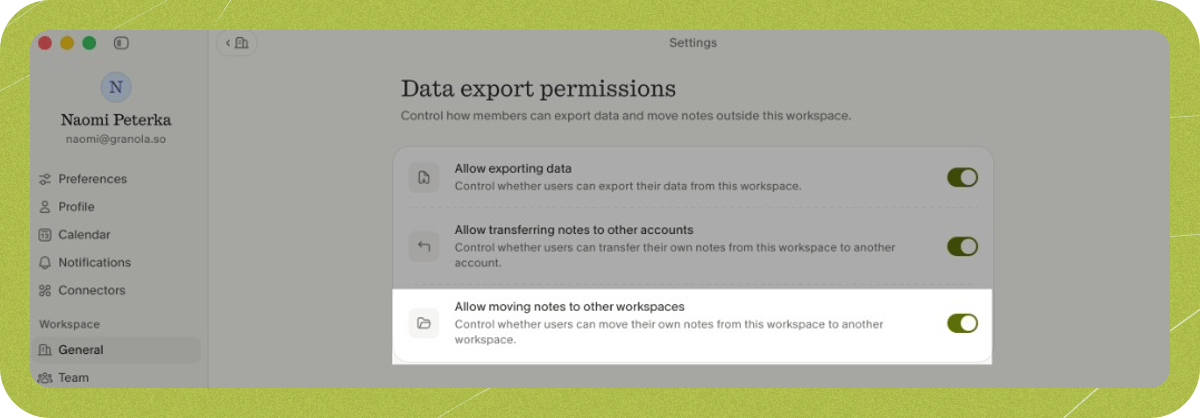
If a user needs to transfer notes but the feature is disabled, you can enable it by:
1. Go to your **Settings**, and select **General**
2. Under **Data security**, click on **Data export permissions**
3. Toggle on the option for **Allow moving notes to other workspaces**
Once you complete these steps, **all** your notes in this workspace will be moved to the chosen workspace. If you only want to move certain notes, use the [Move to workspace](/help-center/workspaces#moving-notes-between-workspaces) option on each note (three dots on the note > Move to workspace) instead of this bulk transfer.
## Important limitations
**Subscriptions** — Your subscription stays with the original workspace. If you're moving to a different workspace, you'll need to cancel the subscription on the old workspace and subscribe on the destination workspace to keep accessing premium features.
**Folder organization** — While all your notes transfer safely, their folder structure doesn't come with them. Notes are removed from their folders during the transfer. You'll need to recreate your folders and reorganize your notes manually in the destination workspace.
**Templates** — Templates are not included in the transfer. If you want to use the same templates in the destination workspace, recreate them by clicking your workspace name in the bottom-left corner and selecting **Manage templates**.
## Permission requirements
Your workspace admin may have disabled the ability to transfer notes between workspaces for security reasons. If you find that you cannot access the transfer feature, you’ll need to ask your admin to enable it.
### For workspace admins
If a user needs to transfer notes but the feature is disabled, you can enable it by:
1. Go to your **Settings**, and select **General**
2. Under **Data security**, click on **Data export permissions**
3. Toggle on the option for **Allow moving notes to other workspaces**
 ## Troubleshooting
Go to **Settings > Workspace > General** (workspace name in bottom-left > Settings > General under the Workspace heading). The Transfer Notes button is in the **Danger Zone** section at the bottom of the page.
Your workspace admin has disabled note transfers. Ask your admin to re-enable it — they can do this by toggling on **Allow moving notes to other workspaces** in **Settings > General > Data security > Data export permissions**.
You can only transfer to workspaces you're already a member of. To join or create one, click your workspace name in the bottom-left corner and select **Add workspace**, then try the transfer again.
## Troubleshooting
Go to **Settings > Workspace > General** (workspace name in bottom-left > Settings > General under the Workspace heading). The Transfer Notes button is in the **Danger Zone** section at the bottom of the page.
Your workspace admin has disabled note transfers. Ask your admin to re-enable it — they can do this by toggling on **Allow moving notes to other workspaces** in **Settings > General > Data security > Data export permissions**.
You can only transfer to workspaces you're already a member of. To join or create one, click your workspace name in the bottom-left corner and select **Add workspace**, then try the transfer again.