> ## Documentation Index
> Fetch the complete documentation index at: https://docs.granola.ai/llms.txt
> Use this file to discover all available pages before exploring further.
# Speaker attribution in Google Meet
> Set up Speaker Attribution for Google Meet so Granola can label who said what in your transcript.
Speaker attribution in Google Meet is available in the Granola desktop app on macOS and Windows. It requires the free [Granola browser extension](https://chromewebstore.google.com/detail/granola/opaadbjlebbbnmjjgdmdllingedoleml).
## Overview
[Speaker attribution](./speaker-attribution) helps Granola identify who is speaking in a Google Meet call and show their Google Meet name in your transcript. Instead of seeing **Me** and **Them**, you may see each person's name above their parts of the conversation, including your own.
This works through the [Granola browser extension](https://chromewebstore.google.com/detail/granola/opaadbjlebbbnmjjgdmdllingedoleml). While Granola is transcribing a Google Meet call, the extension uses the speaker activity and participant names shown in Google Meet to match speech to transcript sections. The extension does not record audio or video.
## Before you start
You will need:
* The Granola desktop app on **macOS** or **Windows**, updated to the latest version
* A Google Meet call opened in a supported **Chrome or Chromium-based browser**, such as Google Chrome, Microsoft Edge, Arc, or Brave
* The Granola browser extension installed in the same browser profile you use for Google Meet
Speaker attribution only applies while Granola is actively transcribing a Google Meet call. It does not add names to older transcripts.
## Set up speaker attribution
1. Open the Granola desktop app.
2. If needed, manually refresh Granola by pressing **Cmd+R** on macOS or **Ctrl+R** on Windows.
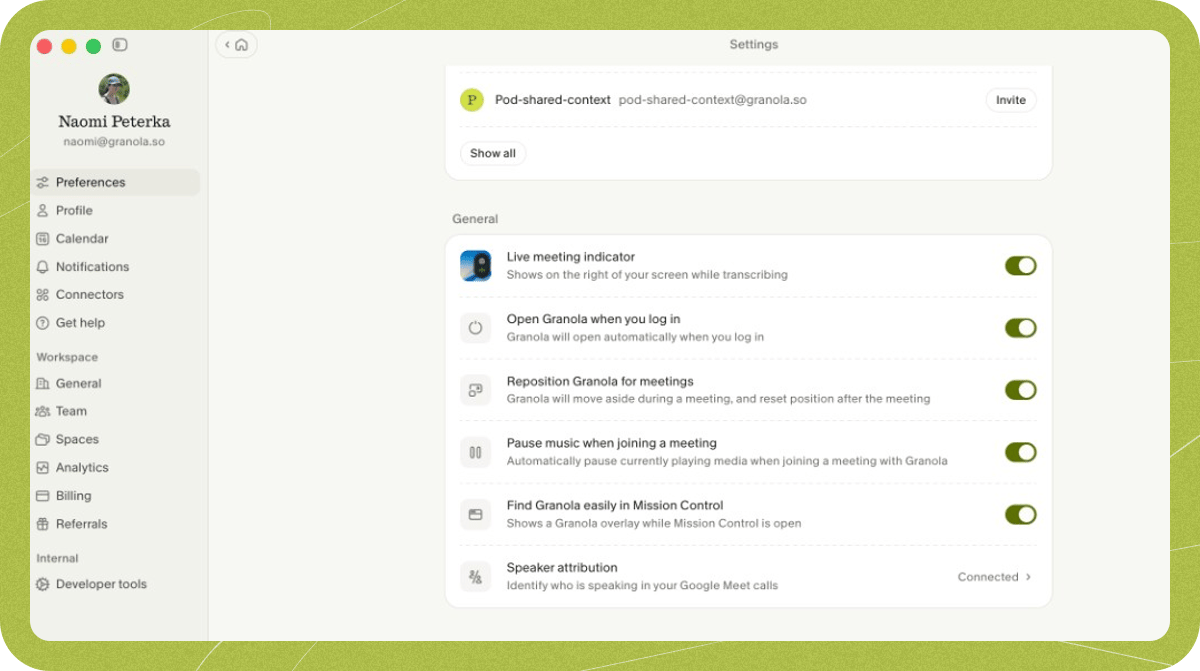
3. Go to **Settings > Preferences** and click **Speaker attribution**, at the bottom of the **General** section.
4. Next to **Google Meet**, click **Set up**. Your browser opens the [Granola browser extension](https://chromewebstore.google.com/detail/granola/opaadbjlebbbnmjjgdmdllingedoleml) page on the Chrome Web Store.
5. Add the extension to the browser profile you use for Google Meet calls. If your browser asks you to choose or switch profile, select that profile before installing.
6. Return to Granola. The **Google Meet** row shows **Waiting to connect**, then **Connected** once the extension is detected.
Once the extension is connected, speaker attribution is on — there is no separate toggle to enable.
## Use speaker attribution in a meeting
Start your Google Meet call in your supported browser and start transcription in Granola as normal. When Granola can identify someone speaking through Google Meet, their display name appears above their transcript bubbles — including your own Google Meet name.
For what speaker attribution can and cannot identify, and how it relates to privacy and in-meeting notice, see the [Speaker attribution overview](./speaker-attribution).
## Troubleshooting
The **Speaker attribution** entry is at the bottom of the **General** section in **Settings > Preferences**. If you cannot see it there:
1. Make sure Granola is updated to the latest version.
2. Press **Cmd+R** on macOS or **Ctrl+R** on Windows to refresh Granola.
3. Check **Settings > Preferences** again.
 1. Make sure the Granola desktop app is open.
2. Check which browser profile has the Granola extension installed. Extensions are installed separately for each browser profile.
3. Switch to that browser profile, then open a Google Meet page in it.
4. Return to **Speaker attribution** in **Settings > Preferences** and wait for the status to update to **Connected**.
5. If it remains disconnected, restart Granola and your browser, then try again.
If your browser is managed by your organization, your admin may need to allow or install the extension for you.
Check that:
* You are meeting in Google Meet in a supported Chrome or Chromium-based browser, rather than another meeting app or browser.
* The **Google Meet** row under **Speaker attribution** in **Settings > Preferences** shows **Connected**.
* The transcript was captured after speaker attribution was set up; names are not applied retrospectively.
Some transcript sections may not have a speaker name if Google Meet did not show a clear active speaker at that moment, or if participants were speaking through a shared meeting-room device.
Speaker attribution relies on the participant name and current-speaker signal shown by Google Meet. If a participant uses a different display name, multiple people use one room device, or people speak over each other, the label may not identify the individual correctly.
1. Make sure the Granola desktop app is open.
2. Check which browser profile has the Granola extension installed. Extensions are installed separately for each browser profile.
3. Switch to that browser profile, then open a Google Meet page in it.
4. Return to **Speaker attribution** in **Settings > Preferences** and wait for the status to update to **Connected**.
5. If it remains disconnected, restart Granola and your browser, then try again.
If your browser is managed by your organization, your admin may need to allow or install the extension for you.
Check that:
* You are meeting in Google Meet in a supported Chrome or Chromium-based browser, rather than another meeting app or browser.
* The **Google Meet** row under **Speaker attribution** in **Settings > Preferences** shows **Connected**.
* The transcript was captured after speaker attribution was set up; names are not applied retrospectively.
Some transcript sections may not have a speaker name if Google Meet did not show a clear active speaker at that moment, or if participants were speaking through a shared meeting-room device.
Speaker attribution relies on the participant name and current-speaker signal shown by Google Meet. If a participant uses a different display name, multiple people use one room device, or people speak over each other, the label may not identify the individual correctly.