> ## Documentation Index
> Fetch the complete documentation index at: https://docs.granola.ai/llms.txt
> Use this file to discover all available pages before exploring further.
# Notifications
> Configure Granola notifications for upcoming meetings, note completion, and calendar reminders.
Granola will remind you to take notes by prompting you with a notification in the top right corner of your screen. These are Granola's own pop-up windows rather than native macOS notifications.
This article walks through the different types of notification that Granola will show you in prep for your meetings.
# Calendar event notifications
Granola will send a notification **one minute** before a meeting in your calendar.
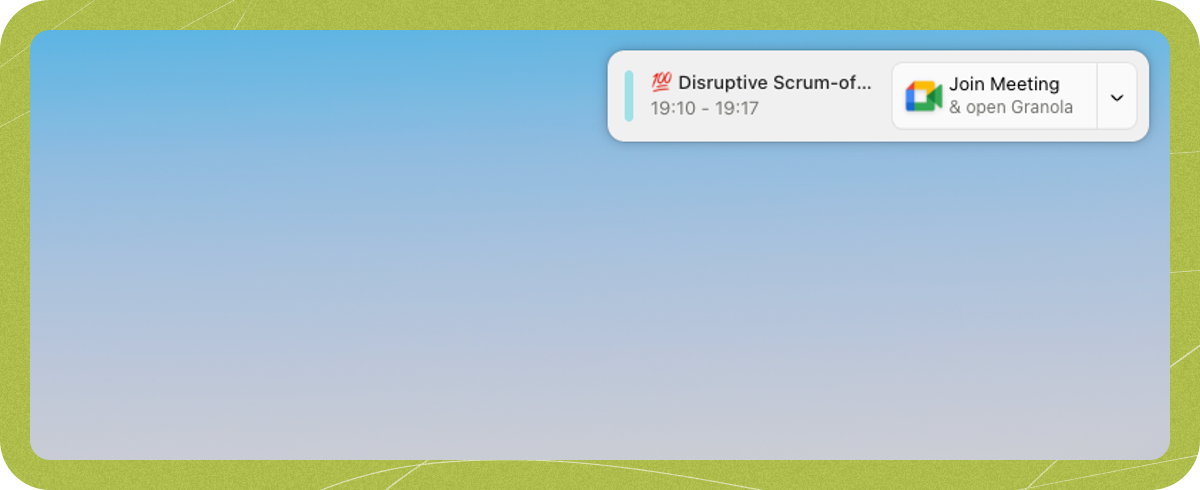 Clicking the notification will:
* Open the URL for the video call from the calendar event
* Open your Granola note for that meeting, and start transcribing
By default, Granola repositions its window when a meeting starts so you can keep taking notes alongside your call. You can turn this off with the **Reposition Granola for meetings** toggle in Settings > Preferences.
If you're not seeing a notification:
* Check that your calendar is synced correctly and events are showing in your 'Coming up' section
* Restart Granola
Calendar notifications only appear for events with 2 or more attendees.
# Ad-hoc call notifications
Granola can detect calls held in most platforms, even if it's not in your calendar. By detecting that your microphone is in use, Granola will prompt you to take notes.
Clicking the notification will:
* Open the URL for the video call from the calendar event
* Open your Granola note for that meeting, and start transcribing
By default, Granola repositions its window when a meeting starts so you can keep taking notes alongside your call. You can turn this off with the **Reposition Granola for meetings** toggle in Settings > Preferences.
If you're not seeing a notification:
* Check that your calendar is synced correctly and events are showing in your 'Coming up' section
* Restart Granola
Calendar notifications only appear for events with 2 or more attendees.
# Ad-hoc call notifications
Granola can detect calls held in most platforms, even if it's not in your calendar. By detecting that your microphone is in use, Granola will prompt you to take notes.
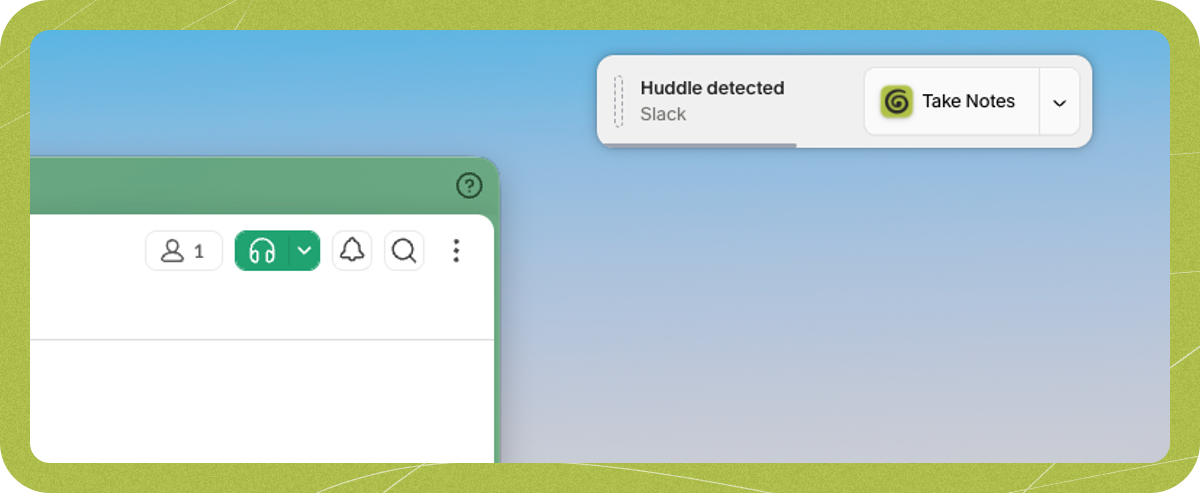 The notification title varies by platform: "Huddle detected" for Slack, "Call detected" for FaceTime or WhatsApp, and "Meeting detected" for other apps. The body shows the name of the app using your microphone, and includes a "Take Notes" button with the Granola icon. Ad-hoc notifications have a dashed line on the left side, while calendar notifications have a solid colored bar.
This might be useful for calls you jump onto spontaneously from your Desktop: for instance, a slack huddle, a Facetime, or a WhatsApp call.
If you start a meeting within 15 minutes after a scheduled meeting on your calendar, Granola will detect the call and then assume it's related to that calendar event, so the name of the event will be shown in the notification.
# Turning off notifications
Since Granola uses its own pop-up windows rather than native macOS notifications, notification settings are managed within the Granola app — not in macOS System Settings.
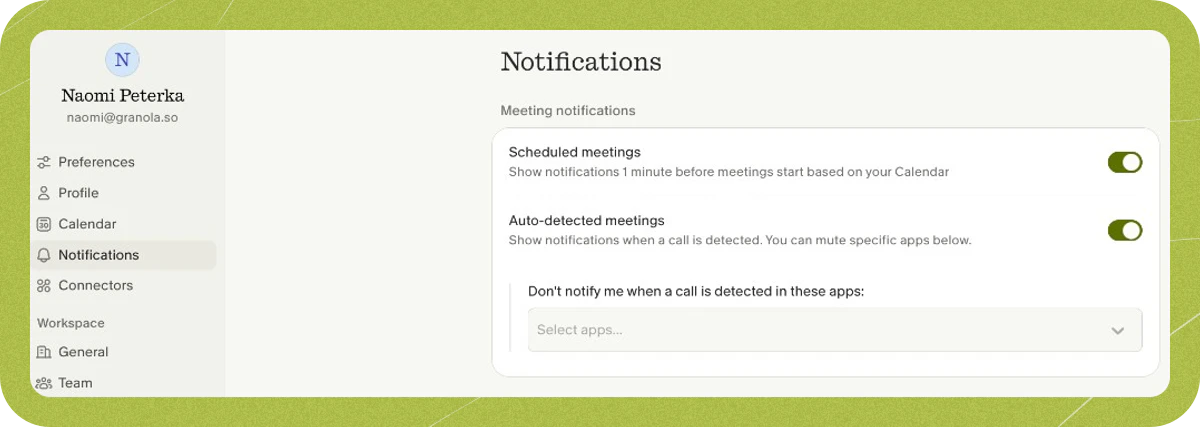
You can turn off notifications (completely, or per app), by going to your Settings and 'Notifications'
The notification title varies by platform: "Huddle detected" for Slack, "Call detected" for FaceTime or WhatsApp, and "Meeting detected" for other apps. The body shows the name of the app using your microphone, and includes a "Take Notes" button with the Granola icon. Ad-hoc notifications have a dashed line on the left side, while calendar notifications have a solid colored bar.
This might be useful for calls you jump onto spontaneously from your Desktop: for instance, a slack huddle, a Facetime, or a WhatsApp call.
If you start a meeting within 15 minutes after a scheduled meeting on your calendar, Granola will detect the call and then assume it's related to that calendar event, so the name of the event will be shown in the notification.
# Turning off notifications
Since Granola uses its own pop-up windows rather than native macOS notifications, notification settings are managed within the Granola app — not in macOS System Settings.
You can turn off notifications (completely, or per app), by going to your Settings and 'Notifications'