> ## Documentation Index
> Fetch the complete documentation index at: https://docs.granola.ai/llms.txt
> Use this file to discover all available pages before exploring further.
# Follow-up emails
> After an external meeting, Granola can draft a follow-up email for you - using your transcript, calendar, and past Gmail threads - so you can send it in a couple of clicks.
After an external meeting, Granola can automatically draft a follow-up email - using context from your transcript, calendar, and past Gmail threads - so you can send it in a couple of clicks.
 # What you'll need
* A **paid plan or active trial** (not the free plan). See [Subscriptions and billing](../managing-your-account/subscriptions-and-billing).
* Sign-in with **Google** (Gmail or Google Workspace). **Microsoft / Outlook** isn't supported yet.
* **Gmail connected** with read and send access (below).
# Connecting Gmail
This is a one-time setup.
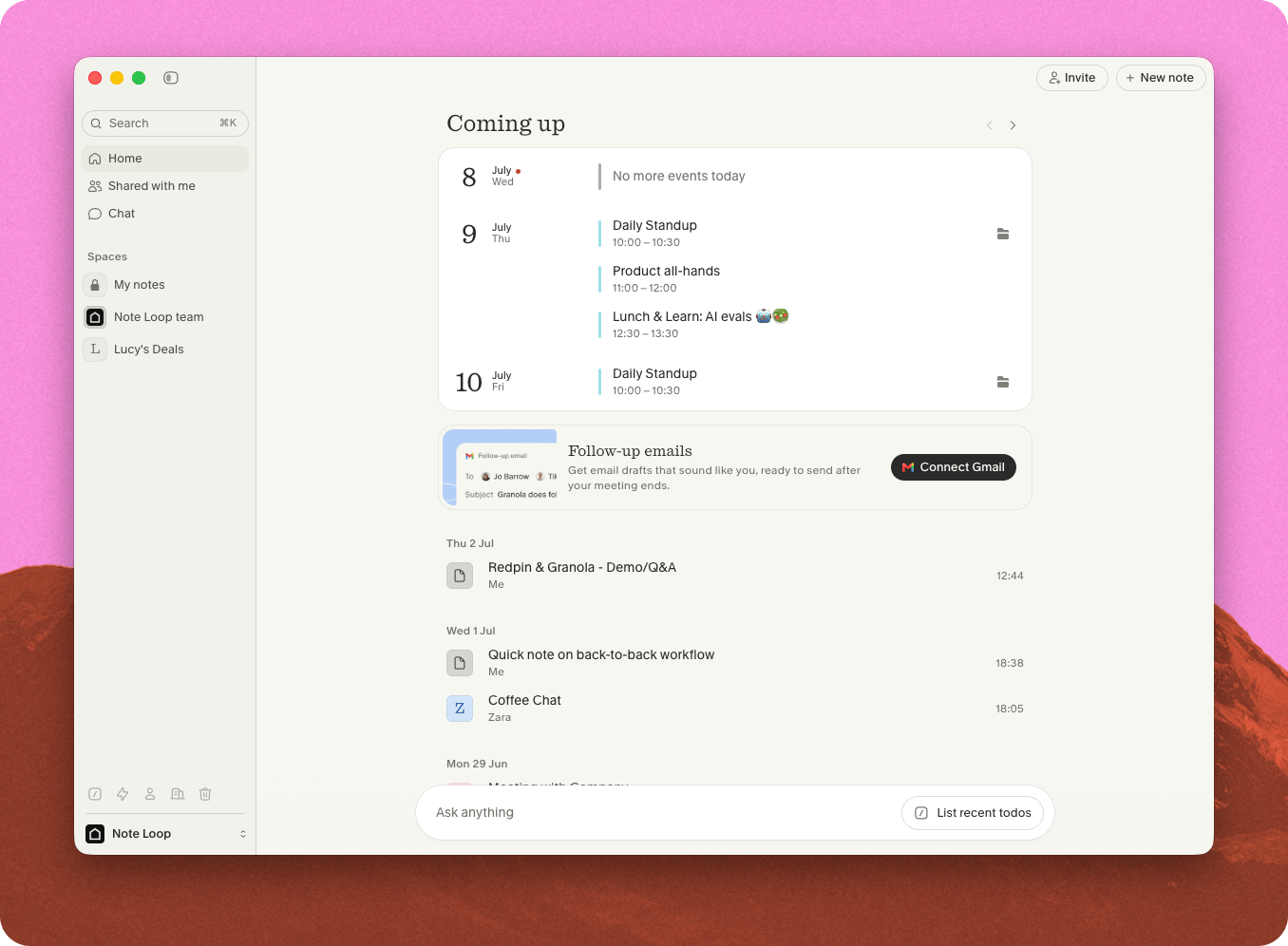
1. On the home screen, find the **Follow-up emails** banner, click **Connect Gmail**, then **Continue**.
2. In the browser, follow Google's prompts to let Granola **view and send email**.
3. Granola then drafts your **two most recent external meetings** so you have something to try right away.
# What you'll need
* A **paid plan or active trial** (not the free plan). See [Subscriptions and billing](../managing-your-account/subscriptions-and-billing).
* Sign-in with **Google** (Gmail or Google Workspace). **Microsoft / Outlook** isn't supported yet.
* **Gmail connected** with read and send access (below).
# Connecting Gmail
This is a one-time setup.
1. On the home screen, find the **Follow-up emails** banner, click **Connect Gmail**, then **Continue**.
2. In the browser, follow Google's prompts to let Granola **view and send email**.
3. Granola then drafts your **two most recent external meetings** so you have something to try right away.
 Connect the **same email you sign in to Granola with**. Aliases aren't supported, and a mismatch only shows up as an error when you try to send.
You can connect or disconnect Gmail any time in [Settings > Connectors > Gmail](https://grano.la/app?path=%2Fsettings%2Fintegrations%2Fgmail).
# How drafts are decided
A draft is generated when the meeting had **at least one external guest** and **no more than 10 people** total, and you meet the requirements above.
Even then, Granola stays quiet when an email doesn't make sense - for example when **Slack** is the active channel, a **colleague** owns the follow-up, or there's a **blocker** before any next steps. Drafts appear a minute or two after your notes finish generating.
# Finding and sending a draft
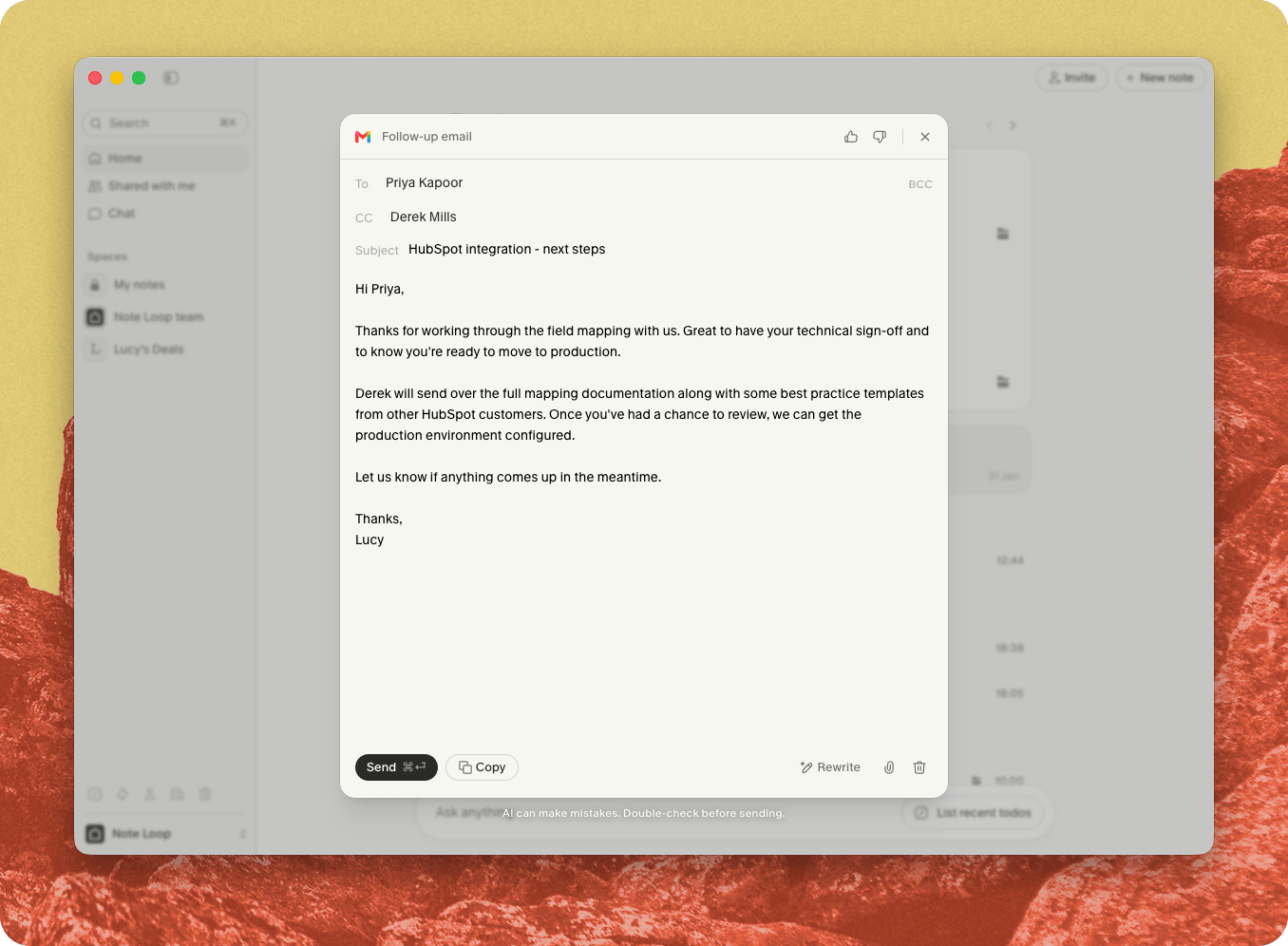
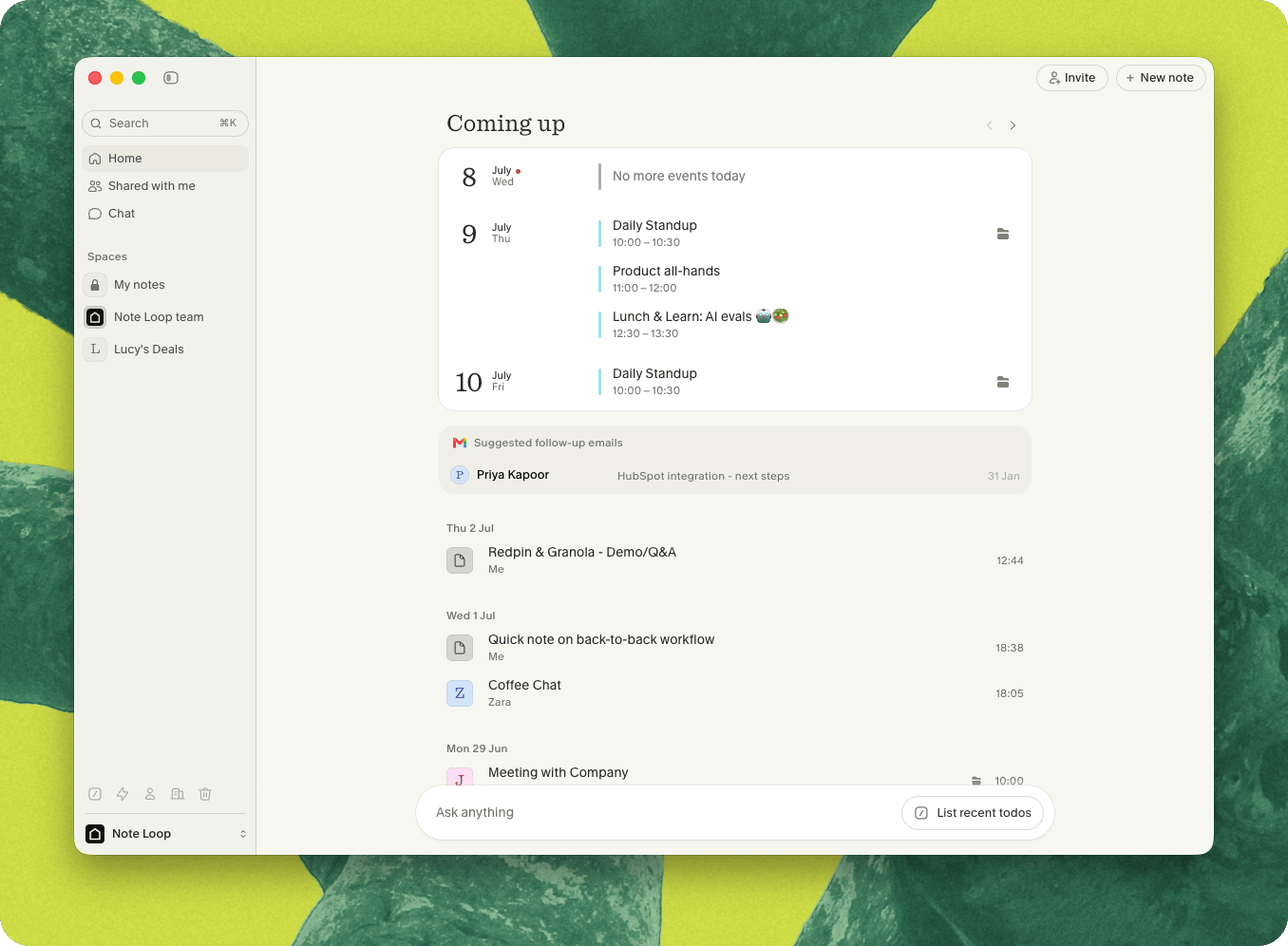
Open a draft from the **Suggested follow-up emails** section on the home screen, or the **View draft** prompt at the top of the meeting note.
In the editor you can edit the subject, body, and formatting; add **CC** / **BCC**; **attach** files (up to 25 MB total); and toggle your **Gmail signature**. If a draft contains a placeholder, fill it in before sending. Click **Send**, then **Undo** within about **10 seconds** to stop it going out.
Connect the **same email you sign in to Granola with**. Aliases aren't supported, and a mismatch only shows up as an error when you try to send.
You can connect or disconnect Gmail any time in [Settings > Connectors > Gmail](https://grano.la/app?path=%2Fsettings%2Fintegrations%2Fgmail).
# How drafts are decided
A draft is generated when the meeting had **at least one external guest** and **no more than 10 people** total, and you meet the requirements above.
Even then, Granola stays quiet when an email doesn't make sense - for example when **Slack** is the active channel, a **colleague** owns the follow-up, or there's a **blocker** before any next steps. Drafts appear a minute or two after your notes finish generating.
# Finding and sending a draft
Open a draft from the **Suggested follow-up emails** section on the home screen, or the **View draft** prompt at the top of the meeting note.
In the editor you can edit the subject, body, and formatting; add **CC** / **BCC**; **attach** files (up to 25 MB total); and toggle your **Gmail signature**. If a draft contains a placeholder, fill it in before sending. Click **Send**, then **Undo** within about **10 seconds** to stop it going out.
 Good to know:
* Draft edits are saved **on your device only** - they don't sync, and are cleared when you sign out.
* **Attachments aren't saved** - re-add them if you close the draft or quit before sending.
* Home-screen suggestions show for **48 hours**; sent and dismissed drafts are kept for **30 days**, then deleted.
# Turning them off
Go to [Settings > Preferences](https://grano.la/app?path=%2Fsettings%2Fpreferences) and turn off **Suggested follow-up emails** under **Features**. Your Gmail stays connected.
# Troubleshooting
Usually Granola decided an email wasn't needed - Slack is the channel, a colleague should follow up, or there's a blocker. Also check the meeting had an external guest, no more than 10 people, and that you're on a paid or trial plan with Gmail connected.
No. Once dismissed, a follow-up can't be restored.
The connected Gmail must match your Granola sign-in email exactly (aliases aren't supported). Reconnect with the matching address in [Settings > Connectors > Gmail](https://grano.la/app?path=%2Fsettings%2Fintegrations%2Fgmail).
That's expected - Gmail shares your Google sign-in. Sign back in with Google; your calendar reconnects and Gmail stays disconnected.
Not yet. Follow-up emails are currently Google-only.
If you've got other questions, use the Ask AI widget on this page or get in touch with our team.
Good to know:
* Draft edits are saved **on your device only** - they don't sync, and are cleared when you sign out.
* **Attachments aren't saved** - re-add them if you close the draft or quit before sending.
* Home-screen suggestions show for **48 hours**; sent and dismissed drafts are kept for **30 days**, then deleted.
# Turning them off
Go to [Settings > Preferences](https://grano.la/app?path=%2Fsettings%2Fpreferences) and turn off **Suggested follow-up emails** under **Features**. Your Gmail stays connected.
# Troubleshooting
Usually Granola decided an email wasn't needed - Slack is the channel, a colleague should follow up, or there's a blocker. Also check the meeting had an external guest, no more than 10 people, and that you're on a paid or trial plan with Gmail connected.
No. Once dismissed, a follow-up can't be restored.
The connected Gmail must match your Granola sign-in email exactly (aliases aren't supported). Reconnect with the matching address in [Settings > Connectors > Gmail](https://grano.la/app?path=%2Fsettings%2Fintegrations%2Fgmail).
That's expected - Gmail shares your Google sign-in. Sign back in with Google; your calendar reconnects and Gmail stays disconnected.
Not yet. Follow-up emails are currently Google-only.
If you've got other questions, use the Ask AI widget on this page or get in touch with our team.