> ## Documentation Index
> Fetch the complete documentation index at: https://docs.granola.ai/llms.txt
> Use this file to discover all available pages before exploring further.
# AI-enhanced notes
> How Granola's AI enhances your meeting notes. Your notes guide the AI to add context, summaries, and structure from the transcript.
Once Granola has recognised your call has ended, or you stop it manually, it will automatically generate enhanced notes.
# How Granola generates your notes
Granola uses a combination of the following inputs to create your notes:
* The transcription captured during the meeting
* Any 'raw' notes you took
* Information from the calendar event
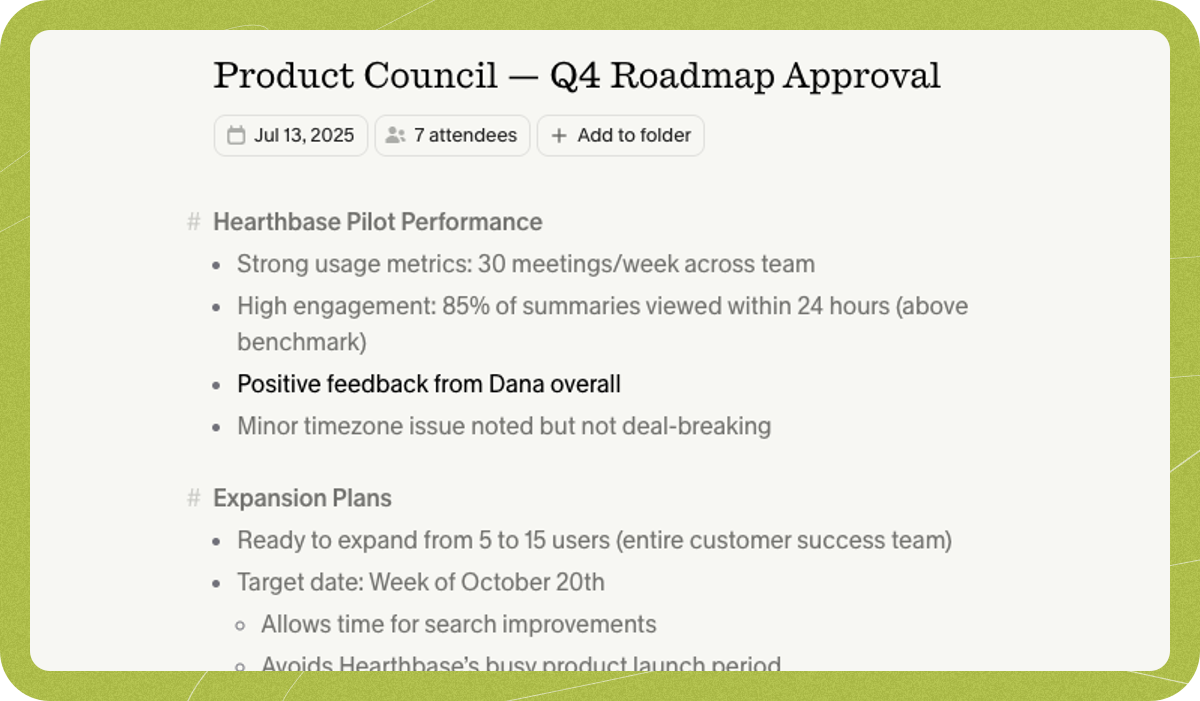
If you took raw notes, they will be highlighted in black, looking something like this:
 ## **Understanding where the enhanced notes come from**
You investigate your enhanced notes to see why Granola wrote a certain point:
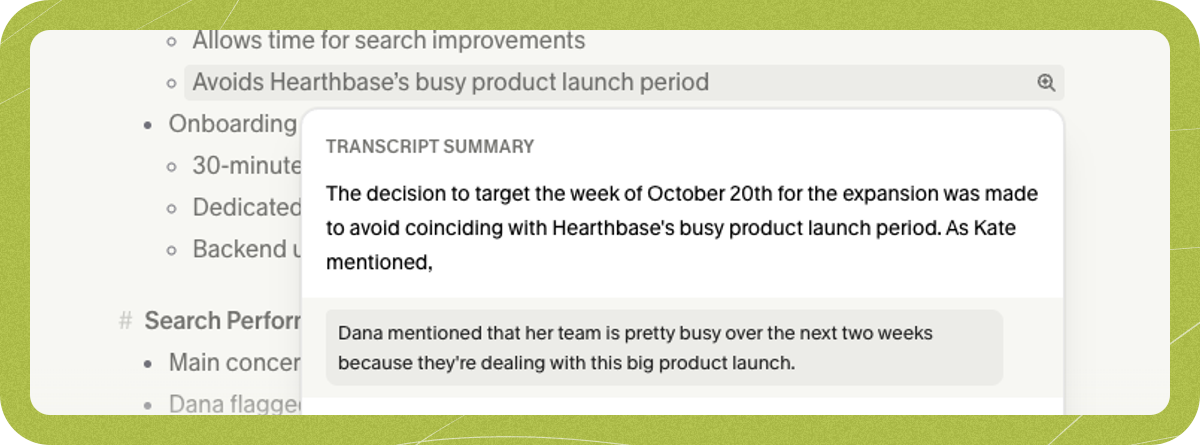
1. Use the magnifying glass beside each note to see where in the transcript or raw notes the note came from:
## **Understanding where the enhanced notes come from**
You investigate your enhanced notes to see why Granola wrote a certain point:
1. Use the magnifying glass beside each note to see where in the transcript or raw notes the note came from:
 2. Use Granola Chat (CMD+J/Ctrl+J) to ask about specific quotes or a summary of what you'd like to know
## What models does Granola use?
Granola uses a blend of different models, primarily OpenAI and Anthropic. We regularly assess and iterate on Granola's prompts, and welcome feedback on the quality of the notes.
# Editing the notes
Even after Granola has generated your meeting notes, you can still change them, either by editing the enhanced notes directly, or by returning to the raw notes and editing them there, before re-enhancing them.
Granola processes each meeting independently, so any edits you make to a note apply only to that specific note — they won't influence how Granola generates notes for future meetings. To get a consistent style across all your notes, use [custom templates](./customise-notes-with-templates "./customise-notes-with-templates") or update your profile settings.
## Regenerating your notes
If you're not a fan of Granola's first iteration, you can:
* Use Granola Chat to edit your notes with specific feedback - like "make the next steps section more detailed", or "reorganize the note chronologically"
* Choose a different template which might better fit the format you need
* Regenerate them using the same template with the 🔁 button in the template picker
You can regenerate any notes from the iPhone app by opening them in Granola on desktop (macOS or Windows app) and apply a new template/regenerate using the Auto template.
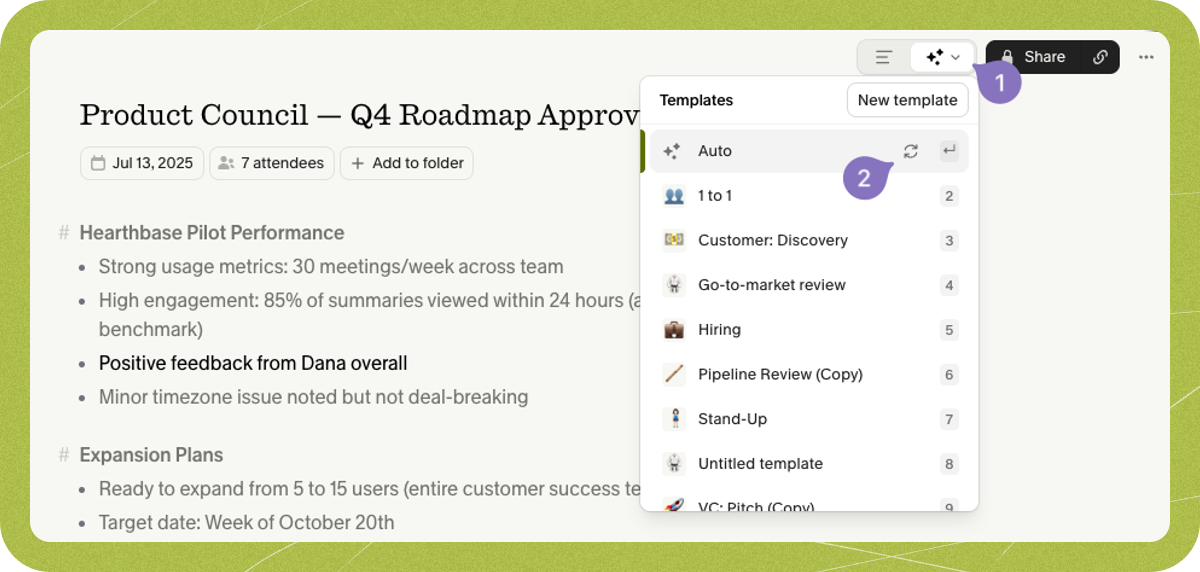
To pick a new template, click the '✨' button at the top-right of the notes window (1) and choose a different template, or regenerate using the existing template with the 🔁 button (2).
2. Use Granola Chat (CMD+J/Ctrl+J) to ask about specific quotes or a summary of what you'd like to know
## What models does Granola use?
Granola uses a blend of different models, primarily OpenAI and Anthropic. We regularly assess and iterate on Granola's prompts, and welcome feedback on the quality of the notes.
# Editing the notes
Even after Granola has generated your meeting notes, you can still change them, either by editing the enhanced notes directly, or by returning to the raw notes and editing them there, before re-enhancing them.
Granola processes each meeting independently, so any edits you make to a note apply only to that specific note — they won't influence how Granola generates notes for future meetings. To get a consistent style across all your notes, use [custom templates](./customise-notes-with-templates "./customise-notes-with-templates") or update your profile settings.
## Regenerating your notes
If you're not a fan of Granola's first iteration, you can:
* Use Granola Chat to edit your notes with specific feedback - like "make the next steps section more detailed", or "reorganize the note chronologically"
* Choose a different template which might better fit the format you need
* Regenerate them using the same template with the 🔁 button in the template picker
You can regenerate any notes from the iPhone app by opening them in Granola on desktop (macOS or Windows app) and apply a new template/regenerate using the Auto template.
To pick a new template, click the '✨' button at the top-right of the notes window (1) and choose a different template, or regenerate using the existing template with the 🔁 button (2).
 Granola comes with built-in templates, but you can also [create your own note templates](./customise-notes-with-templates "./customise-notes-with-templates"), with their own prompt and structure.
# Viewing your own notes
You can navigate back to your own notes by clicking the 3 horizontal lines. Editing these notes and then regenerating using the steps above will take your edits into consideration.
Granola comes with built-in templates, but you can also [create your own note templates](./customise-notes-with-templates "./customise-notes-with-templates"), with their own prompt and structure.
# Viewing your own notes
You can navigate back to your own notes by clicking the 3 horizontal lines. Editing these notes and then regenerating using the steps above will take your edits into consideration.