> ## Documentation Index
> Fetch the complete documentation index at: https://docs.granola.ai/llms.txt
> Use this file to discover all available pages before exploring further.
# Zapier
> Connect Granola to Zapier. Automate workflows: send notes to Slack, Notion, CRM, or 8,000+ apps.
Connect Granola to 8,000+ apps and automate what happens after a meeting
# Setting up your Zapier integration
Turn conversations into Zapier actions in a few clicks, connect Granola to your existing workflows and set up your own custom automations to get things done.
Zapier is only available for paid users, on our Desktop apps.
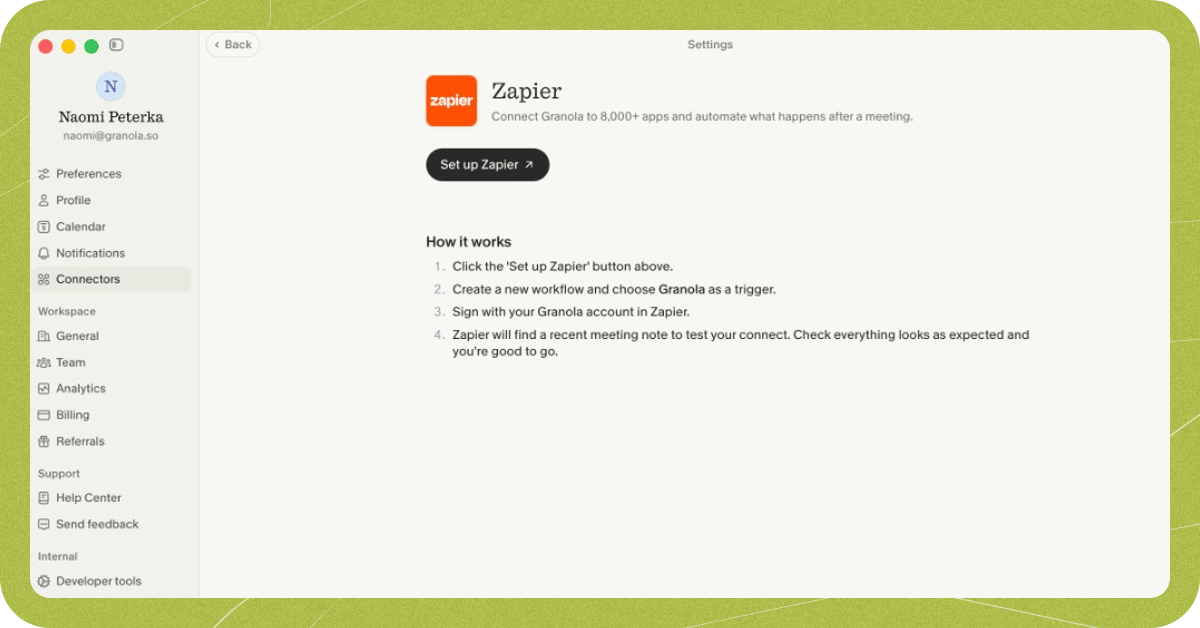
1. Set up Zapier from Granola settings
You can find all our Integrations in your Granola Settings, via your avatar in the bottom left. Here you’ll see Zapier as an integration:
 2. Search for Granola in Zapier
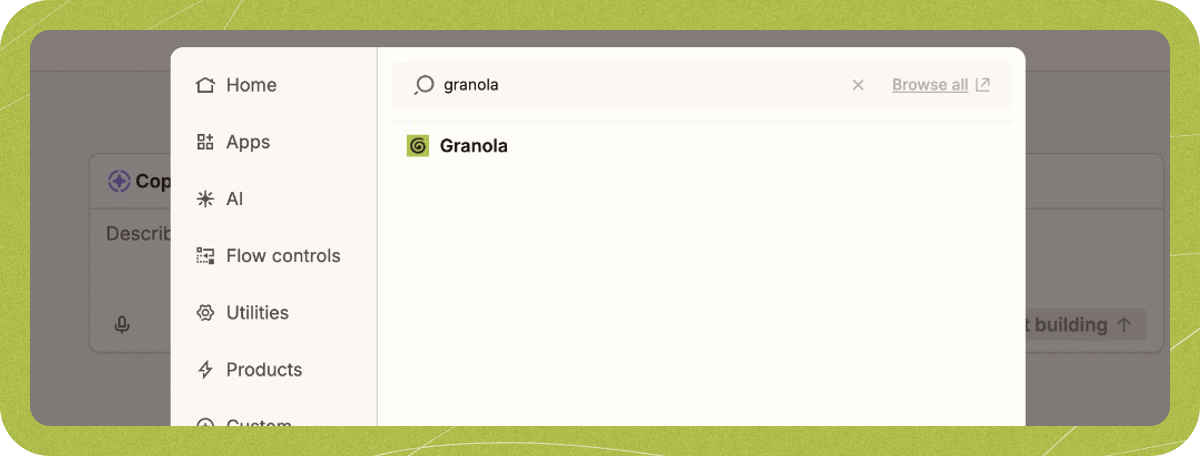
In Zapier, you’ll be prompted to set up a trigger event, where you can search for Granola to find our integration:
2. Search for Granola in Zapier
In Zapier, you’ll be prompted to set up a trigger event, where you can search for Granola to find our integration:
 3. Choose your trigger event
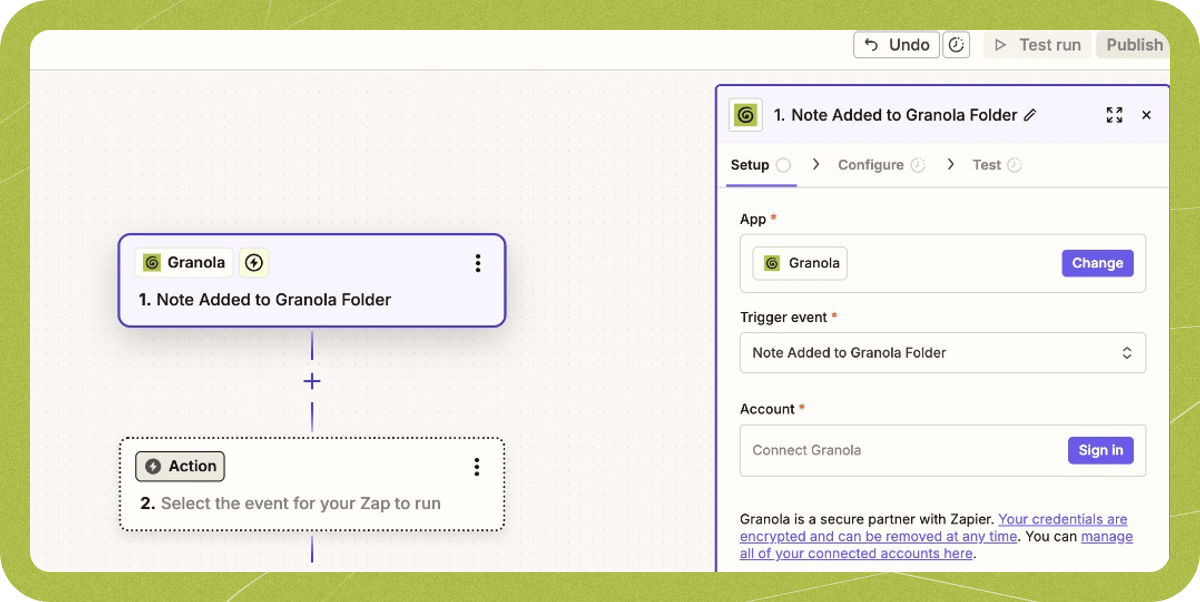
Select which trigger you want to use:
* **Note Added to Granola Folder:** Automatically triggers when a note is added to a specific folder. Note that this trigger only applies to notes added to the folder **after** you set up the Zap.
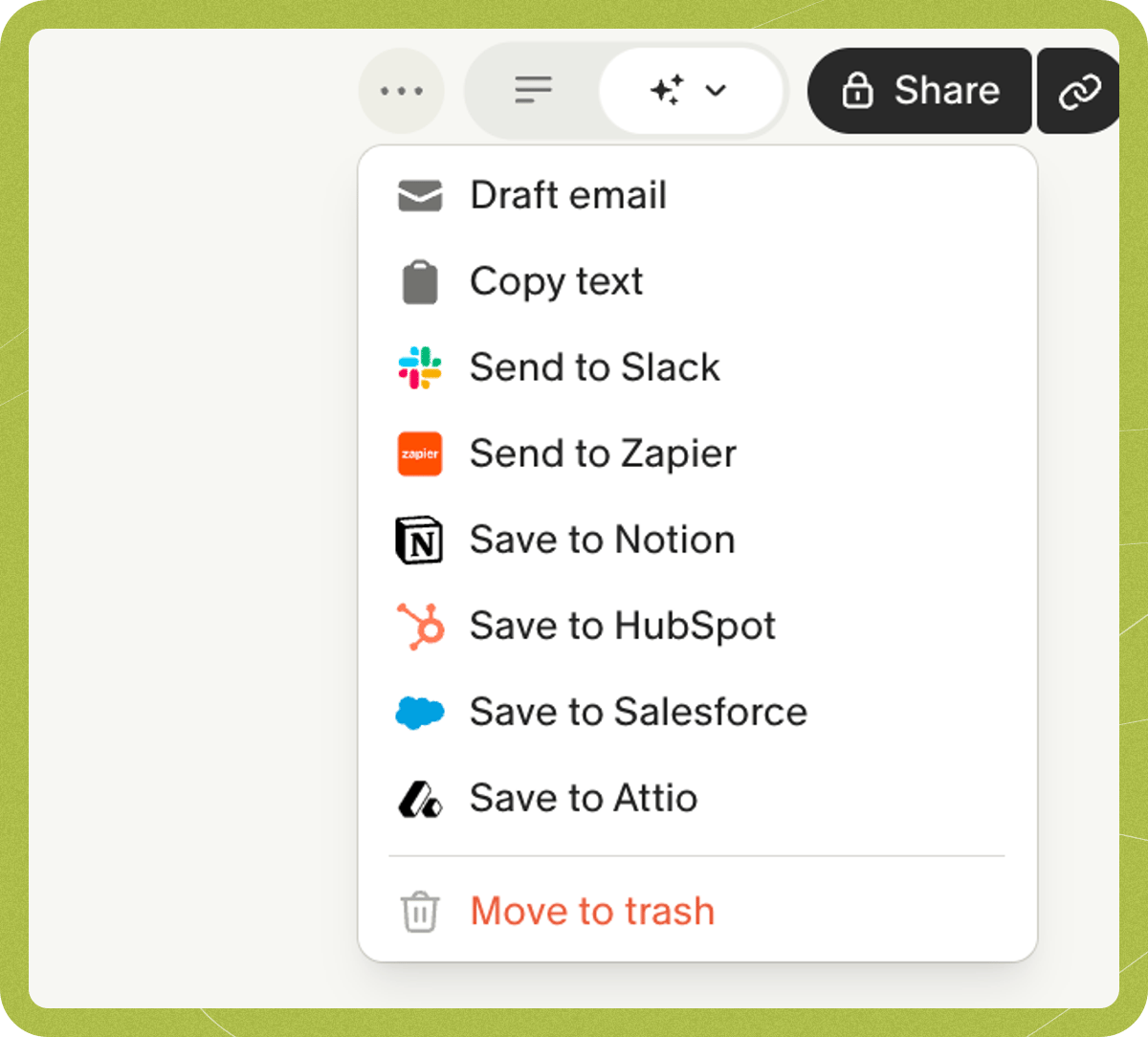
* **Note Shared to Zapier:** Triggers when you manually share a note to Zapier from the note sidebar.
3. Choose your trigger event
Select which trigger you want to use:
* **Note Added to Granola Folder:** Automatically triggers when a note is added to a specific folder. Note that this trigger only applies to notes added to the folder **after** you set up the Zap.
* **Note Shared to Zapier:** Triggers when you manually share a note to Zapier from the note sidebar.
 4. Configure your integration
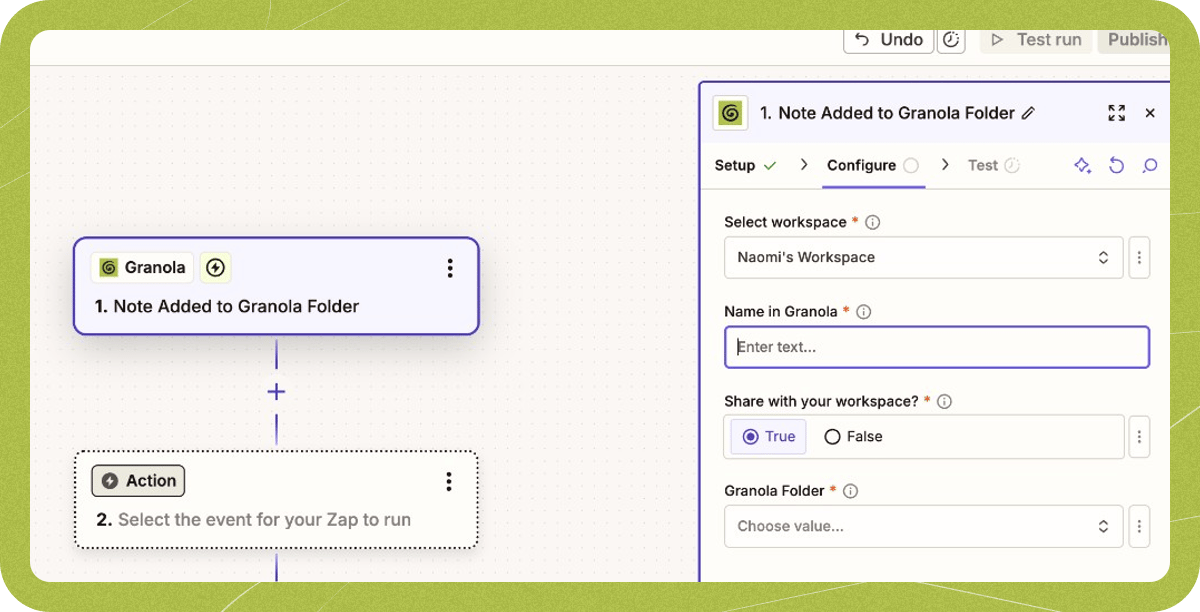
Set up your integration details:
* **Name in Granola:** Give your integration a name, e.g. ‘Send actions to Linear’
* **Share with your workspace:** Choose whether your team can use this same Zap in Granola
* **Granola Folder:** Select which folder should trigger the automation (for folder triggers)
4. Configure your integration
Set up your integration details:
* **Name in Granola:** Give your integration a name, e.g. ‘Send actions to Linear’
* **Share with your workspace:** Choose whether your team can use this same Zap in Granola
* **Granola Folder:** Select which folder should trigger the automation (for folder triggers)
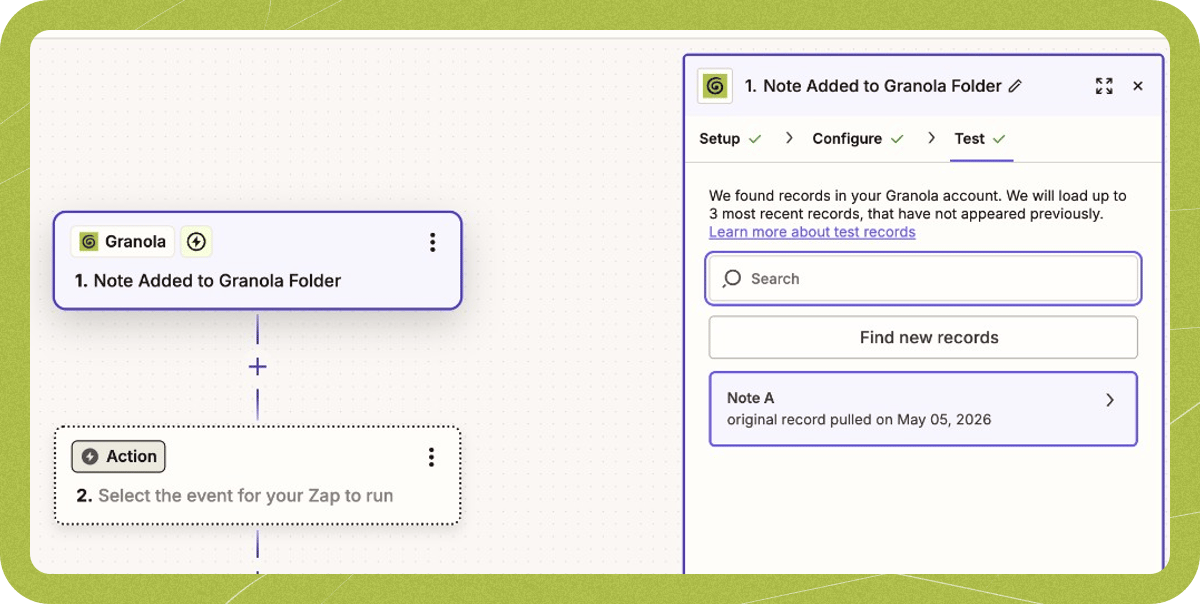
 5. Test your integration
Zapier will find up to 3 recent test meetings for you to verify everything works correctly. Click on one to view the details:
5. Test your integration
Zapier will find up to 3 recent test meetings for you to verify everything works correctly. Click on one to view the details:
 6. Add your action apps
Now add whatever other apps you want to connect after the Granola trigger. Popular examples include:
* Connecting with CRM systems (HubSpot, Salesforce, Attio) or ATS platforms (Greenhouse, BambooHR, Ashby)
* Sending messages via internal communications platforms (Slack, Microsoft Teams)
* Tracking actions (Asana, Trello, Monday, Linear)
* And thousands more from Zapier’s app directory
## What data does Granola send to Zapier?
When a Zap is triggered, Granola sends a webhook payload containing the following data from your meeting note:
* **Title** — The title of your meeting note.
* **Creator** — The name and email of the person who created the note.
* **Attendees** — A list of meeting attendees, each with a name and email address.
* **Calendar event** — Details from the linked calendar event, including the event title and date/time.
* **My Notes** — The private notes you typed during the meeting in Granola. These are the notes found under the personal notes section of your note (accessible via the three horizontal lines icon at the top right of a note). This field only contains your own notes and is not visible to other attendees.
* **Summary** — The enhanced summary of your meeting, in Markdown format.
* **Transcript** — The full meeting transcript.
* **Link** — A share link to the note in Granola.
## You're all set
Once your Zapier integration is set up, you’ll see your Zap available in your note sidebar. Clicking this will trigger your Zap:
6. Add your action apps
Now add whatever other apps you want to connect after the Granola trigger. Popular examples include:
* Connecting with CRM systems (HubSpot, Salesforce, Attio) or ATS platforms (Greenhouse, BambooHR, Ashby)
* Sending messages via internal communications platforms (Slack, Microsoft Teams)
* Tracking actions (Asana, Trello, Monday, Linear)
* And thousands more from Zapier’s app directory
## What data does Granola send to Zapier?
When a Zap is triggered, Granola sends a webhook payload containing the following data from your meeting note:
* **Title** — The title of your meeting note.
* **Creator** — The name and email of the person who created the note.
* **Attendees** — A list of meeting attendees, each with a name and email address.
* **Calendar event** — Details from the linked calendar event, including the event title and date/time.
* **My Notes** — The private notes you typed during the meeting in Granola. These are the notes found under the personal notes section of your note (accessible via the three horizontal lines icon at the top right of a note). This field only contains your own notes and is not visible to other attendees.
* **Summary** — The enhanced summary of your meeting, in Markdown format.
* **Transcript** — The full meeting transcript.
* **Link** — A share link to the note in Granola.
## You're all set
Once your Zapier integration is set up, you’ll see your Zap available in your note sidebar. Clicking this will trigger your Zap:
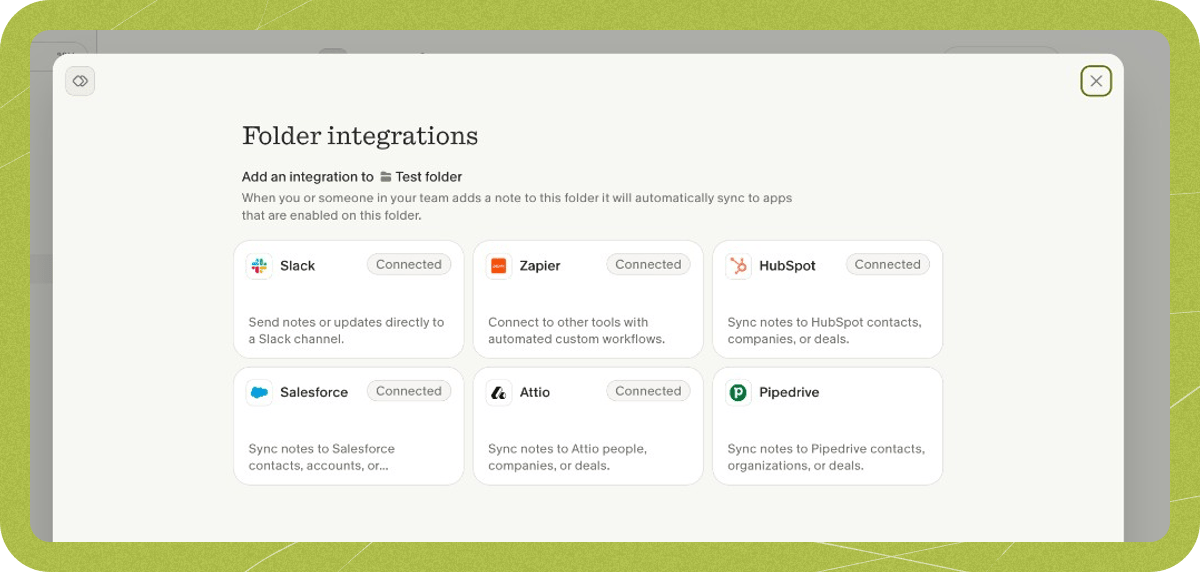
 Or in your Folder integration settings, if you chose that option:
 Connect meeting insights with your workflows. Automatically create tasks from action items, update your CRM with customer feedback, notify teams about key decisions and more. All without copy-pasting or switching between tools. If you're looking for inspiration for what you can do with Zapier, check out the templates on [our Zapier page](https://zapier.com/apps/granola/integrations "https://zapier.com/apps/granola/integrations")!
Whether you’re in sales tracking opportunities, customer success documenting feedback, or product capturing feature requests, Granola + Zapier connects lets you set up custom triggers based on your meetings to create a workflow that works the way you do.
## **Need help or inspiration?**
If you need any help setting up workflows within Zapier, take a look at their [**Help Center**](https://help.zapier.com/hc/en-us "https://help.zapier.com/hc/en-us"). Alternatively if you’re seeing something you don’t expect within Granola, reach out to us at [hey@granola.so](mailto:hey@granola.so "mailto:hey@granola.so").
# Troubleshooting
If your Zaps were previously working and have stopped, check the following at [zapier.com](https://zapier.com):
* **Your Zaps are turned on.** Zaps can be paused or turned off — make sure each Granola Zap is active.
* **Reconnect the Granola trigger.** If you recently deleted and recreated a Zap, or disconnected and reconnected the integration, open the Zap in the workflow editor and reconnect the Granola trigger.
* **The correct workspace is selected.** In each Zap's trigger settings, confirm the right Granola workspace is selected.
If you're a member of multiple Granola [workspaces](../../workspaces "../../workspaces"), you'll need to update to the latest version of our Zapier integration for your Zaps to work properly. You'll have to follow these steps for any Zaps that you have set up.
Firstly, open a Zap in the workflow editor at zapier.com, and select the Granola trigger.
You'll see a notice that you have to change to a newer version of the Zapier integration - go ahead with this, and then continue to the next screen.
Once you've done this, there's a new required field to complete when building your Zapier workflow - choosing the Granola workspace. Make sure you complete that, then re-publish your Zap to get back up and running again!
You need to be a **Collaborator** or **Owner** of a folder to set up Zaps for that folder.
If you currently have viewer access, ask the folder's owner to update your role to collaborator in the folder's sharing settings.
Connect meeting insights with your workflows. Automatically create tasks from action items, update your CRM with customer feedback, notify teams about key decisions and more. All without copy-pasting or switching between tools. If you're looking for inspiration for what you can do with Zapier, check out the templates on [our Zapier page](https://zapier.com/apps/granola/integrations "https://zapier.com/apps/granola/integrations")!
Whether you’re in sales tracking opportunities, customer success documenting feedback, or product capturing feature requests, Granola + Zapier connects lets you set up custom triggers based on your meetings to create a workflow that works the way you do.
## **Need help or inspiration?**
If you need any help setting up workflows within Zapier, take a look at their [**Help Center**](https://help.zapier.com/hc/en-us "https://help.zapier.com/hc/en-us"). Alternatively if you’re seeing something you don’t expect within Granola, reach out to us at [hey@granola.so](mailto:hey@granola.so "mailto:hey@granola.so").
# Troubleshooting
If your Zaps were previously working and have stopped, check the following at [zapier.com](https://zapier.com):
* **Your Zaps are turned on.** Zaps can be paused or turned off — make sure each Granola Zap is active.
* **Reconnect the Granola trigger.** If you recently deleted and recreated a Zap, or disconnected and reconnected the integration, open the Zap in the workflow editor and reconnect the Granola trigger.
* **The correct workspace is selected.** In each Zap's trigger settings, confirm the right Granola workspace is selected.
If you're a member of multiple Granola [workspaces](../../workspaces "../../workspaces"), you'll need to update to the latest version of our Zapier integration for your Zaps to work properly. You'll have to follow these steps for any Zaps that you have set up.
Firstly, open a Zap in the workflow editor at zapier.com, and select the Granola trigger.
You'll see a notice that you have to change to a newer version of the Zapier integration - go ahead with this, and then continue to the next screen.
Once you've done this, there's a new required field to complete when building your Zapier workflow - choosing the Granola workspace. Make sure you complete that, then re-publish your Zap to get back up and running again!
You need to be a **Collaborator** or **Owner** of a folder to set up Zaps for that folder.
If you currently have viewer access, ask the folder's owner to update your role to collaborator in the folder's sharing settings.