> ## Documentation Index
> Fetch the complete documentation index at: https://docs.granola.ai/llms.txt
> Use this file to discover all available pages before exploring further.
# Slack
> Share Granola meeting notes to Slack channels or DMs. One-click sharing with formatted summaries and attachments.
## Integrate Granola with Slack
Setting up integration with Slack will allow you to share your notes directly to a Slack channel without leaving Granola. When you share a note to Slack, Granola posts a link to the note along with a summary of the note directly in the Slack message. Because this summary is part of the Slack message itself, changing the note's sharing settings (for example, setting it to Private) does not remove or hide the summary text already posted in Slack.
This integration supports sharing to channels only.
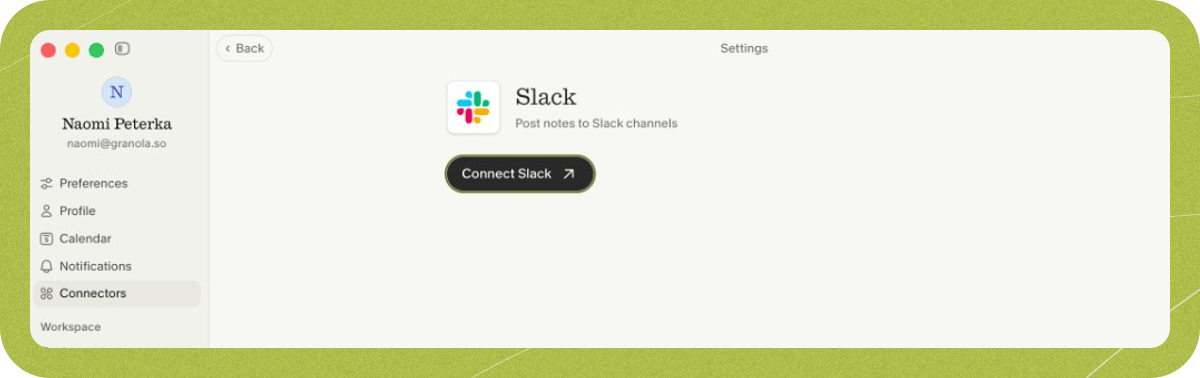
1. Find Slack in integrations settings
You can find our Integrations in your Settings, via your avatar in the bottom left. Here you'll see Slack as an integration:
 2. Connect your Slack workspace
Click to connect Slack to your Granola account. You'll be prompted via a webpage to connect your Slack workspace to Granola.
3. Share notes to Slack
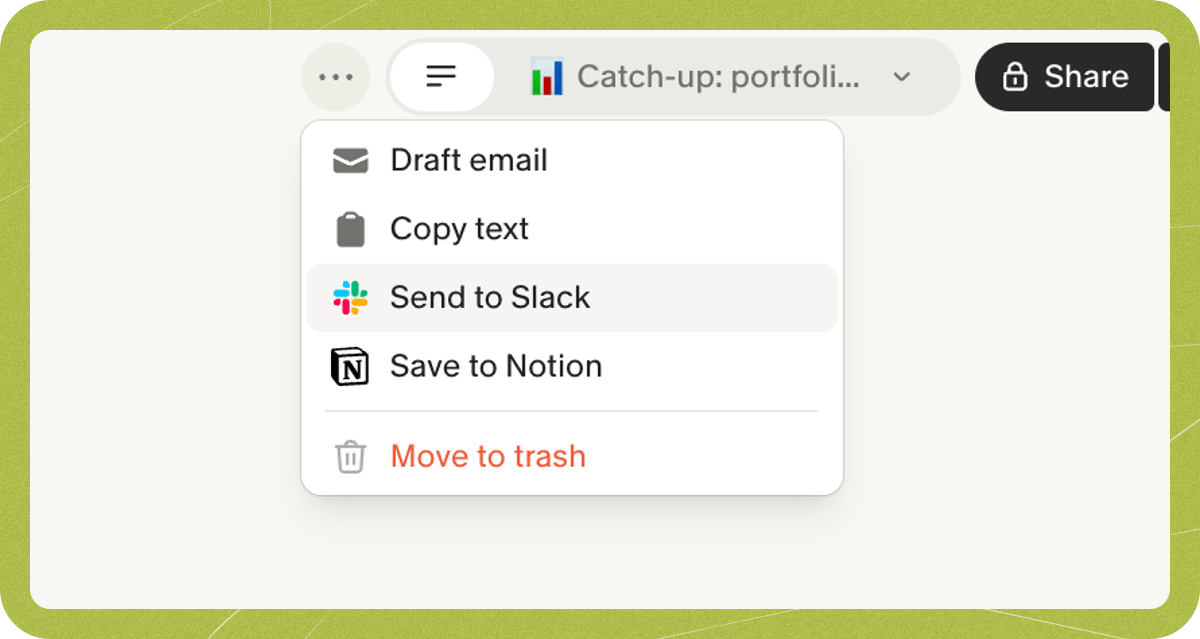
Once connected, you can share any note to Slack by clicking the Slack option in the top right of the note.
2. Connect your Slack workspace
Click to connect Slack to your Granola account. You'll be prompted via a webpage to connect your Slack workspace to Granola.
3. Share notes to Slack
Once connected, you can share any note to Slack by clicking the Slack option in the top right of the note.
 4. Choose your channel
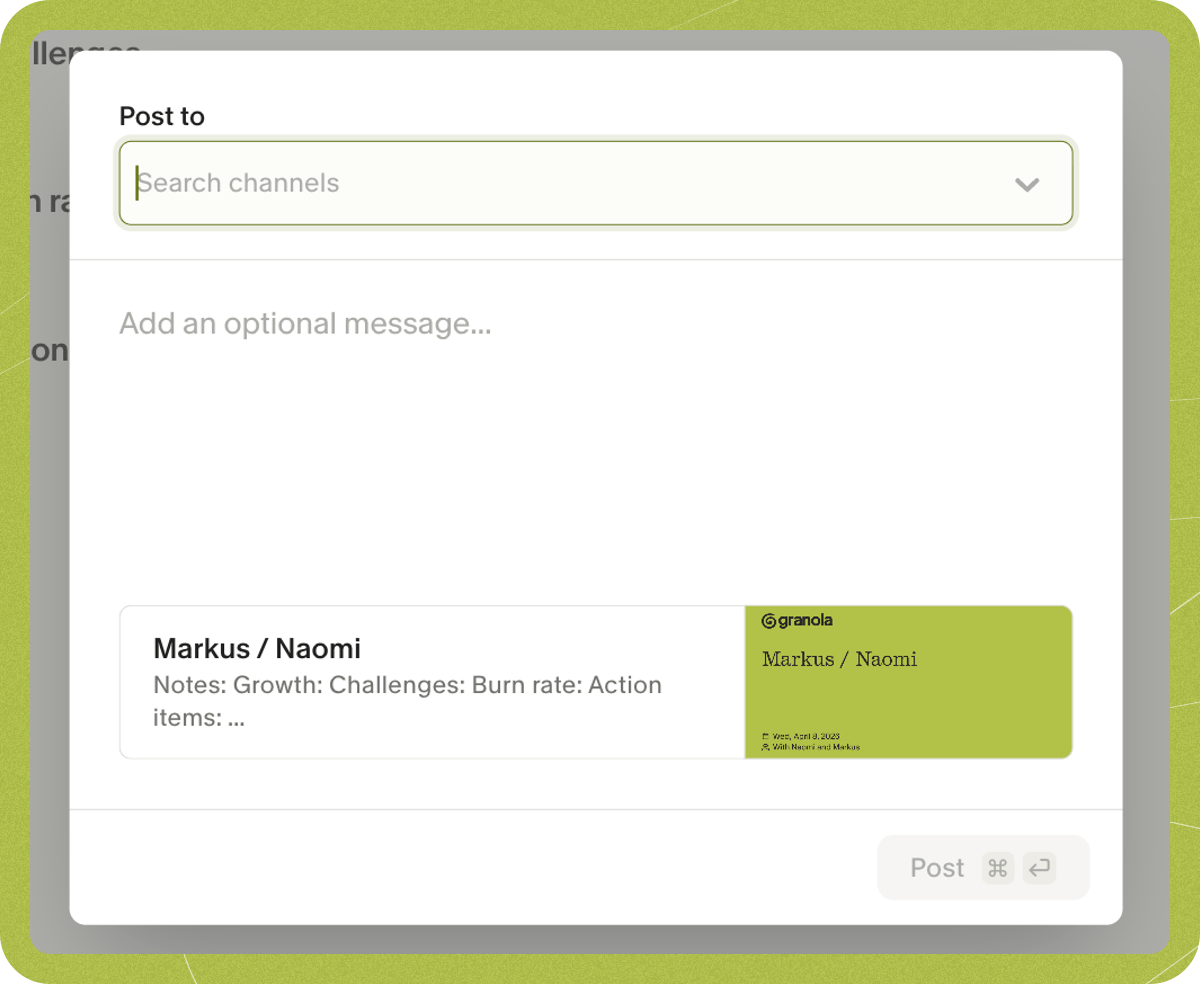
Select which Slack channel you want to share to:
4. Choose your channel
Select which Slack channel you want to share to:
 ## Posting to private Slack channels
To post to private channels in Granola, you'll need to do the following things:
* Make sure you're logged into Granola with the same email address as your Slack account
* Make sure you have access to the private channel
* Add the Granola app to the private channel
When you've checked all of that:
1. Go to the channel in Slack and type '/' in the new message box
2. Click 'Add apps to this channel'
3. Head back to Granola, and search for your new channel in the 'post to Slack' dialog
## Can I automate pushing my notes to Slack?
You can set up a rule for any notes added to a [folder](../folders/spaces-and-folders "../folders/spaces-and-folders") to be automatically posted to a Slack channel of your choice.
## Posting to private Slack channels
To post to private channels in Granola, you'll need to do the following things:
* Make sure you're logged into Granola with the same email address as your Slack account
* Make sure you have access to the private channel
* Add the Granola app to the private channel
When you've checked all of that:
1. Go to the channel in Slack and type '/' in the new message box
2. Click 'Add apps to this channel'
3. Head back to Granola, and search for your new channel in the 'post to Slack' dialog
## Can I automate pushing my notes to Slack?
You can set up a rule for any notes added to a [folder](../folders/spaces-and-folders "../folders/spaces-and-folders") to be automatically posted to a Slack channel of your choice.
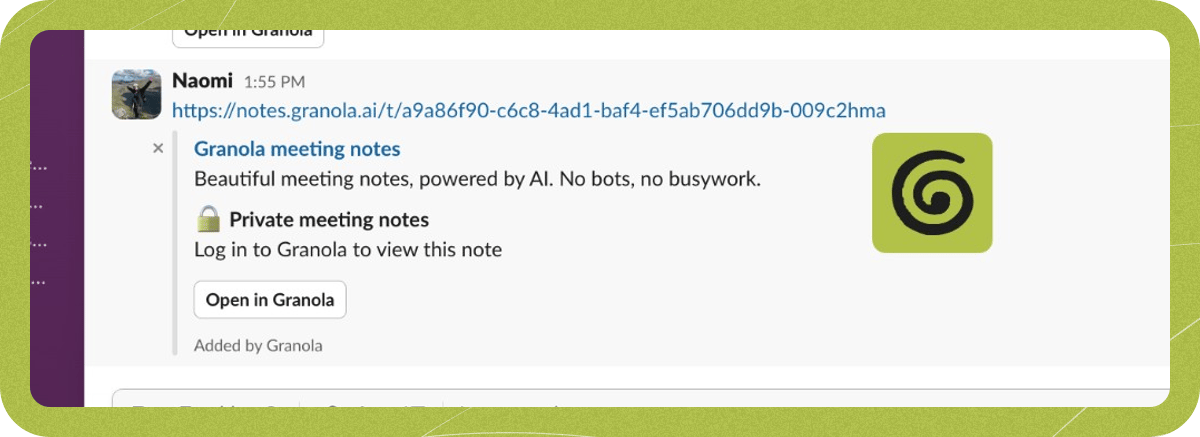 You can set up this rule by opening a folder and clicking the **Integrations** button in the folder header. Choose a channel, and any new notes that you add to the folder will be posted to Slack.
Note that auto-posting only applies to notes added to the folder **after** you enable the Slack integration on that folder. Notes that were already in the folder before enabling the integration will not be posted retroactively.
## Troubleshooting
The Slack integration requires a Google Workspace or Microsoft 365 account. It's not available for personal Gmail or Outlook.com accounts.
Your Granola session may have expired. Sign out of Granola and sign back in, then try opening the integration settings again.
Your email address must be the same in your Granola and Slack accounts. If you've recently changed your email address on Slack, you might need to disconnect and re-connect the Granola integration to pick up your new email address. You can do this in Granola > Settings > Slack.
In Settings > Preferences > Data & sharing, your default link sharing setting needs to be set to something other than 'Private' for the Slack button to appear in your notes. If you update this setting, it will only apply to future notes. You can only click the **Send to Slack** button after you've enhanced your notes.
The link preview (unfurl) that Slack displays when you share a note depends on the note's [sharing visibility setting](../../consent-security-privacy/sharing-controls "../../consent-security-privacy/sharing-controls"):
* **Anyone with the link** — Slack can fetch the note's content and display a rich preview that includes the meeting title, attendees, date, and a summary snippet.
* **Company only** — Slack cannot authenticate as a member of your company, so it cannot fetch the note's content. The link preview will show a generic card without meeting details.
For any other problems, reach out to our support team on [hey@granola.so](mailto:hey@granola.so "mailto:hey@granola.so") - screenshots are always helpful!
*Disclaimer: Granola works hard to deliver accurate summaries and notes, but as with any AI-powered tool, it may occasionally mishear names or details, or generate incomplete summaries. We recommend giving your notes a quick review to make sure everything looks right before you share with your team.*
You can set up this rule by opening a folder and clicking the **Integrations** button in the folder header. Choose a channel, and any new notes that you add to the folder will be posted to Slack.
Note that auto-posting only applies to notes added to the folder **after** you enable the Slack integration on that folder. Notes that were already in the folder before enabling the integration will not be posted retroactively.
## Troubleshooting
The Slack integration requires a Google Workspace or Microsoft 365 account. It's not available for personal Gmail or Outlook.com accounts.
Your Granola session may have expired. Sign out of Granola and sign back in, then try opening the integration settings again.
Your email address must be the same in your Granola and Slack accounts. If you've recently changed your email address on Slack, you might need to disconnect and re-connect the Granola integration to pick up your new email address. You can do this in Granola > Settings > Slack.
In Settings > Preferences > Data & sharing, your default link sharing setting needs to be set to something other than 'Private' for the Slack button to appear in your notes. If you update this setting, it will only apply to future notes. You can only click the **Send to Slack** button after you've enhanced your notes.
The link preview (unfurl) that Slack displays when you share a note depends on the note's [sharing visibility setting](../../consent-security-privacy/sharing-controls "../../consent-security-privacy/sharing-controls"):
* **Anyone with the link** — Slack can fetch the note's content and display a rich preview that includes the meeting title, attendees, date, and a summary snippet.
* **Company only** — Slack cannot authenticate as a member of your company, so it cannot fetch the note's content. The link preview will show a generic card without meeting details.
For any other problems, reach out to our support team on [hey@granola.so](mailto:hey@granola.so "mailto:hey@granola.so") - screenshots are always helpful!
*Disclaimer: Granola works hard to deliver accurate summaries and notes, but as with any AI-powered tool, it may occasionally mishear names or details, or generate incomplete summaries. We recommend giving your notes a quick review to make sure everything looks right before you share with your team.*