> ## Documentation Index
> Fetch the complete documentation index at: https://docs.granola.ai/llms.txt
> Use this file to discover all available pages before exploring further.
# Exporting historical notes
> Export your Granola meeting notes to CSV. Get note titles, summaries, transcripts, and details. Useful for backups or migration.
This doc walks through how you can export your meeting notes from Granola, including transcripts.
# Exporting your historical data
You're able to export historical data from Granola by going to Settings, clicking **Profile** in the sidebar (under Preferences), and clicking **Generate CSV**:
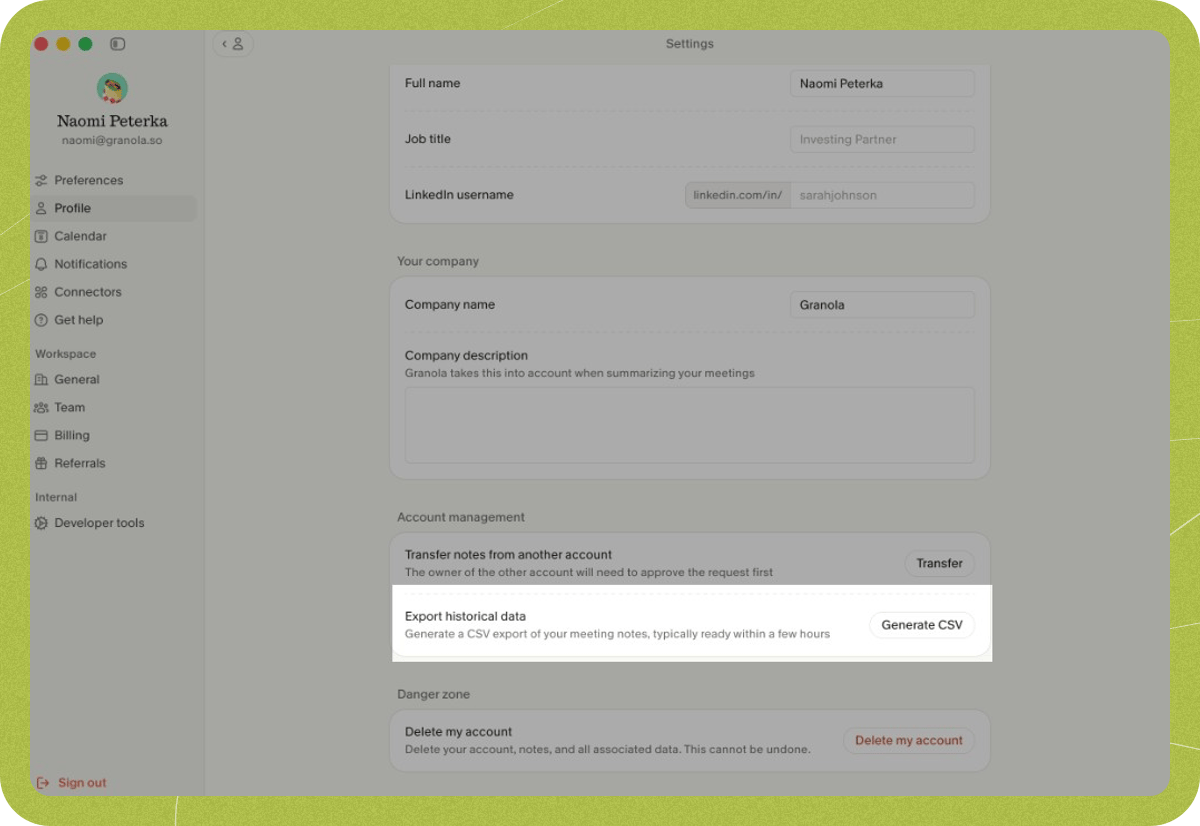 This will generate a CSV emailed to you within a few hours. The CSV includes the title, note summary, transcript, and other basic details for each note. The export is based on the workspaces you select and only includes notes you own in those workspaces.
The export only includes notes that have a summary. Deleted notes and notes without a summary are not included. This means the number of notes in your export may be lower than the total count shown in the app.
## Download link and regeneration
* **Download link expiry:** The link in the email is valid for **24 hours**. After that, the link will no longer work.
* **Regenerating an export:** You can request a new export at any time. If your previous link has expired or you need a fresh file, go to **Settings > Profile > Generate CSV** again and choose your workspaces. Note: you can only create one export every **24 hours** (per account). If you request another export within 24 hours of your last one, you'll need to wait until the 24 hours have passed before generating a new export.
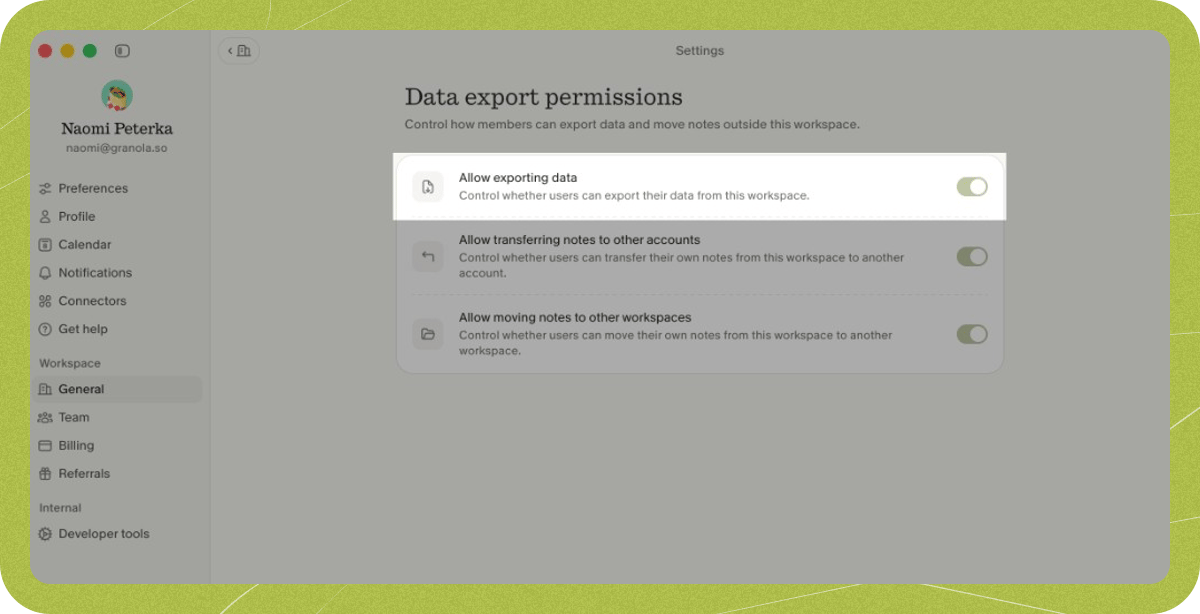
Data export is enabled by default on Business and Basic plans. On Enterprise plans, data export is disabled by default, and only Enterprise workspace admins have access to the **Allow exporting data** toggle in workspace settings to enable or disable it for their members:
This will generate a CSV emailed to you within a few hours. The CSV includes the title, note summary, transcript, and other basic details for each note. The export is based on the workspaces you select and only includes notes you own in those workspaces.
The export only includes notes that have a summary. Deleted notes and notes without a summary are not included. This means the number of notes in your export may be lower than the total count shown in the app.
## Download link and regeneration
* **Download link expiry:** The link in the email is valid for **24 hours**. After that, the link will no longer work.
* **Regenerating an export:** You can request a new export at any time. If your previous link has expired or you need a fresh file, go to **Settings > Profile > Generate CSV** again and choose your workspaces. Note: you can only create one export every **24 hours** (per account). If you request another export within 24 hours of your last one, you'll need to wait until the 24 hours have passed before generating a new export.
Data export is enabled by default on Business and Basic plans. On Enterprise plans, data export is disabled by default, and only Enterprise workspace admins have access to the **Allow exporting data** toggle in workspace settings to enable or disable it for their members:
 # Can workspace admins export notes for the whole team?
No. There is no company-wide or admin-level export. Each person's export only includes their own notes — workspace admins cannot export other members' notes.
If a team member has left your organization, any notes they shared to a team folder are still accessible in that folder. Their private (unshared) notes are not accessible to admins or other team members. If you need a departed employee to export or share their own notes, you can temporarily re-add them to the workspace so they can do so — see [Workspaces](/help-center/workspaces#removing-people-from-your-workspace) for details.
# Can workspace admins export notes for the whole team?
No. There is no company-wide or admin-level export. Each person's export only includes their own notes — workspace admins cannot export other members' notes.
If a team member has left your organization, any notes they shared to a team folder are still accessible in that folder. Their private (unshared) notes are not accessible to admins or other team members. If you need a departed employee to export or share their own notes, you can temporarily re-add them to the workspace so they can do so — see [Workspaces](/help-center/workspaces#removing-people-from-your-workspace) for details.