1\. Download Granola from our website
2. Open the Granola.dmg from your Downloads
3. Drag the Granola icon into your Applications folder
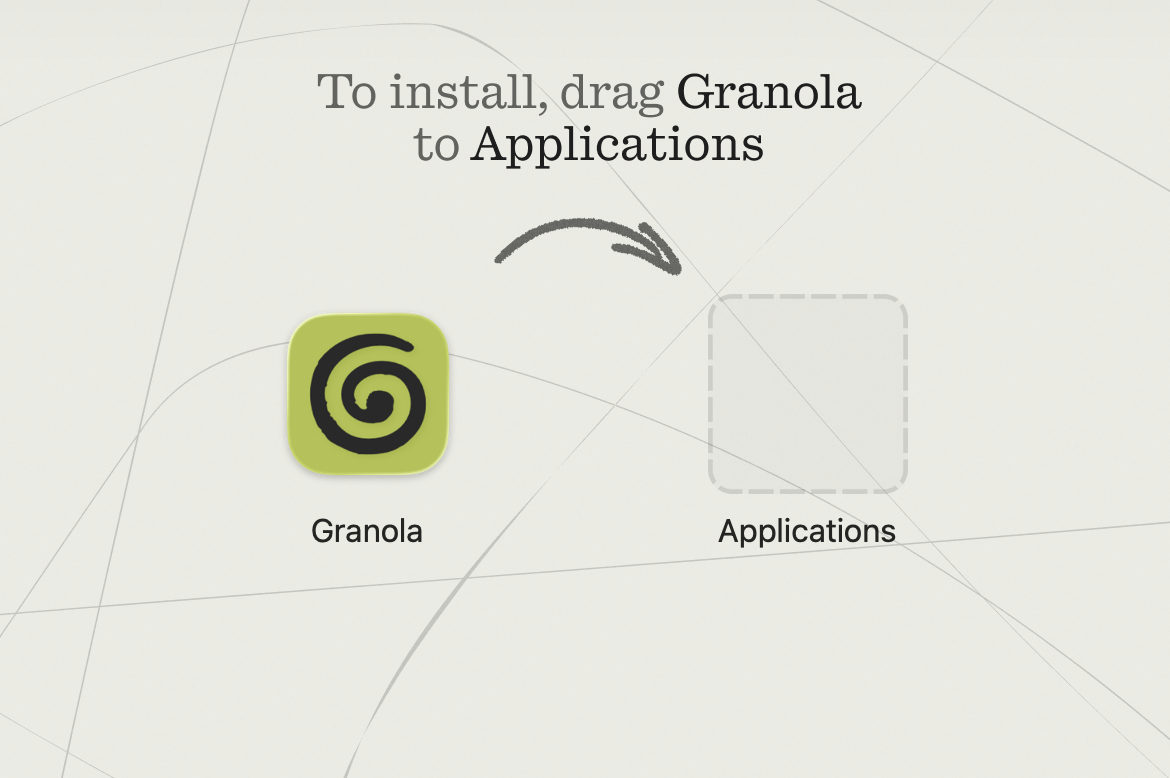
Granola requires a minimum macOS 13 to run, but works best on macOS 14.2 or above
1\. Download Granola from our website
2. Open Granola.exe from your Downloads folder
3. The Granola installer should run
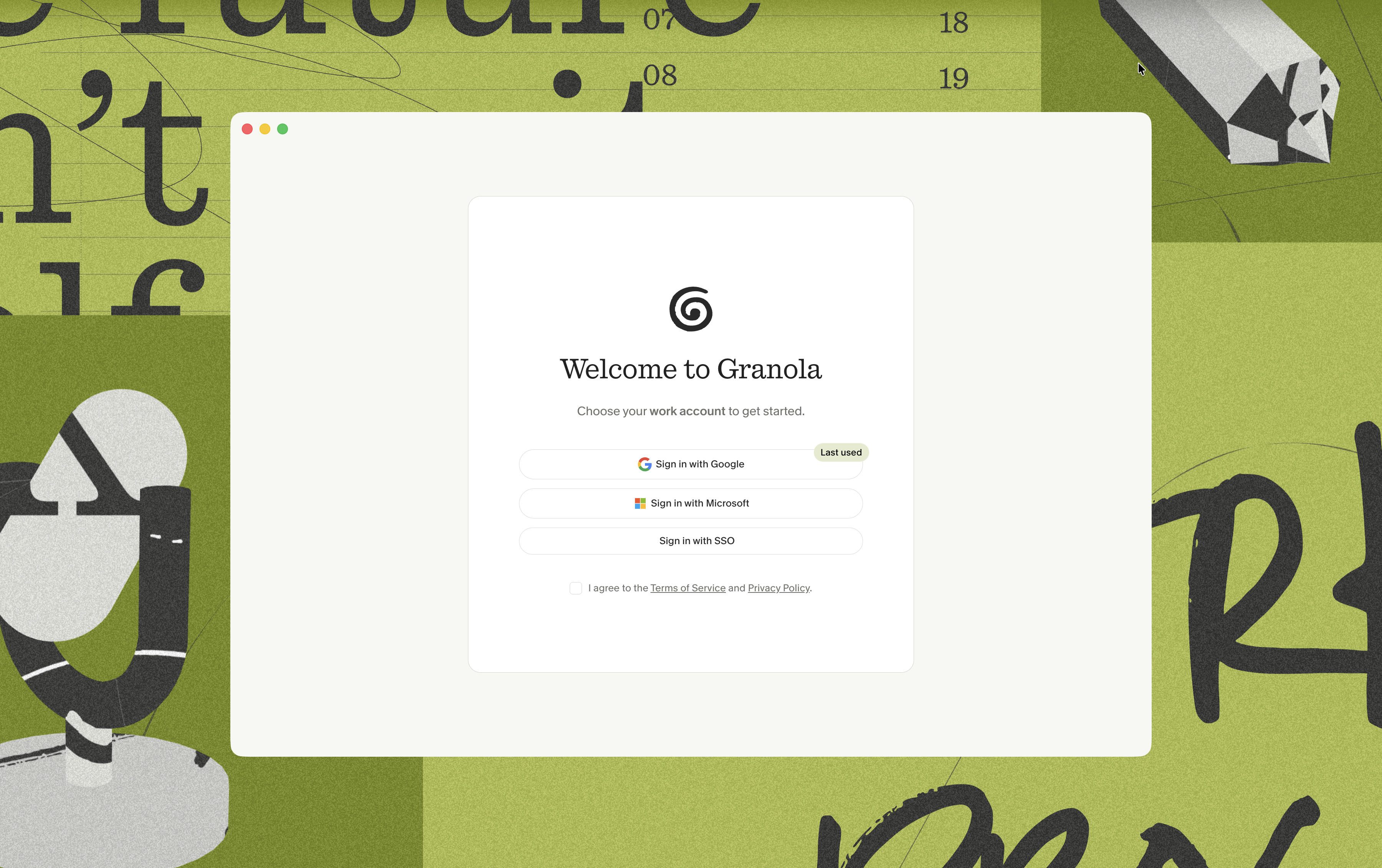 **Google sign in**
When you click Sign in, your web browser should open with a new tab to complete the sign in flow via Google, Microsoft or your SSO provider. We recommend you pick a work account, as Granola works best when connected to your calendar that you use for meetings.
**Google sign in**
When you click Sign in, your web browser should open with a new tab to complete the sign in flow via Google, Microsoft or your SSO provider. We recommend you pick a work account, as Granola works best when connected to your calendar that you use for meetings.
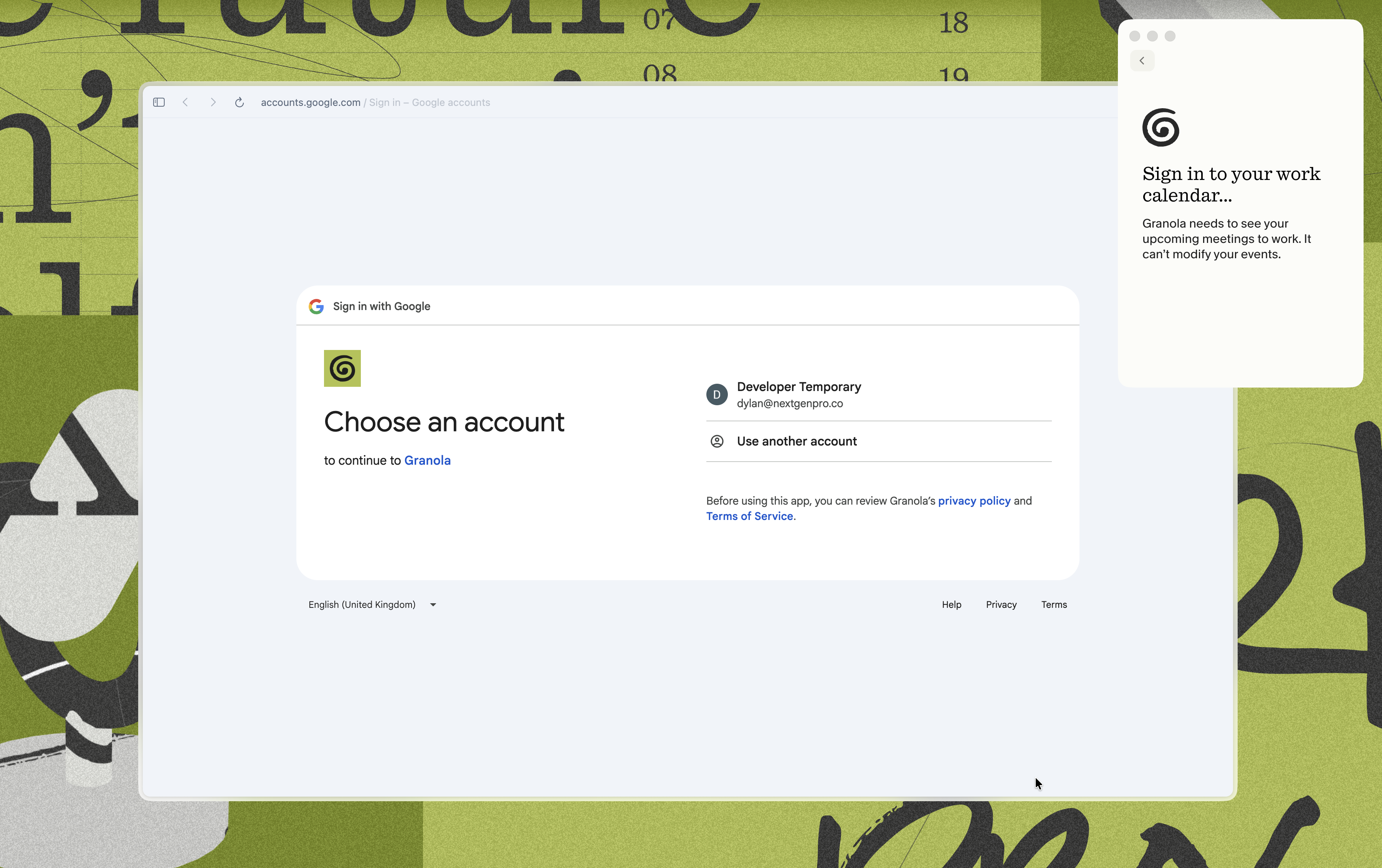 ### Calendar permissions
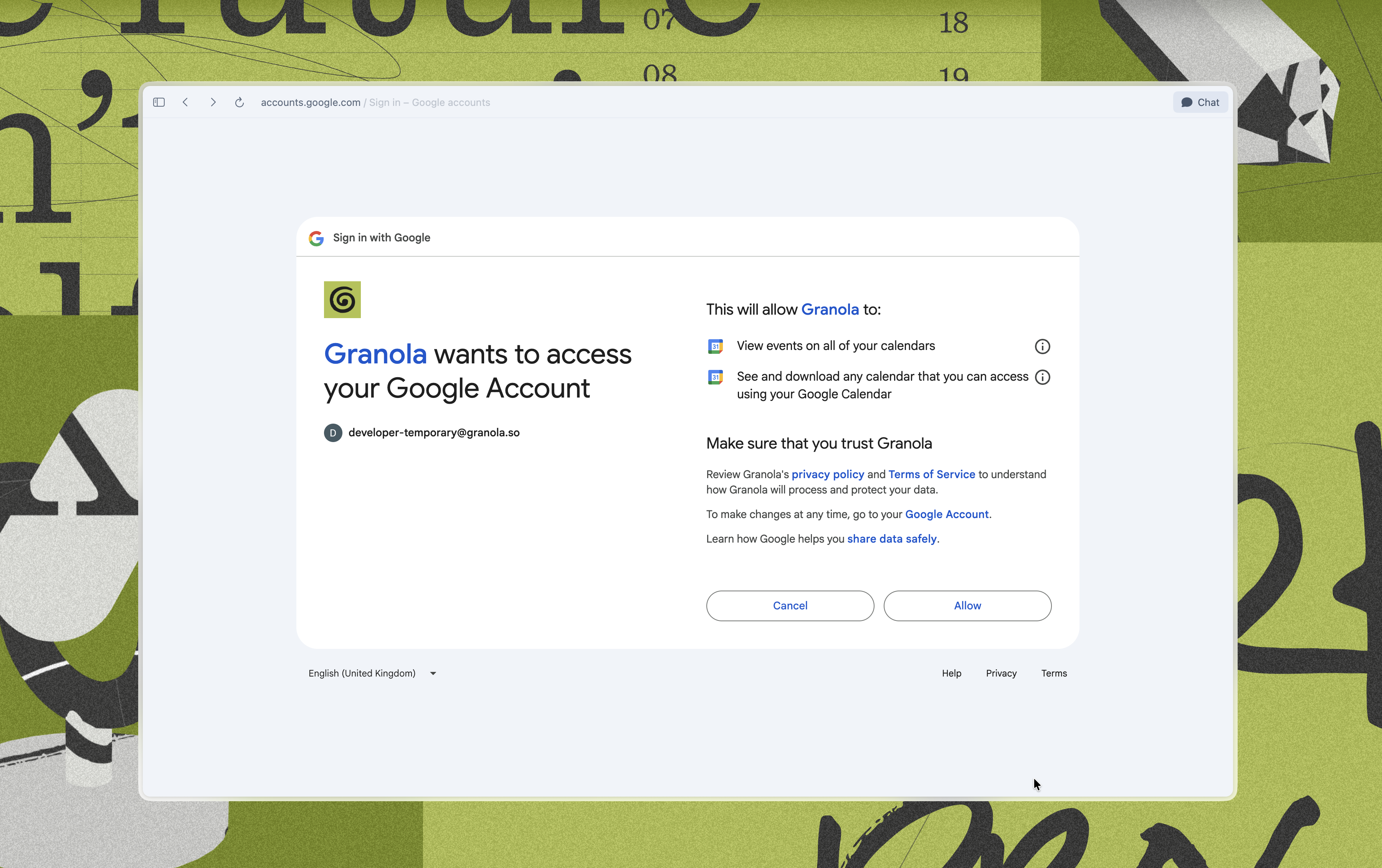
You'll then be prompted to choose your calendar permissions. You'll want to 'Select all' and then continue. Granola asks for the permissions to view events in your calendar and get the basic metadata from them (attendees, time, date, and title).
### Calendar permissions
You'll then be prompted to choose your calendar permissions. You'll want to 'Select all' and then continue. Granola asks for the permissions to view events in your calendar and get the basic metadata from them (attendees, time, date, and title).
 ### Audio permissions
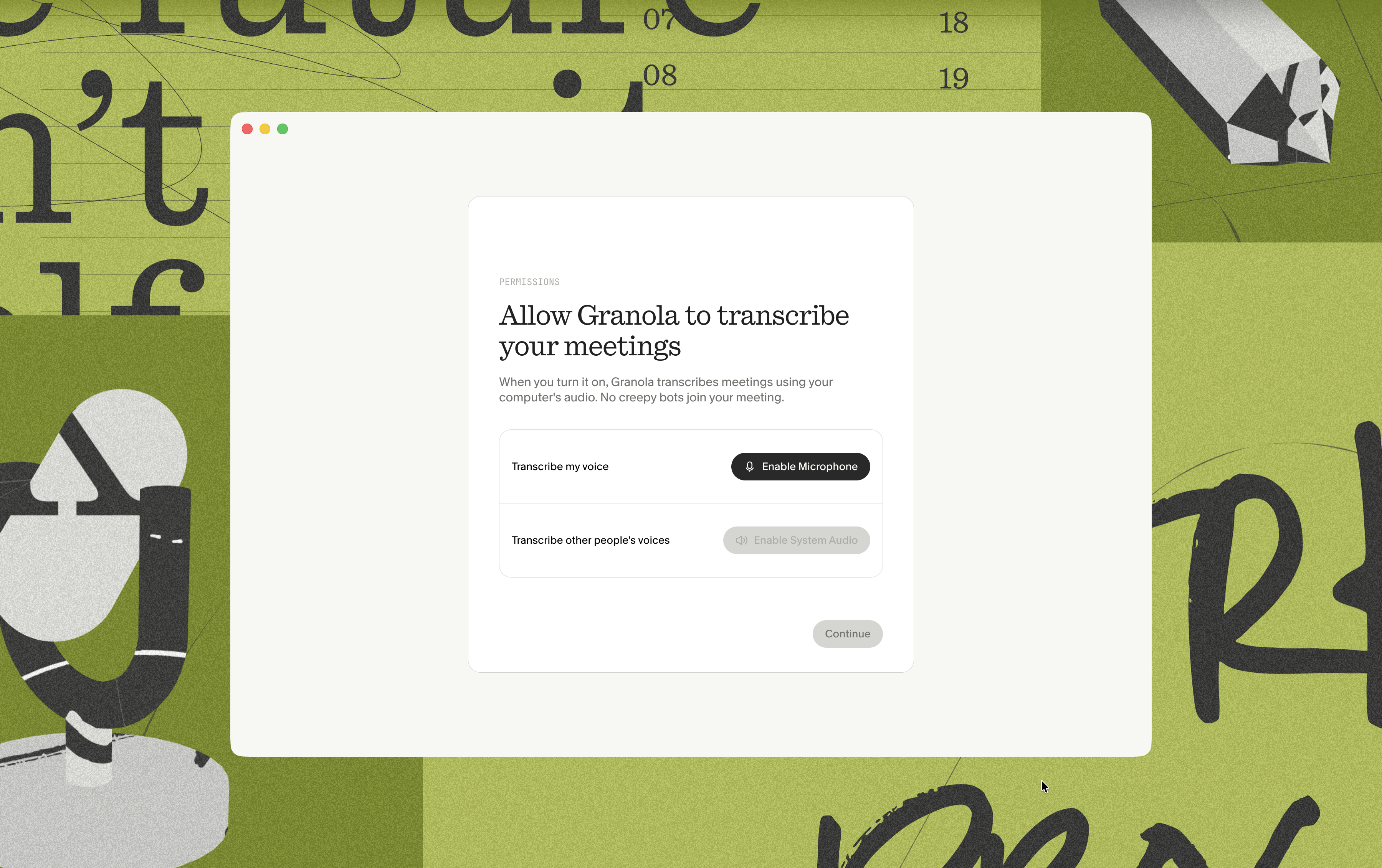
Once you're logged back into Granola, you'll be prompted to enable your microphone and system audio if you're on macOS. Clicking 'Allow' on the popups will gain access and allow Granola to transcribe the audio on your device.
If you're on Windows, these permissions are automatically granted - there's no need to manually enable them.
### Audio permissions
Once you're logged back into Granola, you'll be prompted to enable your microphone and system audio if you're on macOS. Clicking 'Allow' on the popups will gain access and allow Granola to transcribe the audio on your device.
If you're on Windows, these permissions are automatically granted - there's no need to manually enable them.
 If you ever want to go back and review them, you can find the settings under:
**\[for macOS]** System Settings > Privacy & Security > Microphone / Screen & System Audio recording
**\[for Windows]** Settings > Privacy & Security > Microphone
[See audio troubleshooting steps here](../troubleshooting/transcription-issues "../troubleshooting/transcription-issues").
**Microsoft sign in**
Granola supports Microsoft account authentication using the same process as Google sign in. Follow the Google sign in instructions, but select your Microsoft account when prompted instead of your Google account. [See the exact steps here](../sign-in-with-microsoft "../sign-in-with-microsoft").
The authentication flow is very similar - you'll be redirected to Microsoft's login page, authorize Granola to access your calendar, and return to the app once complete.
If you ever want to go back and review them, you can find the settings under:
**\[for macOS]** System Settings > Privacy & Security > Microphone / Screen & System Audio recording
**\[for Windows]** Settings > Privacy & Security > Microphone
[See audio troubleshooting steps here](../troubleshooting/transcription-issues "../troubleshooting/transcription-issues").
**Microsoft sign in**
Granola supports Microsoft account authentication using the same process as Google sign in. Follow the Google sign in instructions, but select your Microsoft account when prompted instead of your Google account. [See the exact steps here](../sign-in-with-microsoft "../sign-in-with-microsoft").
The authentication flow is very similar - you'll be redirected to Microsoft's login page, authorize Granola to access your calendar, and return to the app once complete.
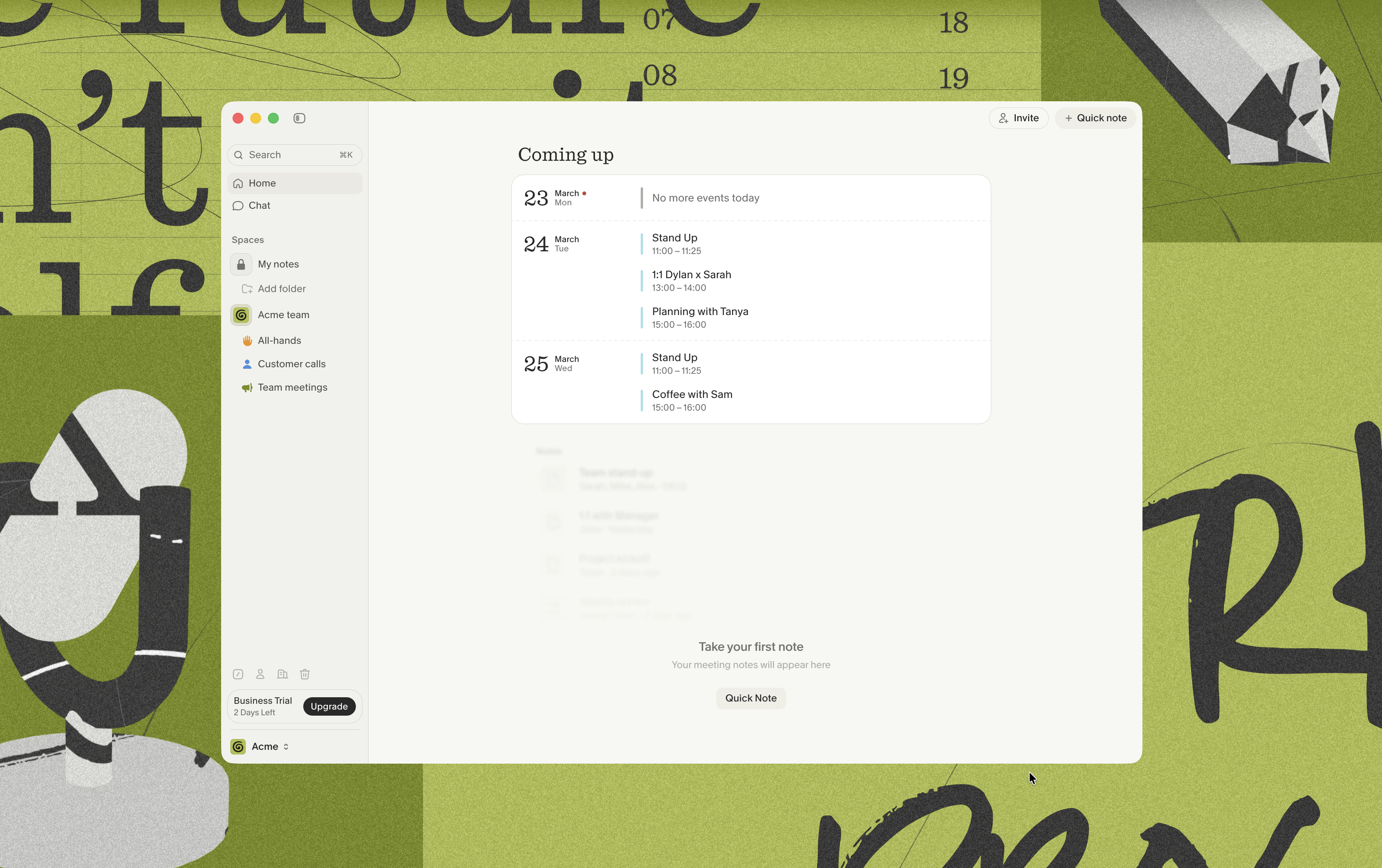
 ### You're all set 🚀
Granola should now look something like this, showing your upcoming meetings, and the note you took from the demo meeting.
### You're all set 🚀
Granola should now look something like this, showing your upcoming meetings, and the note you took from the demo meeting.