> ## Documentation Index
> Fetch the complete documentation index at: https://docs.granola.ai/llms.txt
> Use this file to discover all available pages before exploring further.
# Setting up automated chat message on Zoom (User Guide)
> Set up Granola's automated chat message for Zoom just for yourself on macOS or Windows.
macOS Windows
This guide is for individuals who want to enable the notice just for themselves. Are you an **Enterprise** admin enforcing this for your whole workspace? See the [admin guide](/help-center/consent-security-privacy/transparency-solutions/for-enterprise-admins/zoom).
## Windows setup
1. Open **Settings > Preferences > Transparency > Automated chat message**.
2. Find **Automated chat message in Zoom** and turn on the toggle switch.
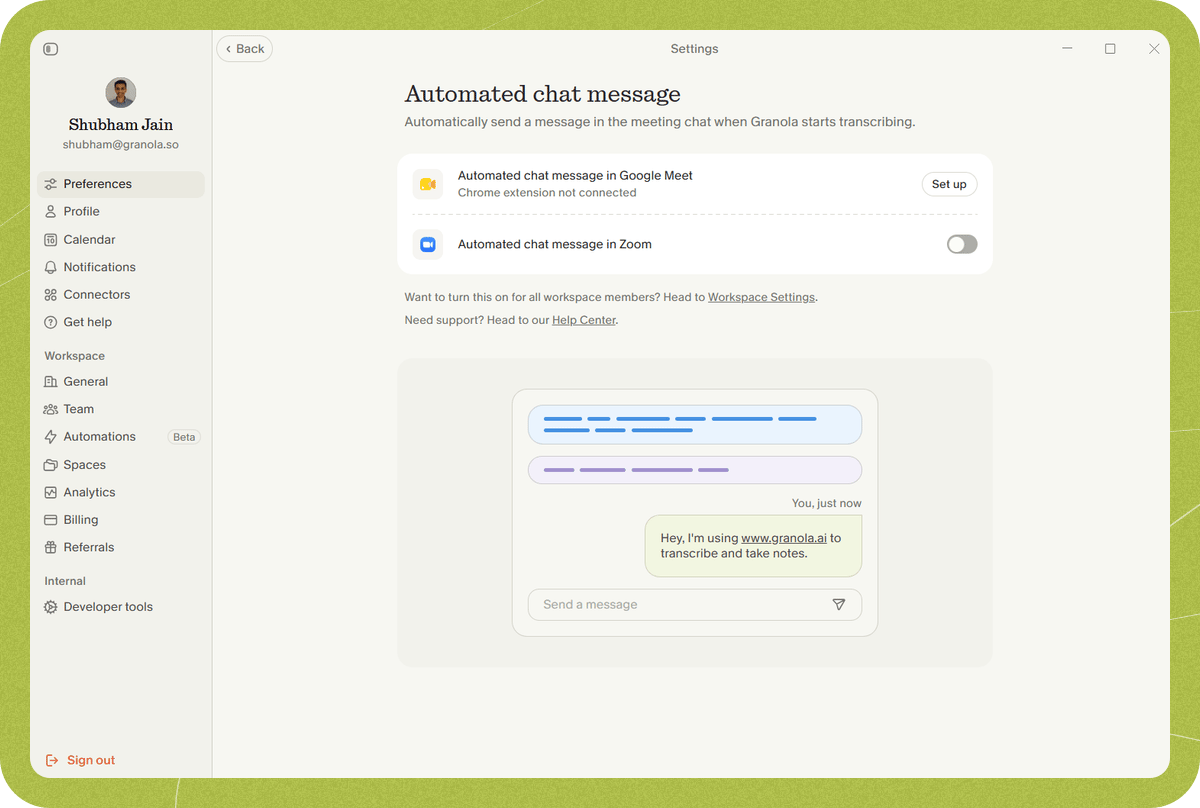 No extra permissions are required on Windows — once the toggle is on, Granola can post the notice in Zoom chat automatically.
## macOS setup
On Mac, there are two steps: turn on the setting and then grant the Accessibility permission.
### Step 1 — Enable the Zoom chat feature
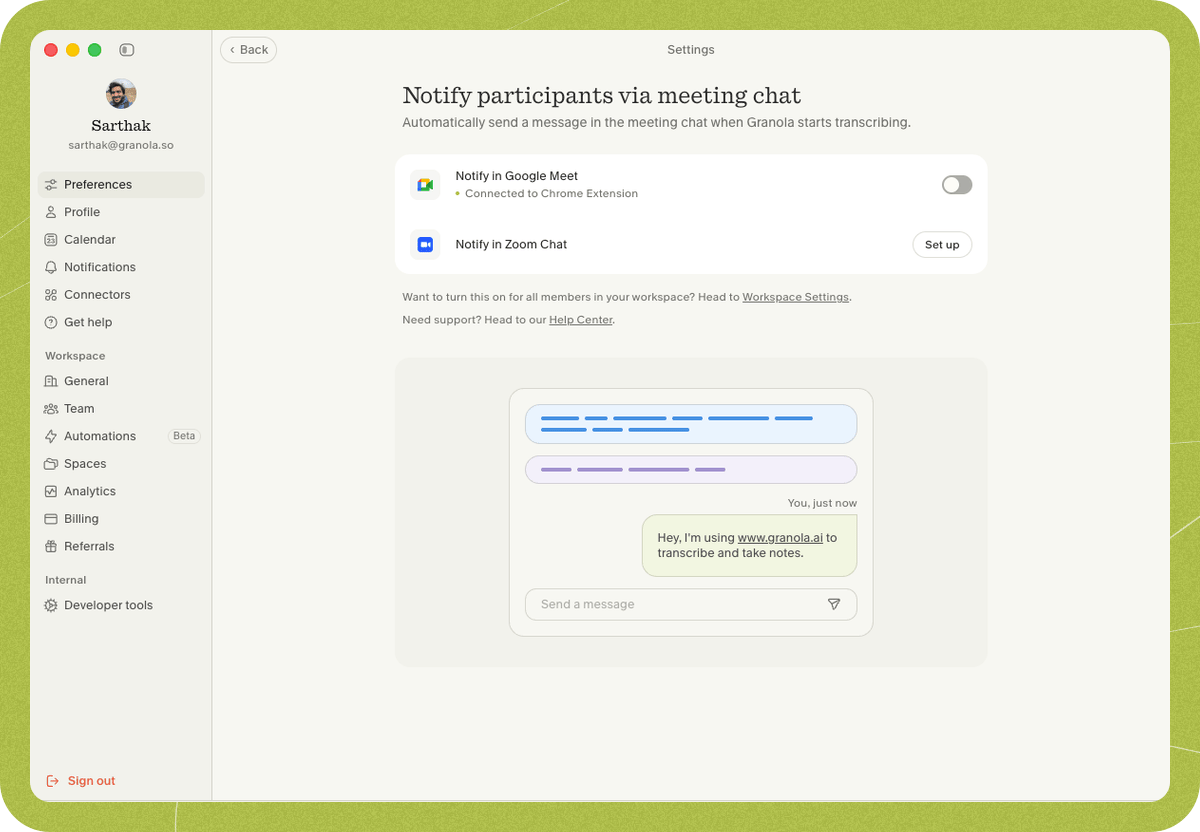
1. Open **Settings > Preferences > Transparency > Automated chat message**, find **Automated chat message in Zoom**, and click **Set up**.
No extra permissions are required on Windows — once the toggle is on, Granola can post the notice in Zoom chat automatically.
## macOS setup
On Mac, there are two steps: turn on the setting and then grant the Accessibility permission.
### Step 1 — Enable the Zoom chat feature
1. Open **Settings > Preferences > Transparency > Automated chat message**, find **Automated chat message in Zoom**, and click **Set up**.
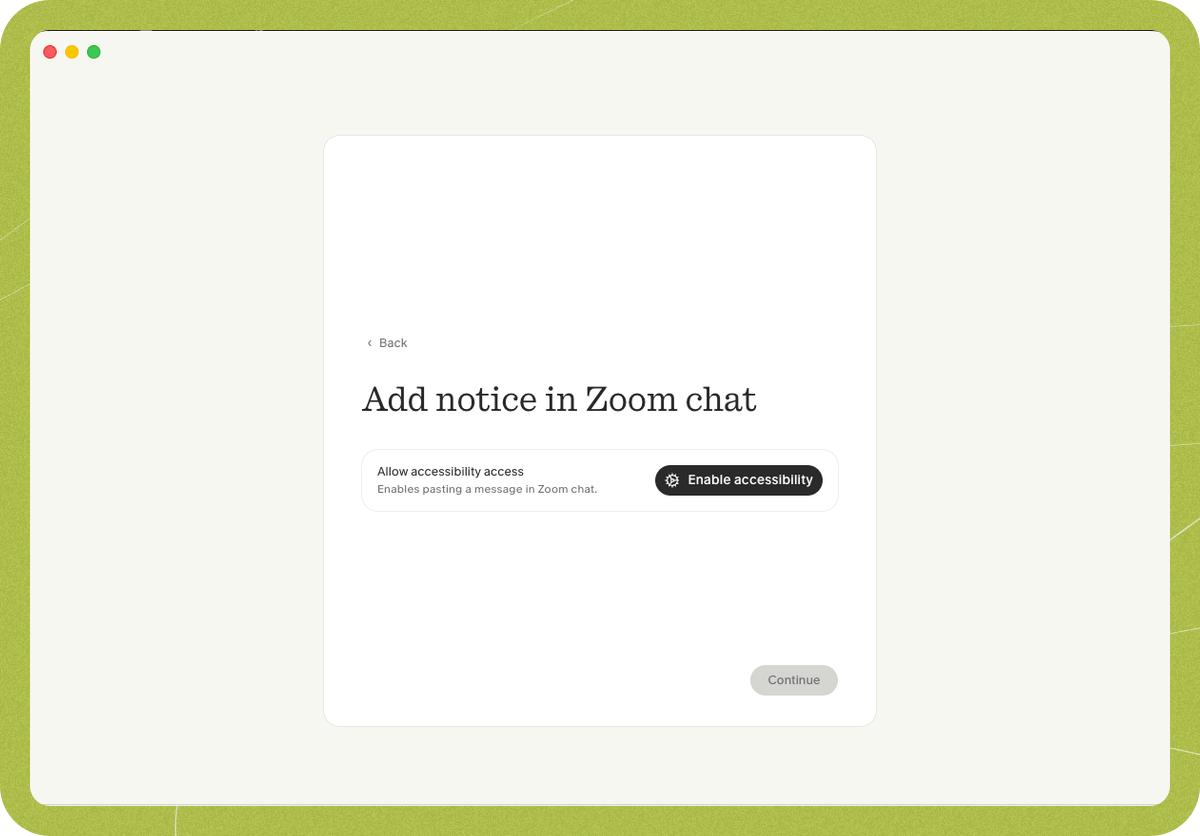
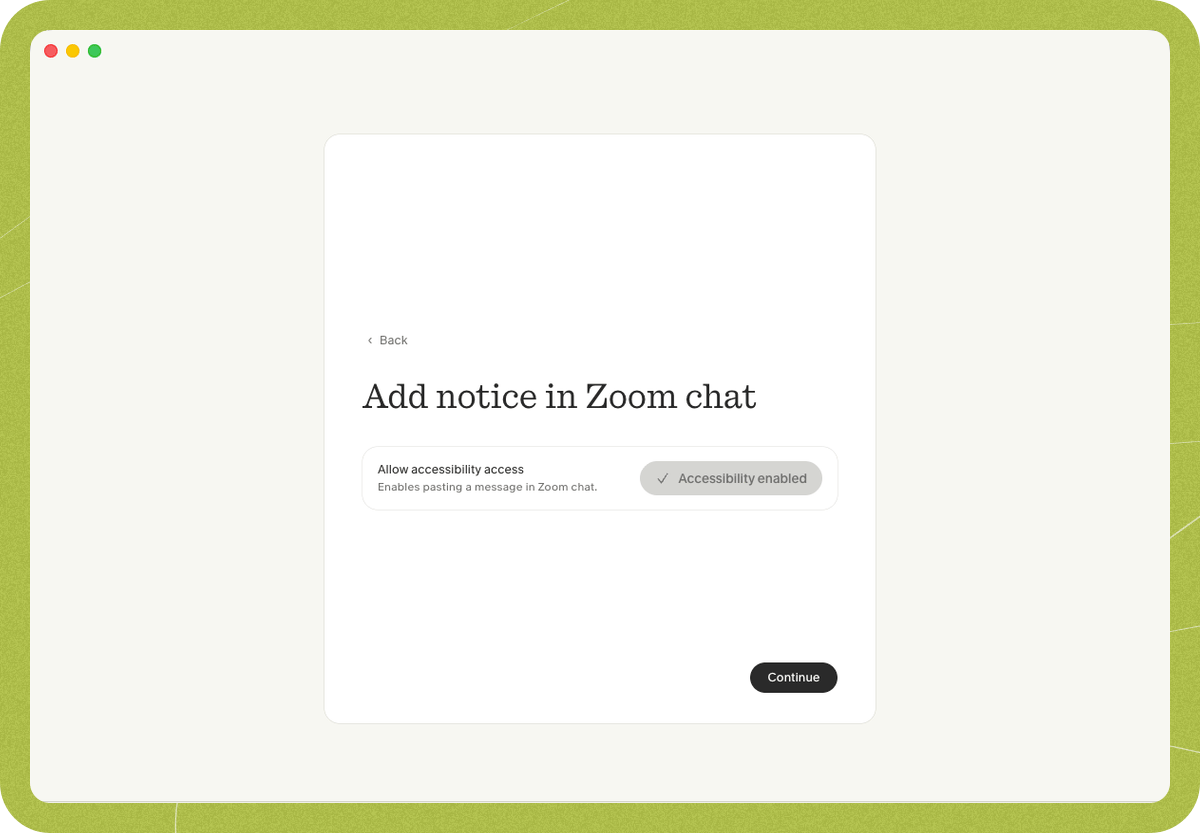
 2. In the setup window, click **Enable accessibility**.
 ### Step 2 — Grant Accessibility permission
1. macOS opens **System Settings > Privacy & Security > Accessibility**. Enable (or drag in) **Granola** and confirm. macOS asks to let Granola "control your computer" — this is required so Granola can foreground the Zoom window and paste the message.
### Step 2 — Grant Accessibility permission
1. macOS opens **System Settings > Privacy & Security > Accessibility**. Enable (or drag in) **Granola** and confirm. macOS asks to let Granola "control your computer" — this is required so Granola can foreground the Zoom window and paste the message.
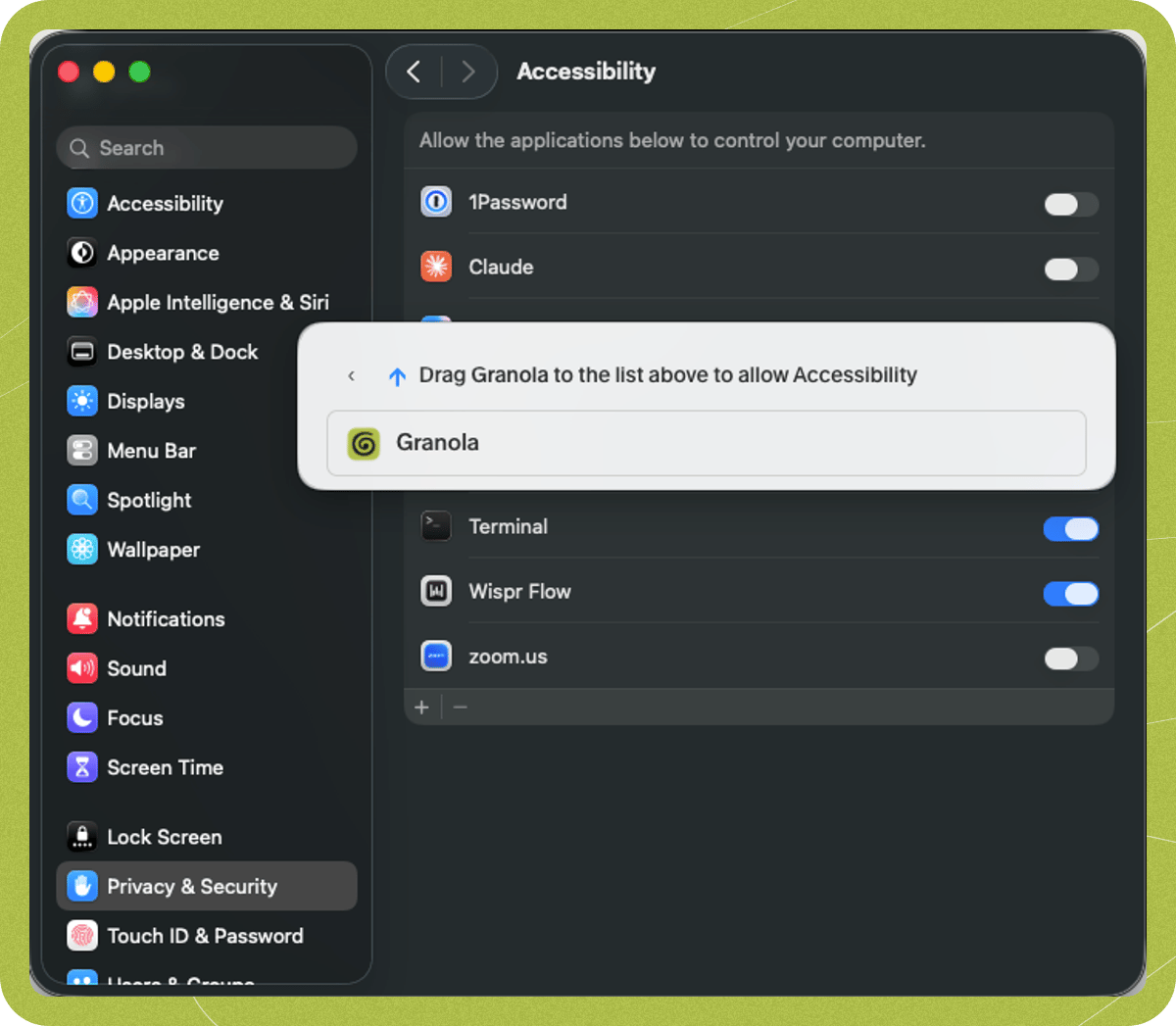 2. Back in Granola, the setup shows **Accessibility enabled** — click **Continue**.
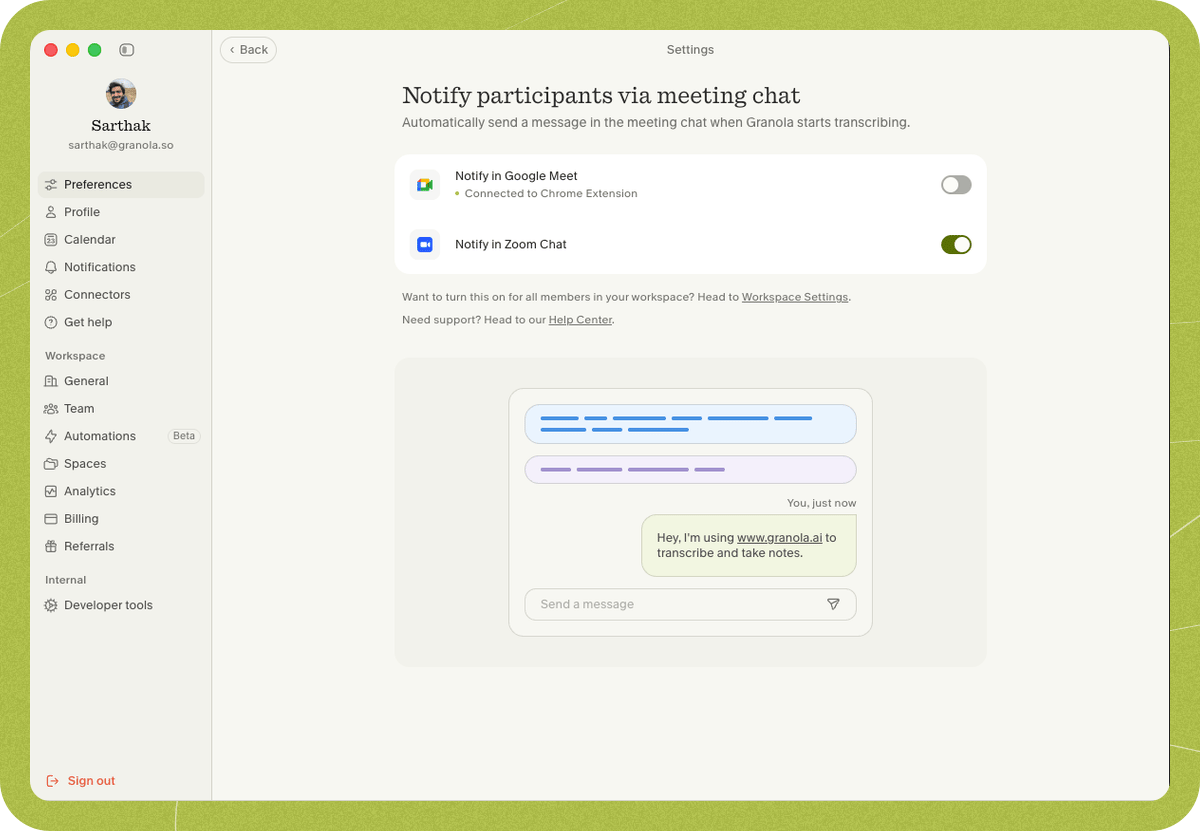
 3. **Automated chat message in Zoom** is now on.
 ## When the message sends
The message is posted automatically when **both** of these are true:
* Transcription has started and captured some speech (i.e. someone else is in the meeting — you won't notify an empty room), and
* The Zoom window is **in focus** (you've clicked on it).
So it may appear slightly later in the call if little is said at the start or you're focused on another window. Also make sure the Zoom chat composer is empty — if you've already typed something there, Granola can't paste into it.
## Troubleshooting
If Loom is running, its confetti keyboard shortcut can break auto-paste. Open the Loom widget, click the three dots, go to **Preferences**, and disable the confetti keyboard shortcut.
Contact us at **[hey@granola.so](mailto:hey@granola.so)** and we'll be happy to help.
## Microsoft Teams
Automated chat message for Teams is coming soon. If you'd like to be a Design Partner, please email us at **[hey@granola.so](mailto:hey@granola.so)**.
## When the message sends
The message is posted automatically when **both** of these are true:
* Transcription has started and captured some speech (i.e. someone else is in the meeting — you won't notify an empty room), and
* The Zoom window is **in focus** (you've clicked on it).
So it may appear slightly later in the call if little is said at the start or you're focused on another window. Also make sure the Zoom chat composer is empty — if you've already typed something there, Granola can't paste into it.
## Troubleshooting
If Loom is running, its confetti keyboard shortcut can break auto-paste. Open the Loom widget, click the three dots, go to **Preferences**, and disable the confetti keyboard shortcut.
Contact us at **[hey@granola.so](mailto:hey@granola.so)** and we'll be happy to help.
## Microsoft Teams
Automated chat message for Teams is coming soon. If you'd like to be a Design Partner, please email us at **[hey@granola.so](mailto:hey@granola.so)**.