> ## Documentation Index
> Fetch the complete documentation index at: https://docs.granola.ai/llms.txt
> Use this file to discover all available pages before exploring further.
# Setting up automated chat message on Google Meet (User Guide)
> Set up Granola's automated chat message for Google Meet just for yourself: install the Granola browser extension and it connects automatically.
macOS Windows
This guide is for individuals who want to enable the notice just for themselves. Are you an **Enterprise** admin enforcing this for your whole workspace? See the [admin guide](/help-center/consent-security-privacy/transparency-solutions/for-enterprise-admins/google-meet).
## Install the Granola browser extension
1. Open [**Settings > Preferences > Transparency > Automated chat message**](granola://open-settings?page=individuals/automated-chat-message).
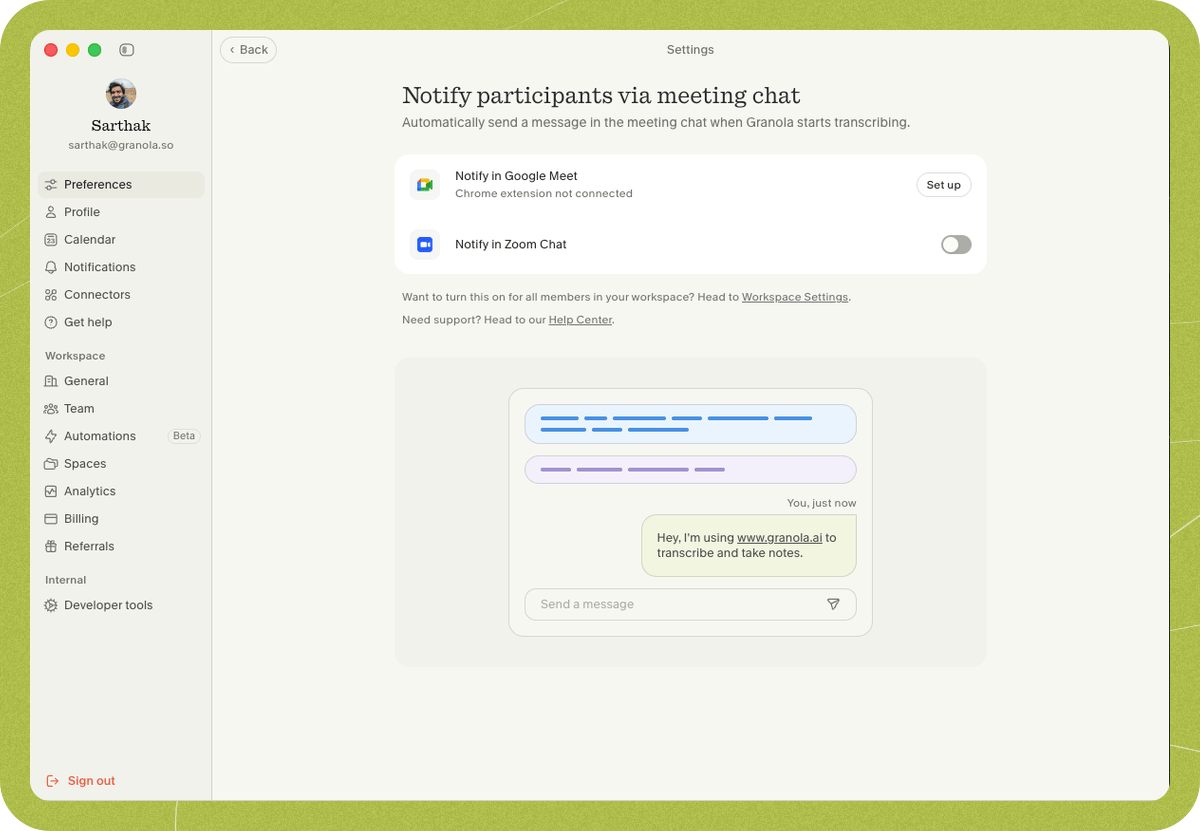 2. Find **Notify in Google Meet** and click **Set up**.
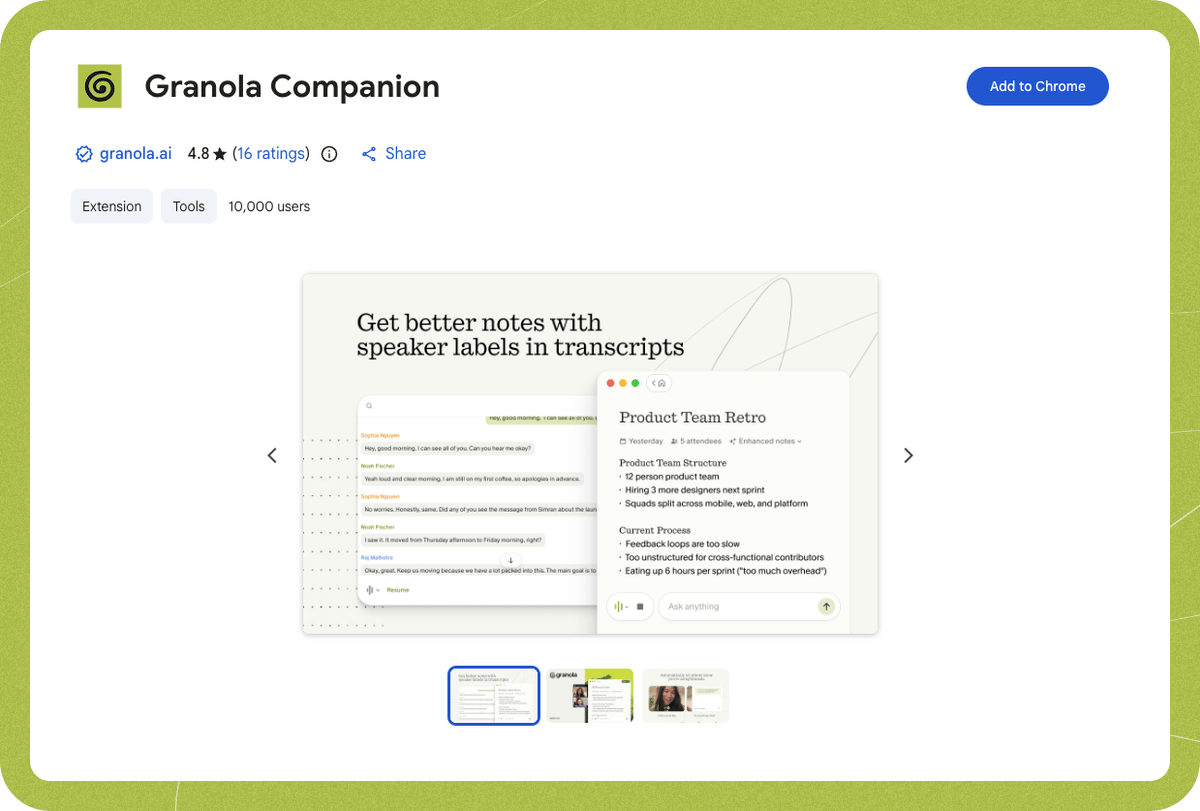
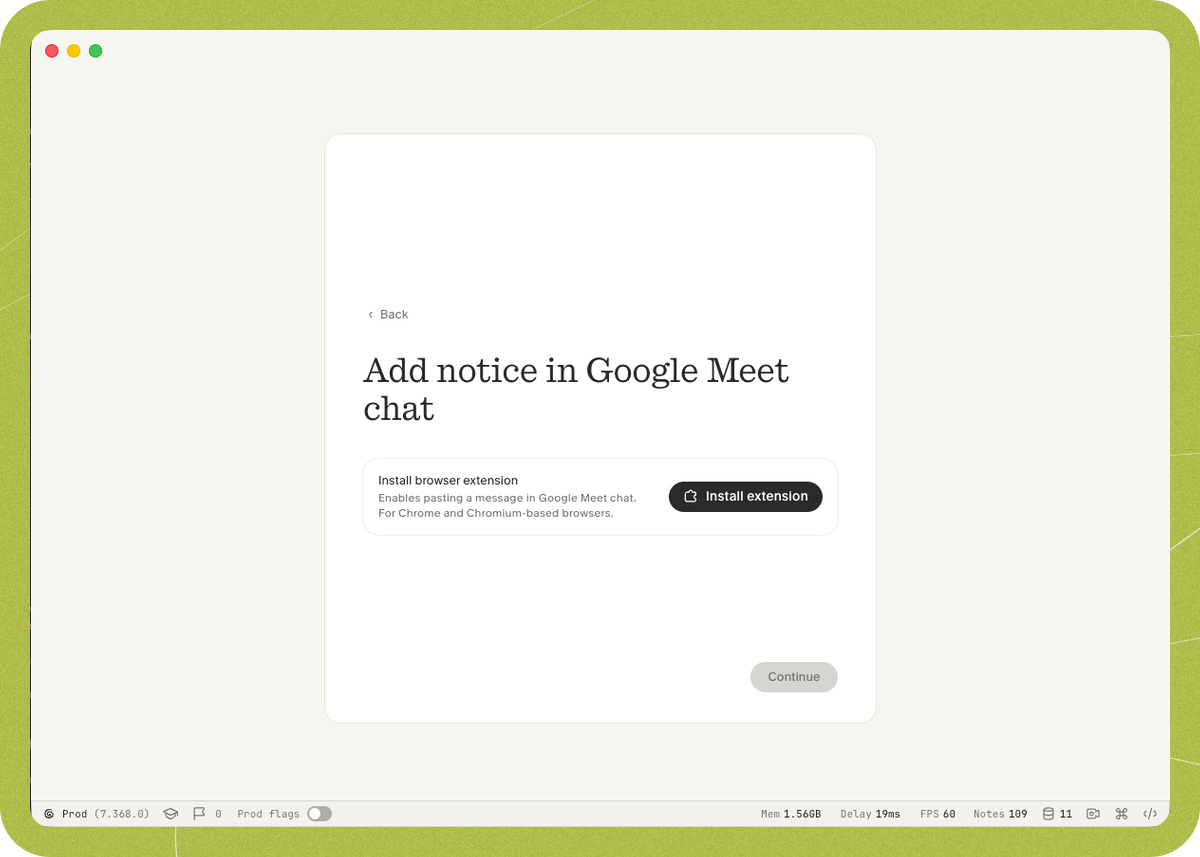 3. Click **Install extension** and add the [Granola browser extension](https://chromewebstore.google.com/detail/granola/opaadbjlebbbnmjjgdmdllingedoleml) from the Chrome Web Store.
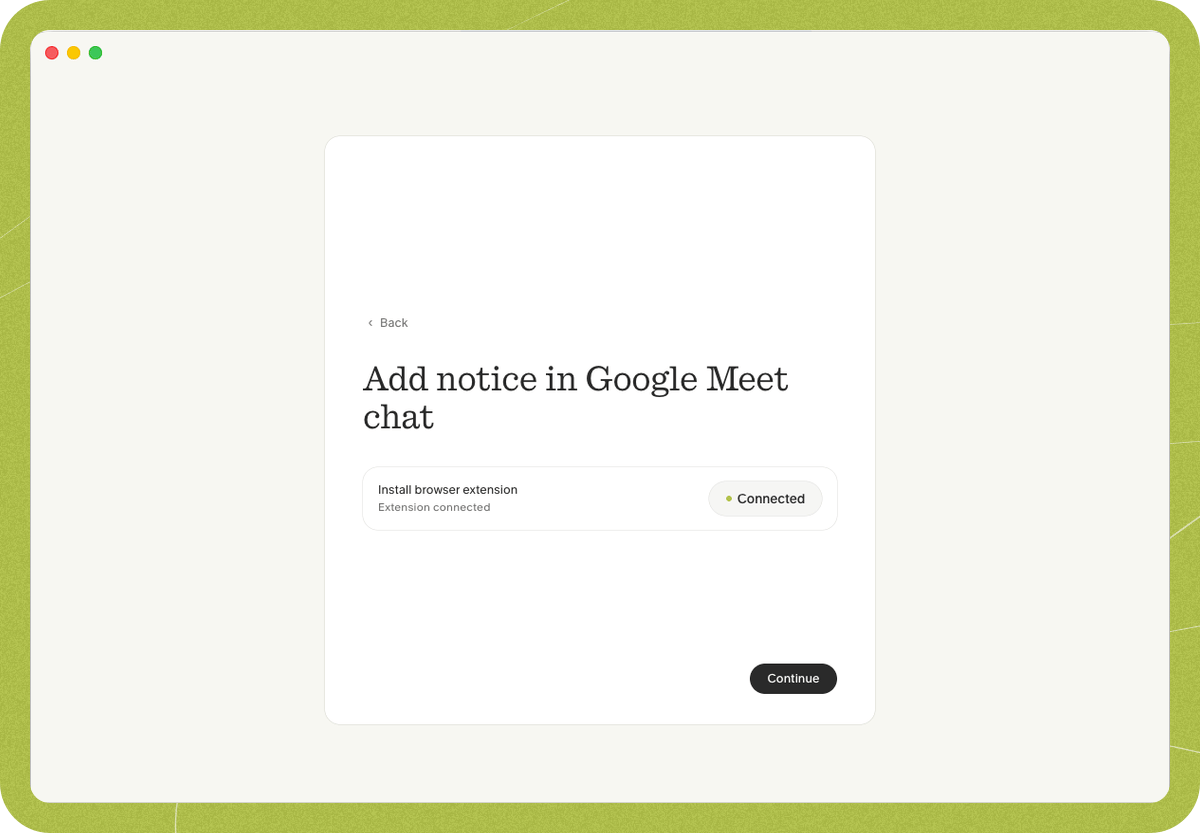
 4. Return to Granola — once the extension shows **Connected**, click **Continue** to enable the feature.
 ## Important to know
* The notice is sent after transcription starts and at least one other participant joins — it isn't sent when you're alone in the meeting.
* The notice is sent **once per meeting** — you won't get duplicate messages if you briefly leave and rejoin.
* **Late joiners** on desktop see the pinned message. Late joiners on mobile, or external participants, may not see it depending on the meeting's chat settings.
* For the notice, the extension only sends the message — it doesn't access meeting audio, video, or transcripts. (If you also use Google Meet speaker tags, the extension reads active-speaker and participant-name data for that feature.)
* Requires Google Chrome or a supported Chromium browser (Edge, Arc, Brave). Other browsers aren't supported yet.
Questions? Contact **[hey@granola.so](mailto:hey@granola.so)**.
## Important to know
* The notice is sent after transcription starts and at least one other participant joins — it isn't sent when you're alone in the meeting.
* The notice is sent **once per meeting** — you won't get duplicate messages if you briefly leave and rejoin.
* **Late joiners** on desktop see the pinned message. Late joiners on mobile, or external participants, may not see it depending on the meeting's chat settings.
* For the notice, the extension only sends the message — it doesn't access meeting audio, video, or transcripts. (If you also use Google Meet speaker tags, the extension reads active-speaker and participant-name data for that feature.)
* Requires Google Chrome or a supported Chromium browser (Edge, Arc, Brave). Other browsers aren't supported yet.
Questions? Contact **[hey@granola.so](mailto:hey@granola.so)**.