> ## Documentation Index
> Fetch the complete documentation index at: https://docs.granola.ai/llms.txt
> Use this file to discover all available pages before exploring further.
# Let people know you're using Granola (User Guide)
> Individual setup for Granola's transparency features: the automated chat message and Granola Watermark. Enable them just for yourself on Free and Business plans.
This guide is for individuals who want to enable transparency features just for themselves. Are you an **Enterprise** admin enforcing these for your whole workspace? See the [admin guide](/help-center/consent-security-privacy/transparency-solutions/for-enterprise-admins).
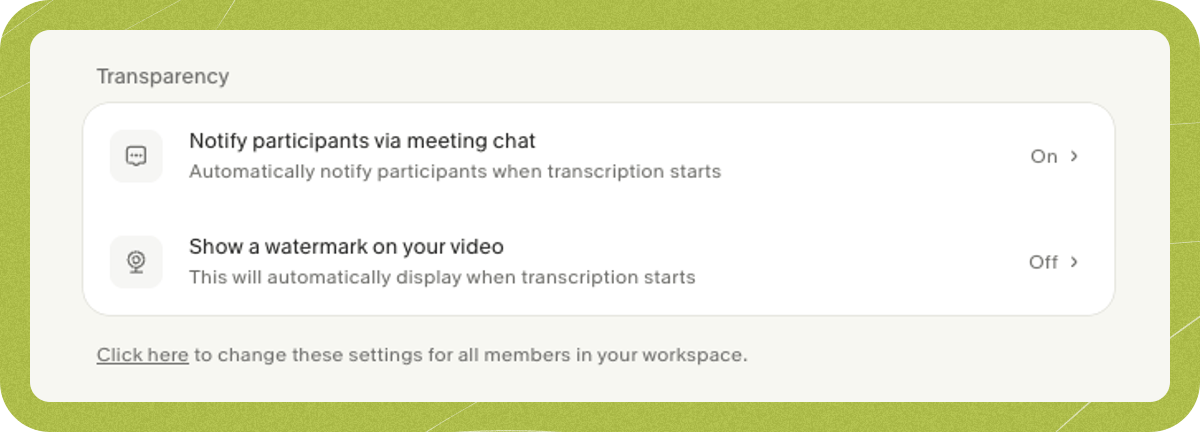
Granola gives you two ways to let meeting participants know you're transcribing:
* **Automated chat message** — posts a short notice into the meeting chat.
* **Granola Watermark** — shows a small badge on your video while you're transcribing.
You can manage both from **Settings > Preferences > Transparency**.
 ## Set up the automated chat message
Install the Granola browser extension.
Turn on the Zoom chat notice. macOS also requires Accessibility permission.
## Set up Granola Watermark
Turn it on, install the camera, and select it in your meeting app.
Questions? Contact **[hey@granola.so](mailto:hey@granola.so)**.
## Set up the automated chat message
Install the Granola browser extension.
Turn on the Zoom chat notice. macOS also requires Accessibility permission.
## Set up Granola Watermark
Turn it on, install the camera, and select it in your meeting app.
Questions? Contact **[hey@granola.so](mailto:hey@granola.so)**.