> ## Documentation Index
> Fetch the complete documentation index at: https://docs.granola.ai/llms.txt
> Use this file to discover all available pages before exploring further.
# Zoom setup (Admin Guide)
> Set up Granola's automated chat message for Zoom on macOS: grant Accessibility permission and enable the notice for your workspace.
macOS
This guide is for **Enterprise** plan admins who want to enforce transparency features for everyone in their workspace. On a **Free** or **Business** plan? See [user guide](/help-center/consent-security-privacy/transparency-solutions/for-individuals) to set it up just for yourself.
## 1. Allow accessibility permission (Mac devices)
Each user must grant **macOS Accessibility** permission so Granola can paste into the Zoom chat window:
1. Open **System Settings > Privacy & Security > Accessibility**.
2. Enable **Granola**.
On managed devices, you can pre-grant this so users never see the permission prompt — see [Auto-grant via MDM](#auto-grant-via-mdm) below.
#### Auto-grant via MDM
Accessibility for Granola can be pre-granted on managed devices so end users never see the macOS permission prompt. The grant is delivered as a Privacy Preferences Policy Control (PPPC) profile pre-approving Granola (team ID `QZ7DHHLN25`, bundle ID `com.granola.app`) for the Accessibility service. Below is an example `.mobileconfig` you can use directly, or adapt as a starting point.
```xml theme={null}
PayloadContent
PayloadDescription
Grants Granola the macOS Accessibility permission so it can post automatic consent messages in meeting chats without prompting the user.
PayloadDisplayName
Privacy Preferences Policy Control
PayloadIdentifier
ai.granola.allow-granola-accessibility.pppc
PayloadOrganization
Granola
PayloadType
com.apple.TCC.configuration-profile-policy
PayloadUUID
78540A61-F502-4D5A-AD6C-7FB1782239D5
PayloadVersion
1
Services
Accessibility
Allowed
1
CodeRequirement
identifier "com.granola.app" and anchor apple generic and certificate 1[field.1.2.840.113635.100.6.2.6] /* exists */ and certificate leaf[field.1.2.840.113635.100.6.1.13] /* exists */ and certificate leaf[subject.OU] = QZ7DHHLN25
Comment
Identifier
com.granola.app
IdentifierType
bundleID
StaticCode
0
PayloadDescription
Grants Granola the macOS Accessibility permission so it can post automatic consent messages in meeting chats without prompting the user.
PayloadDisplayName
Allow Granola Accessibility (Automatic Consent Messaging)
PayloadIdentifier
ai.granola.allow-granola-accessibility
PayloadOrganization
Granola
PayloadScope
System
PayloadType
Configuration
PayloadUUID
914FAE30-385F-4E71-873D-D256A78F333F
PayloadVersion
1
```
PPPC profiles must be delivered by an enrolled MDM (Jamf, Intune, Kandji, Mosyle, Meraki, etc.) — manual installs appear in **System Settings > Profiles** but don't apply the grant.
## 2. Enable the chat message for your workspace
1. Open [**Settings > Workspace > General > Transparency > Automated chat messages for your team**](granola://open-settings?page=workspace/automated-chat-message).
2. Find **Automated chat message in Zoom** and click **Set up**.
3. Complete the wizard, then click **Enable for all workspace users**.
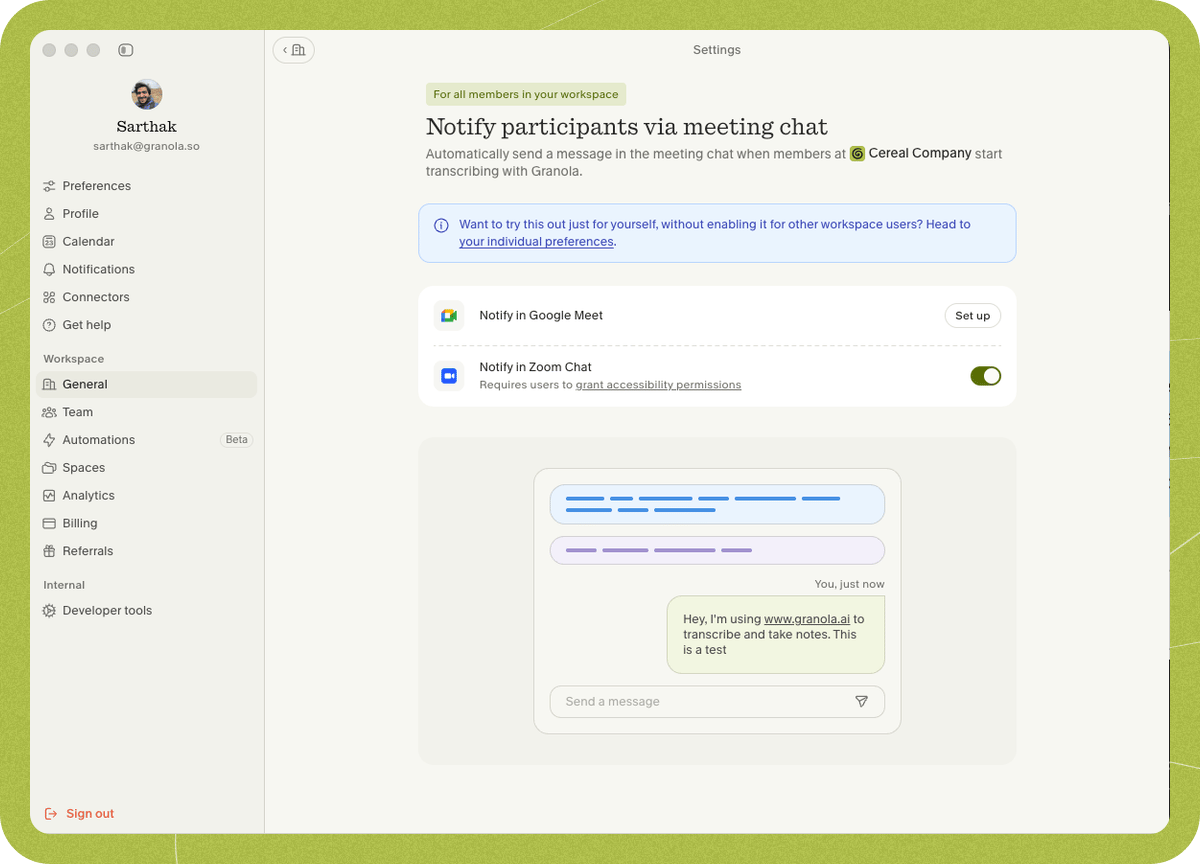 The message sends once the transcription has started (someone else is in the meeting) and the Zoom window is in focus.
## FAQs
The notice is sent once **transcription has started** (so another person is definitely present) and the **Zoom window is in focus** (you've clicked on it). It may appear slightly later into the call if little is said at the start or if you're focused on another window.
If you have Loom running while you're on Granola, disable its confetti keyboard shortcut: open the Loom widget, click the three dots to open settings, and in preferences disable the keyboard shortcut for confetti.
Individual Windows users can enable the Zoom chat notice for themselves in [**Settings > Preferences > Transparency > Automated chat message**](granola://open-settings?page=individuals/automated-chat-message). This admin guide is for enforcing the notice across your whole workspace, which is currently available on **macOS only**. Workspace-wide Zoom chat messages on Windows are coming soon.
Contact us at **[hey@granola.so](mailto:hey@granola.so)** and we'll be happy to help.
The message sends once the transcription has started (someone else is in the meeting) and the Zoom window is in focus.
## FAQs
The notice is sent once **transcription has started** (so another person is definitely present) and the **Zoom window is in focus** (you've clicked on it). It may appear slightly later into the call if little is said at the start or if you're focused on another window.
If you have Loom running while you're on Granola, disable its confetti keyboard shortcut: open the Loom widget, click the three dots to open settings, and in preferences disable the keyboard shortcut for confetti.
Individual Windows users can enable the Zoom chat notice for themselves in [**Settings > Preferences > Transparency > Automated chat message**](granola://open-settings?page=individuals/automated-chat-message). This admin guide is for enforcing the notice across your whole workspace, which is currently available on **macOS only**. Workspace-wide Zoom chat messages on Windows are coming soon.
Contact us at **[hey@granola.so](mailto:hey@granola.so)** and we'll be happy to help.