> ## Documentation Index
> Fetch the complete documentation index at: https://docs.granola.ai/llms.txt
> Use this file to discover all available pages before exploring further.
# Setting up Granola Watermark (Admin Guide)
> Enable, require, and deploy Granola Watermark for your workspace, including MDM deployment on macOS and Windows.
macOS 14+ Windows 11
This guide is for **Enterprise** plan admins who want to enforce transparency features for everyone in their workspace. On a **Free** or **Business** plan? See [user guide](/help-center/consent-security-privacy/transparency-solutions/for-individuals) to set it up just for yourself.
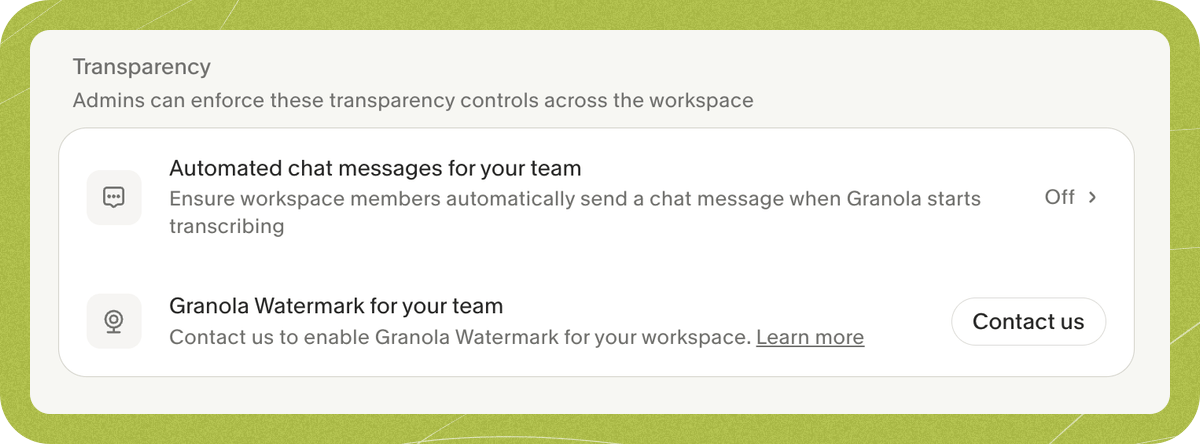
In **Settings > Workspace > General > Transparency**, if **Granola Watermark for your team** shows a **Contact us** button (as below), it isn't enabled for your workspace yet. Email [hey@granola.so](mailto:hey@granola.so) if you'd like us to turn it on. In the meantime, you can try the watermark for yourself through [individual settings](/help-center/consent-security-privacy/transparency-solutions/for-individuals/watermark).
 Setup has three parts: (1) enable at least one automated chat message option, (2) install the Granola camera on each device, and (3) enable watermark for your workspace.
Granola Watermark is available on **macOS 14.0+** and **Windows 11**.
## 1. Enable at least one automated chat message option (required)
Before you can start watermark setup, your workspace must have at least one automated chat message option enabled:
* [Google Meet setup (Admin Guide)](/help-center/consent-security-privacy/transparency-solutions/for-enterprise-admins/google-meet)
* [Zoom setup (Admin Guide)](/help-center/consent-security-privacy/transparency-solutions/for-enterprise-admins/zoom)
This prerequisite exists because if a user turns their camera off mid-call, Granola can continue transcribing only after transparency has already been established in that meeting — either an automated chat message was sent, or the user had already shown Granola Watermark earlier in the same call.
## 2. Enable for your workspace (admin)
Setup has three parts: (1) enable at least one automated chat message option, (2) install the Granola camera on each device, and (3) enable watermark for your workspace.
Granola Watermark is available on **macOS 14.0+** and **Windows 11**.
## 1. Enable at least one automated chat message option (required)
Before you can start watermark setup, your workspace must have at least one automated chat message option enabled:
* [Google Meet setup (Admin Guide)](/help-center/consent-security-privacy/transparency-solutions/for-enterprise-admins/google-meet)
* [Zoom setup (Admin Guide)](/help-center/consent-security-privacy/transparency-solutions/for-enterprise-admins/zoom)
This prerequisite exists because if a user turns their camera off mid-call, Granola can continue transcribing only after transparency has already been established in that meeting — either an automated chat message was sent, or the user had already shown Granola Watermark earlier in the same call.
## 2. Enable for your workspace (admin)
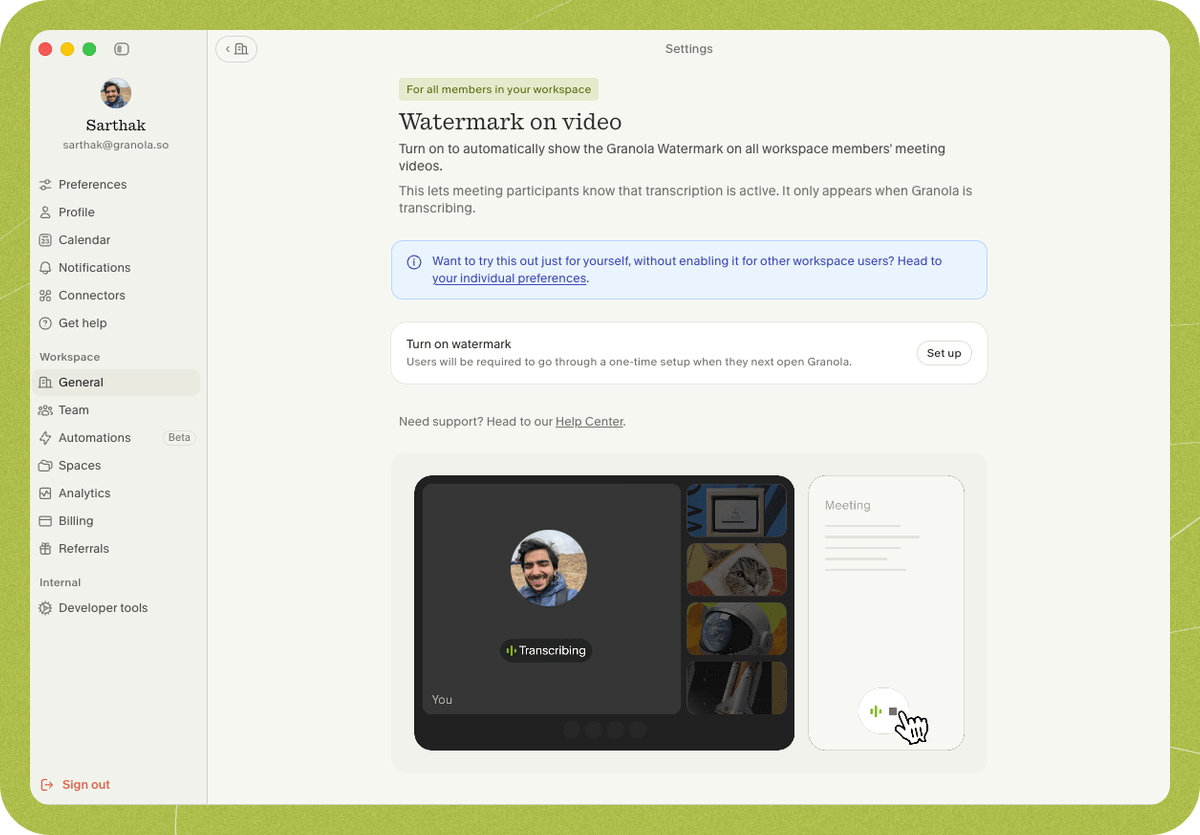 1. Open **Settings > Workspace > General**, then in the **Transparency** section find **Show a watermark on workspace members' video**.
2. Click **Set up**, complete the wizard, and click **Enable for all users**.
Once enabled, workspace members are prompted to complete a one-time setup flow in Granola the next time they open the app. This requires them to switch their meeting camera to a **Granola Watermark** option before they can transcribe — if their meeting app isn't using Granola Watermark, Granola may stop transcribing until they switch to one. Workspace members can't opt out from individual preferences.
## 3. Install the Granola camera on each device
Workspace admins can use MDM to remove the admin/password prompts from the Granola camera setup flow.
The steps below are a starting point. Exact deployment steps depend on your MDM tool. If you need help with a specific MDM, contact **[hey@granola.so](mailto:hey@granola.so)**.
The Granola camera is delivered as a **system extension** bundled inside Granola.app. To remove admin approval prompts, pre-approve the system extension (team ID `QZ7DHHLN25`, bundle ID `com.granola.app.GranolaMacWebcam.Extension`) with a `com.apple.system-extension-policy` configuration profile. Below is an example `.mobileconfig` you can use directly, or adapt as a starting point.
```xml theme={null}
PayloadContent
AllowedSystemExtensions
QZ7DHHLN25
com.granola.app.GranolaMacWebcam.Extension
PayloadDescription
Pre-approves the Granola camera extension.
PayloadDisplayName
System Extensions
PayloadIdentifier
ai.granola.allow-granola-webcam-system-extension.system-extension-policy
PayloadOrganization
Granola
PayloadType
com.apple.system-extension-policy
PayloadUUID
FB488C66-A746-4D92-873A-71F5DF50F88B
PayloadVersion
1
PayloadDescription
Pre-approves the Granola camera extension.
PayloadDisplayName
Allow Granola Watermark system extension
PayloadIdentifier
ai.granola.allow-granola-webcam-system-extension
PayloadOrganization
Granola
PayloadScope
System
PayloadType
Configuration
PayloadUUID
6F9F8E39-818F-4CF9-942C-3B2B68C6B1E8
PayloadVersion
1
```
Once the profile is applied, workspace members don't need admin permissions to install the Granola camera. They just complete a one-time setup flow in Granola.
On Windows, installing the Granola camera requires writing entries under `HKLM\SOFTWARE\Classes\CLSID`, which requires admin rights. Below is an example script for setting up the registry keys required. Run it elevated (as SYSTEM / admin) via your MDM during device provisioning so workspace members don't see an admin prompt.
```powershell theme={null}
# GranolaVirtualCamInstaller - Register the Granola camera COM server.
#
# Writes the CLSID InprocServer32 entry to HKLM so Frame Server can find the DLL.
# Must be run as Administrator.
$ErrorActionPreference = "Stop"
# Admin check
$isAdmin = ([Security.Principal.WindowsPrincipal] [Security.Principal.WindowsIdentity]::GetCurrent()).IsInRole(
[Security.Principal.WindowsBuiltInRole]::Administrator)
if (-not $isAdmin) {
Write-Host "Error: This script requires Administrator privileges."
exit 1
}
$ClsidKey = "HKLM:\SOFTWARE\Classes\CLSID\{63F1BB5C-B141-4E20-948C-6293D4722568}"
$InprocKey = "$ClsidKey\InprocServer32"
$DllPath = Join-Path $env:PROGRAMDATA "Granola\VirtualCamera\VirtualCameraMediaSource.dll"
# Create CLSID key
New-Item -Path $ClsidKey -Force | Out-Null
Set-ItemProperty -Path $ClsidKey -Name "(Default)" -Value "VirtualCameraMediaSource"
# Create InprocServer32 subkey
New-Item -Path $InprocKey -Force | Out-Null
Set-ItemProperty -Path $InprocKey -Name "(Default)" -Value $DllPath
Set-ItemProperty -Path $InprocKey -Name "ThreadingModel" -Value "Both"
# Verify registration succeeded
if (-not (Test-Path $InprocKey)) {
Write-Host "Error: COM registration verification failed."
exit 1
}
Write-Host "COM server registered successfully."
Write-Host " CLSID: {63F1BB5C-B141-4E20-948C-6293D4722568}"
Write-Host " DLL: $DllPath"
exit 0
```
Once the script has run, workspace members don't need admin permissions to install the Granola camera. They just complete a one-time setup flow in Granola.
## What workspace members need to do
Workspace members complete a one-time setup flow on their device, then choose a **Granola Watermark** camera in their meeting app. When Granola Watermark is enabled for the workspace:
* Workspace members can't opt out from individual preferences.
* Granola may stop transcribing until the workspace member's meeting app is using the Granola camera.
* They still need to select Granola Watermark in each meeting app they use. Most meeting apps remember this choice.
You can share [Setting up Granola Watermark](/help-center/consent-security-privacy/transparency-solutions/for-individuals/watermark) with workspace members so they know how to set up, use, and troubleshoot the watermark.
## Communicate the rollout
Before enabling or requiring the watermark, tell workspace members:
* Granola Watermark appears only while Granola is transcribing.
* It is available on macOS 14.0+ and Windows 11+.
* They need to complete a one-time setup flow in Granola.
* They need to choose a **Granola Watermark** camera in Zoom, Google Meet, Microsoft Teams, or any other meeting app they use.
* If the workspace requires the watermark, they won't be able to turn it off from individual preferences.
* Granola may stop transcribing until they switch their meeting app to the Granola camera.
* If someone turns their camera off mid-call, Granola can continue only after transparency has already been established in that meeting (an automated chat message was sent, or Granola Watermark had already been shown earlier in the call).
Questions? Contact **[hey@granola.so](mailto:hey@granola.so)**.
1. Open **Settings > Workspace > General**, then in the **Transparency** section find **Show a watermark on workspace members' video**.
2. Click **Set up**, complete the wizard, and click **Enable for all users**.
Once enabled, workspace members are prompted to complete a one-time setup flow in Granola the next time they open the app. This requires them to switch their meeting camera to a **Granola Watermark** option before they can transcribe — if their meeting app isn't using Granola Watermark, Granola may stop transcribing until they switch to one. Workspace members can't opt out from individual preferences.
## 3. Install the Granola camera on each device
Workspace admins can use MDM to remove the admin/password prompts from the Granola camera setup flow.
The steps below are a starting point. Exact deployment steps depend on your MDM tool. If you need help with a specific MDM, contact **[hey@granola.so](mailto:hey@granola.so)**.
The Granola camera is delivered as a **system extension** bundled inside Granola.app. To remove admin approval prompts, pre-approve the system extension (team ID `QZ7DHHLN25`, bundle ID `com.granola.app.GranolaMacWebcam.Extension`) with a `com.apple.system-extension-policy` configuration profile. Below is an example `.mobileconfig` you can use directly, or adapt as a starting point.
```xml theme={null}
PayloadContent
AllowedSystemExtensions
QZ7DHHLN25
com.granola.app.GranolaMacWebcam.Extension
PayloadDescription
Pre-approves the Granola camera extension.
PayloadDisplayName
System Extensions
PayloadIdentifier
ai.granola.allow-granola-webcam-system-extension.system-extension-policy
PayloadOrganization
Granola
PayloadType
com.apple.system-extension-policy
PayloadUUID
FB488C66-A746-4D92-873A-71F5DF50F88B
PayloadVersion
1
PayloadDescription
Pre-approves the Granola camera extension.
PayloadDisplayName
Allow Granola Watermark system extension
PayloadIdentifier
ai.granola.allow-granola-webcam-system-extension
PayloadOrganization
Granola
PayloadScope
System
PayloadType
Configuration
PayloadUUID
6F9F8E39-818F-4CF9-942C-3B2B68C6B1E8
PayloadVersion
1
```
Once the profile is applied, workspace members don't need admin permissions to install the Granola camera. They just complete a one-time setup flow in Granola.
On Windows, installing the Granola camera requires writing entries under `HKLM\SOFTWARE\Classes\CLSID`, which requires admin rights. Below is an example script for setting up the registry keys required. Run it elevated (as SYSTEM / admin) via your MDM during device provisioning so workspace members don't see an admin prompt.
```powershell theme={null}
# GranolaVirtualCamInstaller - Register the Granola camera COM server.
#
# Writes the CLSID InprocServer32 entry to HKLM so Frame Server can find the DLL.
# Must be run as Administrator.
$ErrorActionPreference = "Stop"
# Admin check
$isAdmin = ([Security.Principal.WindowsPrincipal] [Security.Principal.WindowsIdentity]::GetCurrent()).IsInRole(
[Security.Principal.WindowsBuiltInRole]::Administrator)
if (-not $isAdmin) {
Write-Host "Error: This script requires Administrator privileges."
exit 1
}
$ClsidKey = "HKLM:\SOFTWARE\Classes\CLSID\{63F1BB5C-B141-4E20-948C-6293D4722568}"
$InprocKey = "$ClsidKey\InprocServer32"
$DllPath = Join-Path $env:PROGRAMDATA "Granola\VirtualCamera\VirtualCameraMediaSource.dll"
# Create CLSID key
New-Item -Path $ClsidKey -Force | Out-Null
Set-ItemProperty -Path $ClsidKey -Name "(Default)" -Value "VirtualCameraMediaSource"
# Create InprocServer32 subkey
New-Item -Path $InprocKey -Force | Out-Null
Set-ItemProperty -Path $InprocKey -Name "(Default)" -Value $DllPath
Set-ItemProperty -Path $InprocKey -Name "ThreadingModel" -Value "Both"
# Verify registration succeeded
if (-not (Test-Path $InprocKey)) {
Write-Host "Error: COM registration verification failed."
exit 1
}
Write-Host "COM server registered successfully."
Write-Host " CLSID: {63F1BB5C-B141-4E20-948C-6293D4722568}"
Write-Host " DLL: $DllPath"
exit 0
```
Once the script has run, workspace members don't need admin permissions to install the Granola camera. They just complete a one-time setup flow in Granola.
## What workspace members need to do
Workspace members complete a one-time setup flow on their device, then choose a **Granola Watermark** camera in their meeting app. When Granola Watermark is enabled for the workspace:
* Workspace members can't opt out from individual preferences.
* Granola may stop transcribing until the workspace member's meeting app is using the Granola camera.
* They still need to select Granola Watermark in each meeting app they use. Most meeting apps remember this choice.
You can share [Setting up Granola Watermark](/help-center/consent-security-privacy/transparency-solutions/for-individuals/watermark) with workspace members so they know how to set up, use, and troubleshoot the watermark.
## Communicate the rollout
Before enabling or requiring the watermark, tell workspace members:
* Granola Watermark appears only while Granola is transcribing.
* It is available on macOS 14.0+ and Windows 11+.
* They need to complete a one-time setup flow in Granola.
* They need to choose a **Granola Watermark** camera in Zoom, Google Meet, Microsoft Teams, or any other meeting app they use.
* If the workspace requires the watermark, they won't be able to turn it off from individual preferences.
* Granola may stop transcribing until they switch their meeting app to the Granola camera.
* If someone turns their camera off mid-call, Granola can continue only after transparency has already been established in that meeting (an automated chat message was sent, or Granola Watermark had already been shown earlier in the call).
Questions? Contact **[hey@granola.so](mailto:hey@granola.so)**.