> ## Documentation Index
> Fetch the complete documentation index at: https://docs.granola.ai/llms.txt
> Use this file to discover all available pages before exploring further.
# Google Meet setup (Admin Guide)
> Admin setup for Granola's automated chat message on Google Meet: enable the notice, deploy the Chrome extension via Google Admin, scope it with Organizational Units or Groups, and allow pinning.
macOS Windows
This guide is for **Enterprise** plan admins who want to enforce transparency features for everyone in their workspace. On a **Free** or **Business** plan? See [user guide](/help-center/consent-security-privacy/transparency-solutions/for-individuals) to set it up just for yourself.
There are three parts to setting this up: deploying the Chrome extension, allowing the message to be pinned, and enabling the feature in Granola.
## 1. Install the Granola Chrome extension onto employees' browsers
Each workspace member needs the browser extension. Admins can deploy it automatically via Google Admin. You can roll it out to your entire organization, or scope it to specific teams using **Organizational Units (OUs)** or **Google Groups**.
**Add the extension**
1. Sign in to your [Google Admin console](https://admin.google.com).
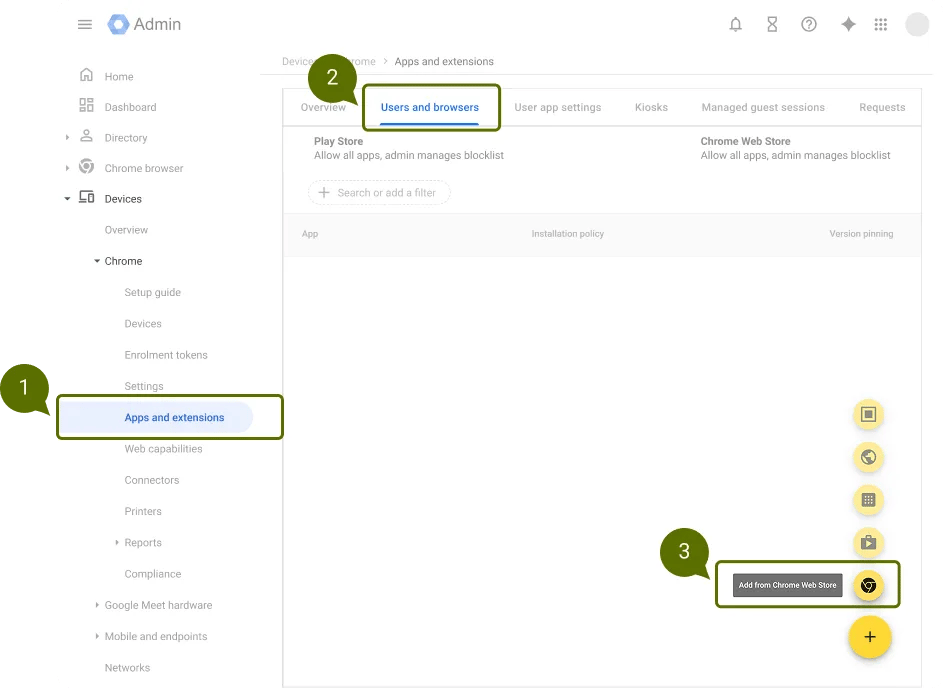
2. Go to **[Devices > Chrome > Apps & extensions > Users & browsers](https://admin.google.com/ac/chrome/apps/user)**.
3. Click the **+** (plus) button in the lower right corner and choose **Add from Chrome Web Store**.
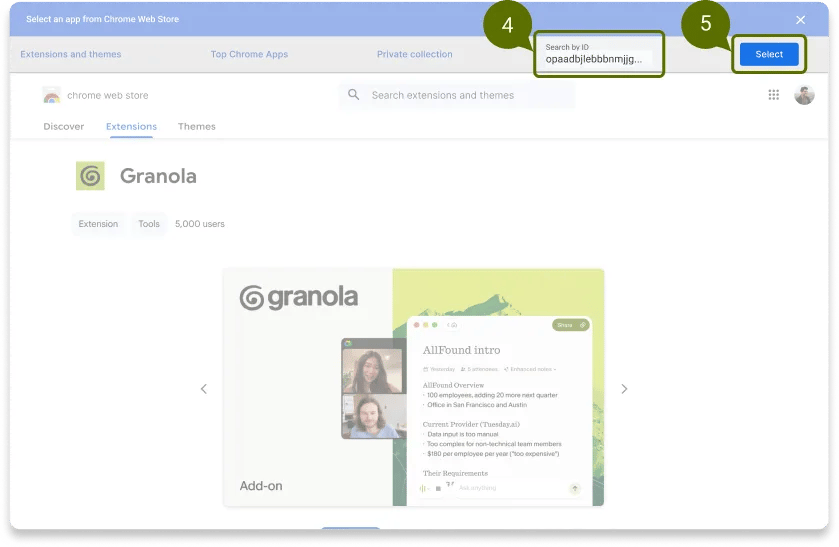
 4. Click **Search by ID** in the upper right and paste the extension ID: `opaadbjlebbbnmjjgdmdllingedoleml`
5. Click **Select** to add the Granola extension.
4. Click **Search by ID** in the upper right and paste the extension ID: `opaadbjlebbbnmjjgdmdllingedoleml`
5. Click **Select** to add the Granola extension.
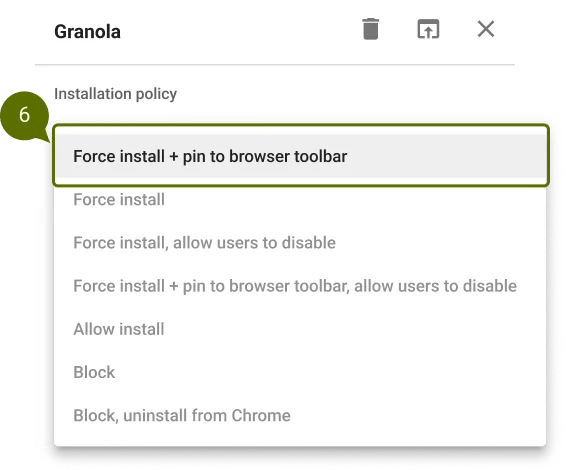
 6. Set the installation policy to **Force install** or **Force install + pin to browser toolbar** to ensure consistent deployment across your organization.
 **Scope installation to specific users**
By default, the extension applies to your entire organization. To limit it to specific teams, departments, or locations, you have two options:
[Organizational Units](https://support.google.com/a/answer/182537) let you group users by department, location, or any other criteria and apply policies to each group independently.
1. In the [Google Admin console](https://admin.google.com), go to **[Directory > Organizational units](https://admin.google.com/ac/orgunits)**.
2. If you don't already have an OU for the target group, [create one](https://support.google.com/a/answer/182537#zippy=%2Ccreate-an-organizational-unit).
3. [Move the relevant users](https://support.google.com/a/answer/182449) into that OU.
4. Go to **[Devices > Chrome > Apps & extensions > Users & browsers](https://admin.google.com/ac/chrome/apps/user)**.
5. In the left sidebar, **select the OU** you want to target (instead of the top-level organization).
6. Add or configure the Granola extension for that OU. Only users in the selected OU will receive the installation.
For more details, see Google's documentation on [viewing and configuring apps & extensions](https://support.google.com/chrome/a/answer/6177447).
If restructuring your OUs isn't practical, you can target installation via a [Google Group](https://support.google.com/a/answer/9400082) instead. This is useful when users span multiple OUs (e.g., a cross-location team).
1. In the [Google Admin console](https://admin.google.com), go to **[Directory > Groups](https://admin.google.com/ac/groups)**.
2. Create a new group (or use an existing one) containing the users who should receive the extension. For example, `granola-users@yourcompany.com`.
3. Go to **[Devices > Chrome > Apps & extensions > Users & browsers](https://admin.google.com/ac/chrome/apps/user)**.
4. In the left sidebar, search for and **select the group** you want to target.
5. Add or configure the Granola extension for that group. Only members of the group will receive the installation.
For more details, see Google's documentation on [managing group-based policies](https://support.google.com/chrome/a/answer/13264197).
You can combine both approaches — for example, force-install the extension for an OU representing a specific office, and also allow installation for members of a cross-functional Google Group.
The extension requires Google Chrome or another supported Chromium browser (Edge, Arc, Brave).
Automated force-install through Google Admin applies to **Google Chrome**. Workspace members on other supported browsers (Edge, Arc, Brave) may need to install the extension manually from the [Chrome Web Store](https://chromewebstore.google.com/detail/granola/opaadbjlebbbnmjjgdmdllingedoleml).
## 2. Allow the message to be pinned
When Continuous Meeting Chat is enabled, the consent notice cannot be pinned. To allow pinning for maximum visibility, disable it:
1. Sign in to the [Google Admin console](https://admin.google.com).
2. Go to **Apps > Google Workspace > Google Meet**.
3. Click **Meet safety settings**.
4. Find the **Continuous meeting chat** setting.
5. Select **Default off — Hosts cannot modify** (recommended).
6. Click **Save**.
This setting applies to your entire Google Workspace organization by default. You can scope it to the same Organizational Unit (OU) or Google Group you used to deploy the browser extension.
## 3. Enable automated chat messages for your workspace
**Scope installation to specific users**
By default, the extension applies to your entire organization. To limit it to specific teams, departments, or locations, you have two options:
[Organizational Units](https://support.google.com/a/answer/182537) let you group users by department, location, or any other criteria and apply policies to each group independently.
1. In the [Google Admin console](https://admin.google.com), go to **[Directory > Organizational units](https://admin.google.com/ac/orgunits)**.
2. If you don't already have an OU for the target group, [create one](https://support.google.com/a/answer/182537#zippy=%2Ccreate-an-organizational-unit).
3. [Move the relevant users](https://support.google.com/a/answer/182449) into that OU.
4. Go to **[Devices > Chrome > Apps & extensions > Users & browsers](https://admin.google.com/ac/chrome/apps/user)**.
5. In the left sidebar, **select the OU** you want to target (instead of the top-level organization).
6. Add or configure the Granola extension for that OU. Only users in the selected OU will receive the installation.
For more details, see Google's documentation on [viewing and configuring apps & extensions](https://support.google.com/chrome/a/answer/6177447).
If restructuring your OUs isn't practical, you can target installation via a [Google Group](https://support.google.com/a/answer/9400082) instead. This is useful when users span multiple OUs (e.g., a cross-location team).
1. In the [Google Admin console](https://admin.google.com), go to **[Directory > Groups](https://admin.google.com/ac/groups)**.
2. Create a new group (or use an existing one) containing the users who should receive the extension. For example, `granola-users@yourcompany.com`.
3. Go to **[Devices > Chrome > Apps & extensions > Users & browsers](https://admin.google.com/ac/chrome/apps/user)**.
4. In the left sidebar, search for and **select the group** you want to target.
5. Add or configure the Granola extension for that group. Only members of the group will receive the installation.
For more details, see Google's documentation on [managing group-based policies](https://support.google.com/chrome/a/answer/13264197).
You can combine both approaches — for example, force-install the extension for an OU representing a specific office, and also allow installation for members of a cross-functional Google Group.
The extension requires Google Chrome or another supported Chromium browser (Edge, Arc, Brave).
Automated force-install through Google Admin applies to **Google Chrome**. Workspace members on other supported browsers (Edge, Arc, Brave) may need to install the extension manually from the [Chrome Web Store](https://chromewebstore.google.com/detail/granola/opaadbjlebbbnmjjgdmdllingedoleml).
## 2. Allow the message to be pinned
When Continuous Meeting Chat is enabled, the consent notice cannot be pinned. To allow pinning for maximum visibility, disable it:
1. Sign in to the [Google Admin console](https://admin.google.com).
2. Go to **Apps > Google Workspace > Google Meet**.
3. Click **Meet safety settings**.
4. Find the **Continuous meeting chat** setting.
5. Select **Default off — Hosts cannot modify** (recommended).
6. Click **Save**.
This setting applies to your entire Google Workspace organization by default. You can scope it to the same Organizational Unit (OU) or Google Group you used to deploy the browser extension.
## 3. Enable automated chat messages for your workspace
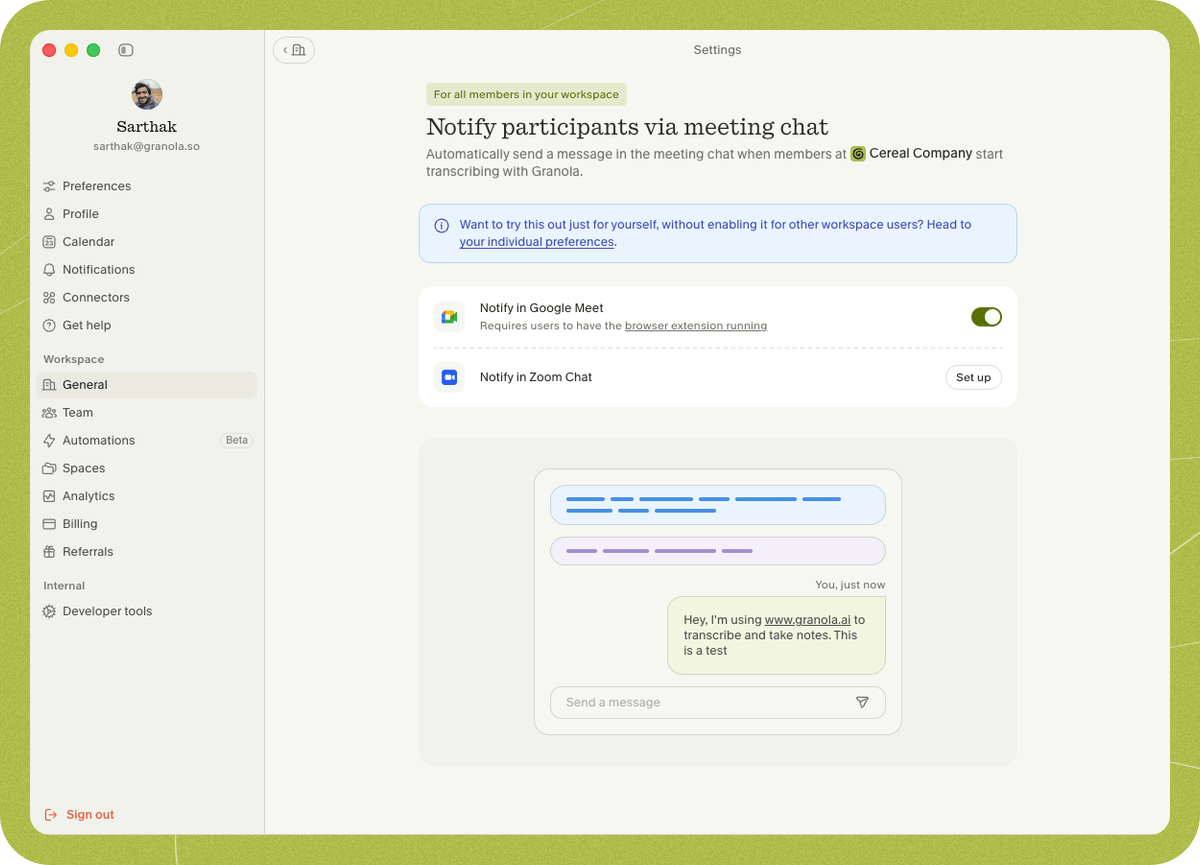 1. Open **Settings > Workspace > General > Transparency > Automated chat messages for your team**.
2. Find **Automated chat message in Google Meet** and click **Set up**.
3. Complete the setup, then click **Enable for all workspace users** to turn it on for everyone.
## Things to know
* **When it's sent**: The notice is sent after transcription starts and at least one other participant joins. It isn't sent when the Granola user is alone in the meeting.
* **Late joiners**: Participants who join after the message was sent will still see it on desktop (via the pinned message). Late joiners on mobile may not see pinned messages [due to Google Chat limitations](https://support.google.com/meet/answer/9308979?hl=en).
* **External participants**: Depending on the meeting's chat configuration, participants from outside your organization who join late may not see the chat message.
* **Continuous Meeting Chat**: If Continuous Meeting Chat is still enabled, the notice will be sent but **will not be pinned**. See [Allow the message to be pinned](#2-allow-the-message-to-be-pinned) above.
## FAQs
The notice is sent **once per meeting** — workspace members won't see duplicate messages if they briefly leave and rejoin.
For the in-meeting notice, the browser extension only sends the message — it doesn't access meeting audio, video, or transcripts. (If your workspace also uses Google Meet speaker tags, the extension reads active-speaker and participant-name data for that feature.)
The browser extension currently requires Google Chrome. Other Chromium based browsers (Edge, Arc, Brave) are supported; other browsers are not.
No. When an admin enables the notice for the workspace, workspace members can't disable it as long as the Granola Chrome extension is installed in their browser.
Yes — Granola can also post the notice in [Zoom](/help-center/consent-security-privacy/transparency-solutions/for-enterprise-admins/zoom). Support for more apps is coming.
Contact us at **[hey@granola.so](mailto:hey@granola.so)** and we'll be happy to help.
1. Open **Settings > Workspace > General > Transparency > Automated chat messages for your team**.
2. Find **Automated chat message in Google Meet** and click **Set up**.
3. Complete the setup, then click **Enable for all workspace users** to turn it on for everyone.
## Things to know
* **When it's sent**: The notice is sent after transcription starts and at least one other participant joins. It isn't sent when the Granola user is alone in the meeting.
* **Late joiners**: Participants who join after the message was sent will still see it on desktop (via the pinned message). Late joiners on mobile may not see pinned messages [due to Google Chat limitations](https://support.google.com/meet/answer/9308979?hl=en).
* **External participants**: Depending on the meeting's chat configuration, participants from outside your organization who join late may not see the chat message.
* **Continuous Meeting Chat**: If Continuous Meeting Chat is still enabled, the notice will be sent but **will not be pinned**. See [Allow the message to be pinned](#2-allow-the-message-to-be-pinned) above.
## FAQs
The notice is sent **once per meeting** — workspace members won't see duplicate messages if they briefly leave and rejoin.
For the in-meeting notice, the browser extension only sends the message — it doesn't access meeting audio, video, or transcripts. (If your workspace also uses Google Meet speaker tags, the extension reads active-speaker and participant-name data for that feature.)
The browser extension currently requires Google Chrome. Other Chromium based browsers (Edge, Arc, Brave) are supported; other browsers are not.
No. When an admin enables the notice for the workspace, workspace members can't disable it as long as the Granola Chrome extension is installed in their browser.
Yes — Granola can also post the notice in [Zoom](/help-center/consent-security-privacy/transparency-solutions/for-enterprise-admins/zoom). Support for more apps is coming.
Contact us at **[hey@granola.so](mailto:hey@granola.so)** and we'll be happy to help.