> ## Documentation Index
> Fetch the complete documentation index at: https://docs.granola.ai/llms.txt
> Use this file to discover all available pages before exploring further.
# Turn on transparency features for your team (Admin Guide)
> Admin guide to Granola's transparency settings: the automated chat message and Granola Watermark. Compare both options and follow the per-platform setup guides.
This guide is for **Enterprise** plan admins who want to enforce transparency features for everyone in their workspace. On a **Free** or **Business** plan? See [user guide](/help-center/consent-security-privacy/transparency-solutions/for-individuals) to set it up just for yourself.
Granola gives you two ways to make it clear to meeting participants that notes are being captured. You can enable one or both options for your team.
## Comparing the two options
| | **Automated chat message** | **Granola Watermark** |
| :------------------------ | :----------------------------------------------------------------- | :------------------------------------------------------------------------ |
| **What participants see** | A message from Granola posted in the meeting chat | A small badge overlaid on your video |
| **Platforms** | macOS (General Availability), Windows (Beta) | macOS (General Availability), Windows (Beta) |
| **Meeting apps** | Google Meet, Zoom (Teams coming soon) | Google Meet, Zoom and Teams |
| **Timing** | As soon as the meeting starts and you are using Granola | Present throughout the call as long as you've selected the Granola camera |
## Automated chat message
Granola sends a message in your meeting chat as soon as the call starts to let everyone know that it's transcribing. It's quick, automatic, and visible without interrupting the flow of conversation. On Google Meet, the message is pinned so even late joiners can still see it.
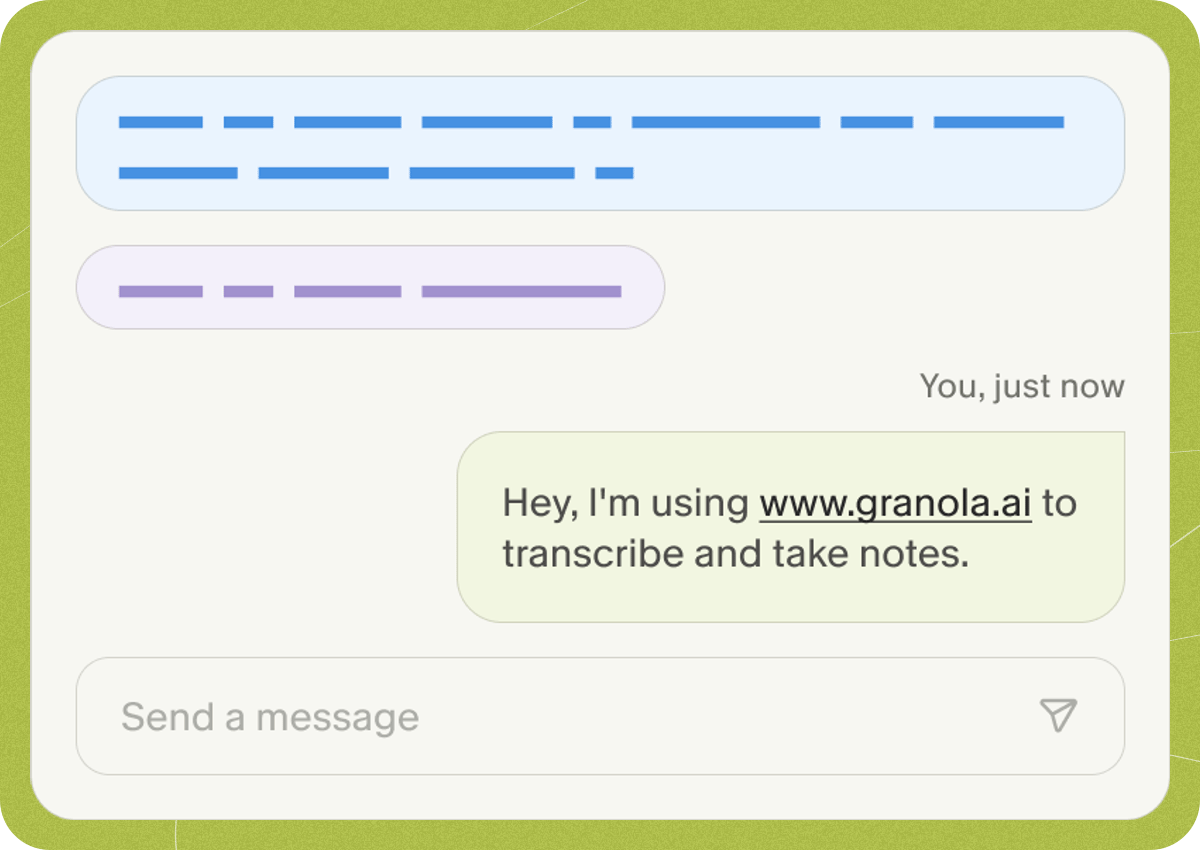 How the message gets delivered depends on the meeting app:
* **Google Meet** — delivered by the **[Granola Chrome extension](https://chromewebstore.google.com/detail/granola/opaadbjlebbbnmjjgdmdllingedoleml)**. Works on macOS and Windows. Requires Google Chrome or a supported Chromium based browser (Edge, Arc, Brave).
* **Zoom** — delivered by auto-pasting into the chat. On **macOS**, workspace admins can enforce this for the whole team (each user grants Accessibility permission). On **Windows**, individual users can turn it on for themselves in personal settings; workspace-wide enforcement for Zoom is not available yet.
Install the Chrome extension, allow pinning, and enable the notice.
Grant Accessibility permission and enable the notice (macOS).
## Granola Watermark
Adds a visible indicator (the "watermark" badge) to your video so other participants can see that Granola is transcribing. It works with any video app that lets you choose a camera source — Google Meet, Zoom, Microsoft Teams, and others — on both macOS and Windows (beta). The watermark only appears while Granola is actively transcribing and disappears when you stop.
Before workspace watermark setup can be enabled, you must first enable at least one automated chat message option (Google Meet or Zoom). This ensures Granola can still keep transcription compliant if a user later turns their camera off in the same meeting.
Enable it for your workspace, then install the Granola camera on each device.
Questions about either feature? Contact **[hey@granola.so](mailto:hey@granola.so)**.
How the message gets delivered depends on the meeting app:
* **Google Meet** — delivered by the **[Granola Chrome extension](https://chromewebstore.google.com/detail/granola/opaadbjlebbbnmjjgdmdllingedoleml)**. Works on macOS and Windows. Requires Google Chrome or a supported Chromium based browser (Edge, Arc, Brave).
* **Zoom** — delivered by auto-pasting into the chat. On **macOS**, workspace admins can enforce this for the whole team (each user grants Accessibility permission). On **Windows**, individual users can turn it on for themselves in personal settings; workspace-wide enforcement for Zoom is not available yet.
Install the Chrome extension, allow pinning, and enable the notice.
Grant Accessibility permission and enable the notice (macOS).
## Granola Watermark
Adds a visible indicator (the "watermark" badge) to your video so other participants can see that Granola is transcribing. It works with any video app that lets you choose a camera source — Google Meet, Zoom, Microsoft Teams, and others — on both macOS and Windows (beta). The watermark only appears while Granola is actively transcribing and disappears when you stop.
Before workspace watermark setup can be enabled, you must first enable at least one automated chat message option (Google Meet or Zoom). This ensures Granola can still keep transcription compliant if a user later turns their camera off in the same meeting.
Enable it for your workspace, then install the Granola camera on each device.
Questions about either feature? Contact **[hey@granola.so](mailto:hey@granola.so)**.