> ## Documentation Index
> Fetch the complete documentation index at: https://docs.granola.ai/llms.txt
> Use this file to discover all available pages before exploring further.
# Heads Up with the Google Calendar add-on
> Install a Google Calendar add-on and create Google Meet or Zoom meetings with Heads Up.
The Google Calendar add-ons let organizers create Google Meet or Zoom meetings with [Heads Up](/help-center/consent-security-privacy/heads-up-for-enterprise). This option is available to Enterprise workspaces on a pilot.
For automatic updates to eligible meetings, use [automatic Heads Up for Google Calendar](/help-center/consent-security-privacy/heads-up-google-calendar-automatic).
## Install the add-on
A Google Workspace admin can install the add-on for workspace members:
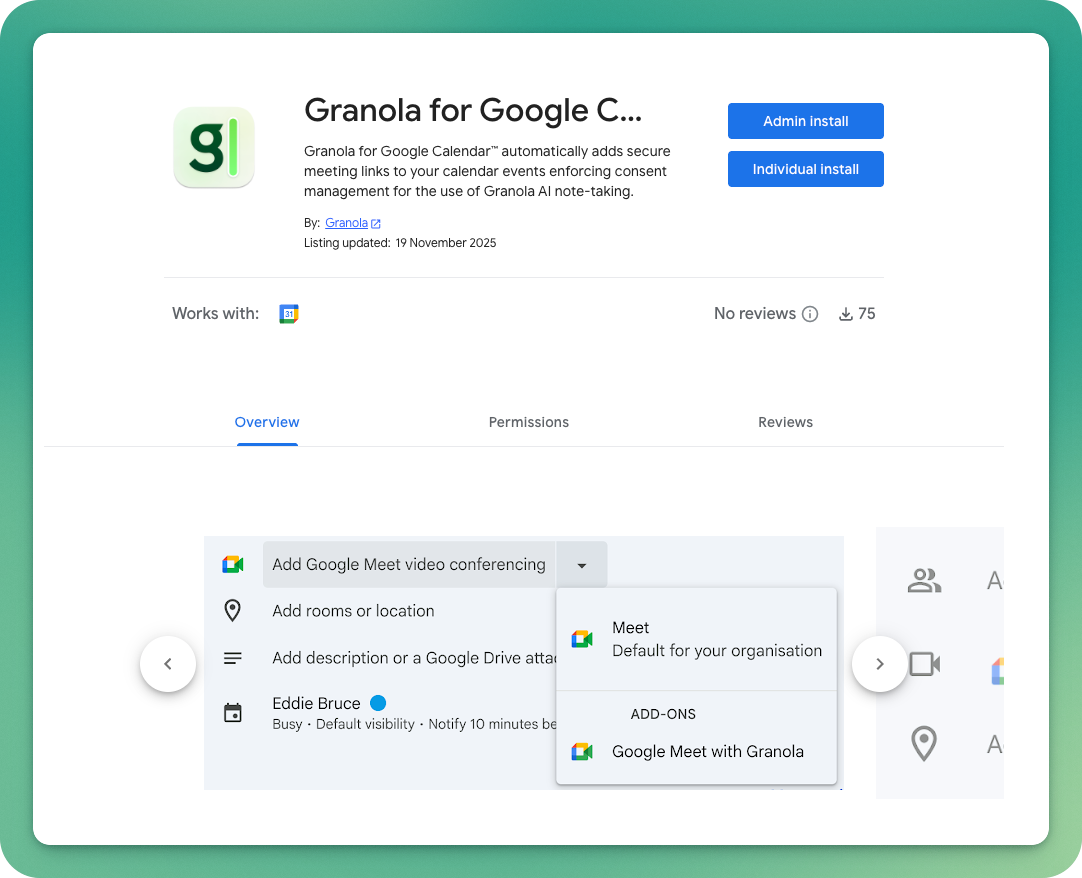
1. Open the add-on page for [Google Meet](https://workspace.google.com/marketplace/app/granola_for_google_calendar/385148968918) or [Zoom](https://workspace.google.com/marketplace/app/granola_for_google_calendar_zoom/906368641173).
2. Select **Admin install**.
3. Follow the prompts to authorize the add-on for your workspace.
These are separate add-ons. Install both if your workspace uses both meeting platforms. The screenshots below show Google Meet.
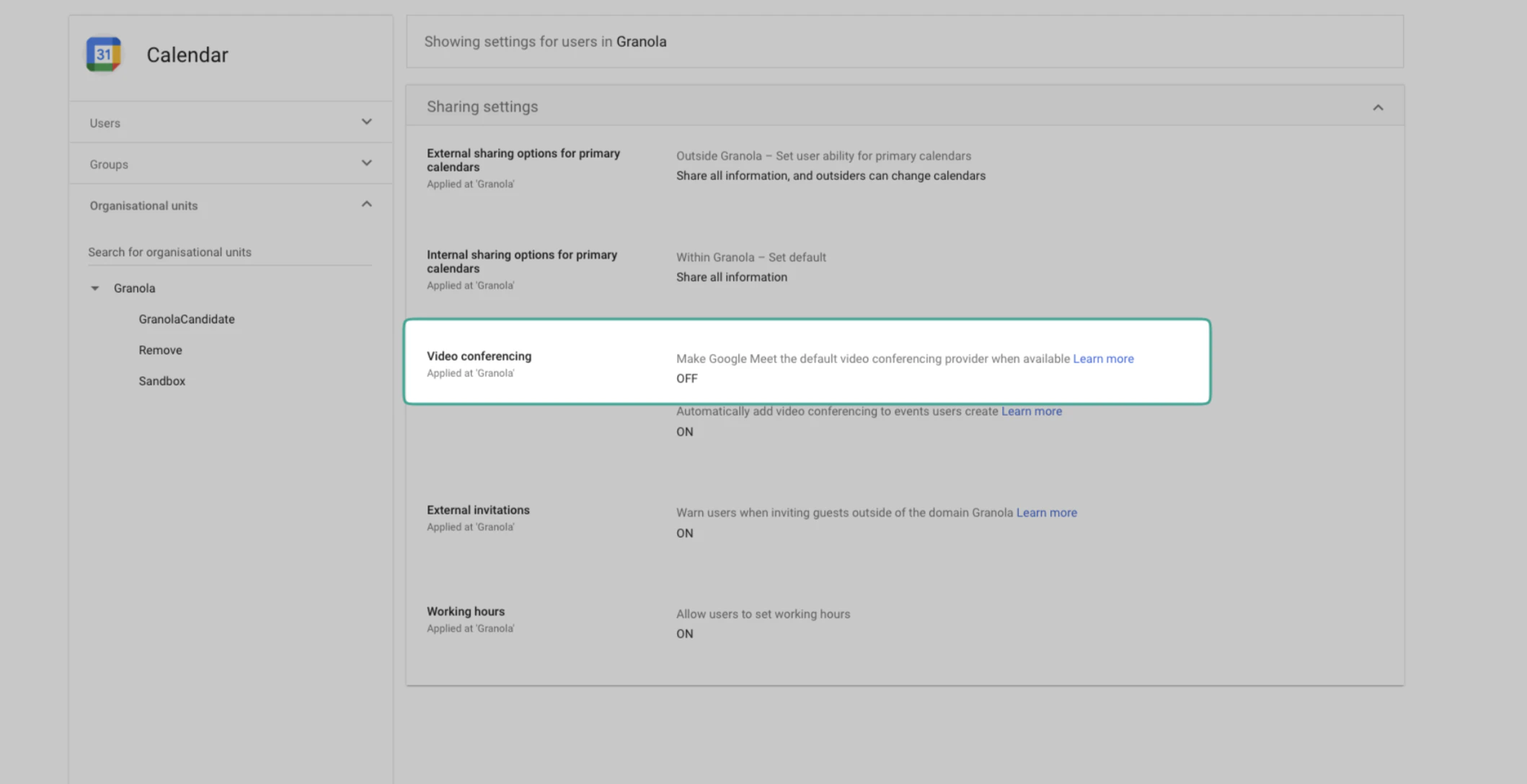
 If Google Meet is always selected by default, open [Google Calendar sharing settings](https://admin.google.com/ac/managedsettings/435070579839/sharing). Turn off **Make Google Meet the default conferencing provider when available** and save. Calendar can then reuse the organizer's last conferencing choice. See Google's [conferencing settings guide](https://knowledge.workspace.google.com/admin/calendar/control-video-conferencing-for-google-calendar-events-for-admins) for details.
 After installation, a Granola workspace admin must [enable the feature in Granola](/help-center/consent-security-privacy/heads-up-for-enterprise#enable-the-feature-in-granola) to complete setup.
## Create and check a meeting
1. Create a new event in Google Calendar.
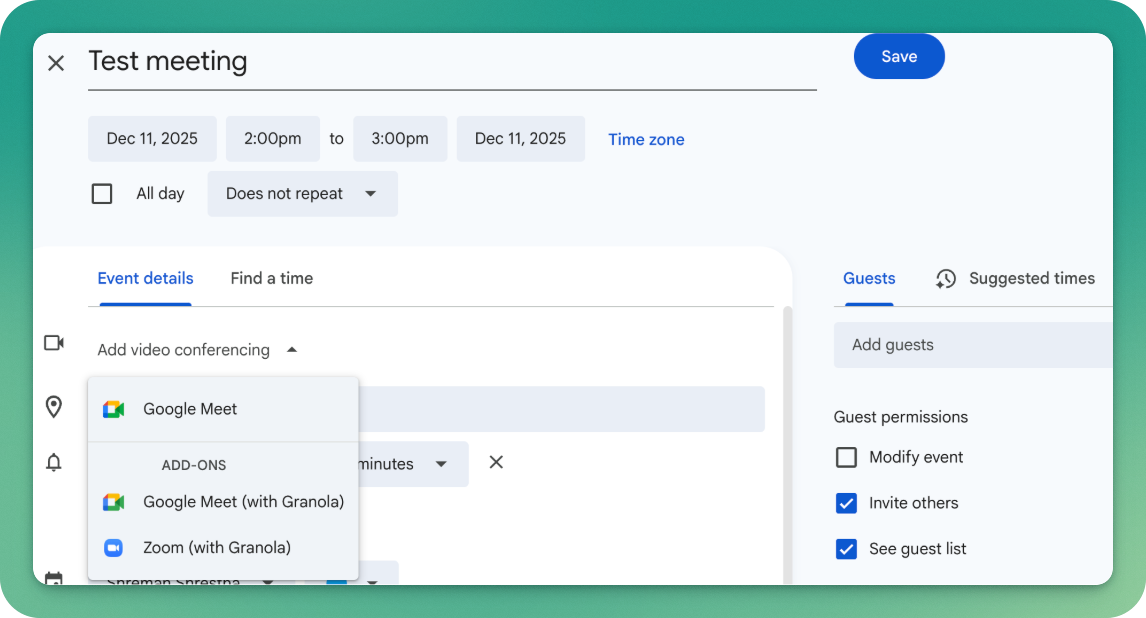
2. Under **Add video conferencing**, select **Google Meet (with Granola)** or **Zoom (with Granola)**. Skip this step if it is already selected.
3. For Zoom, sign in when prompted and select the checkbox that grants shared access. This lets the add-on schedule meetings on your behalf.
If you missed the checkbox, open your [installed Zoom apps](https://marketplace.zoom.us/user/installed). Find the Granola add-on and authorize shared access.
4. Add participants and the other meeting details.
5. Save the event.
After installation, a Granola workspace admin must [enable the feature in Granola](/help-center/consent-security-privacy/heads-up-for-enterprise#enable-the-feature-in-granola) to complete setup.
## Create and check a meeting
1. Create a new event in Google Calendar.
2. Under **Add video conferencing**, select **Google Meet (with Granola)** or **Zoom (with Granola)**. Skip this step if it is already selected.
3. For Zoom, sign in when prompted and select the checkbox that grants shared access. This lets the add-on schedule meetings on your behalf.
If you missed the checkbox, open your [installed Zoom apps](https://marketplace.zoom.us/user/installed). Find the Granola add-on and authorize shared access.
4. Add participants and the other meeting details.
5. Save the event.
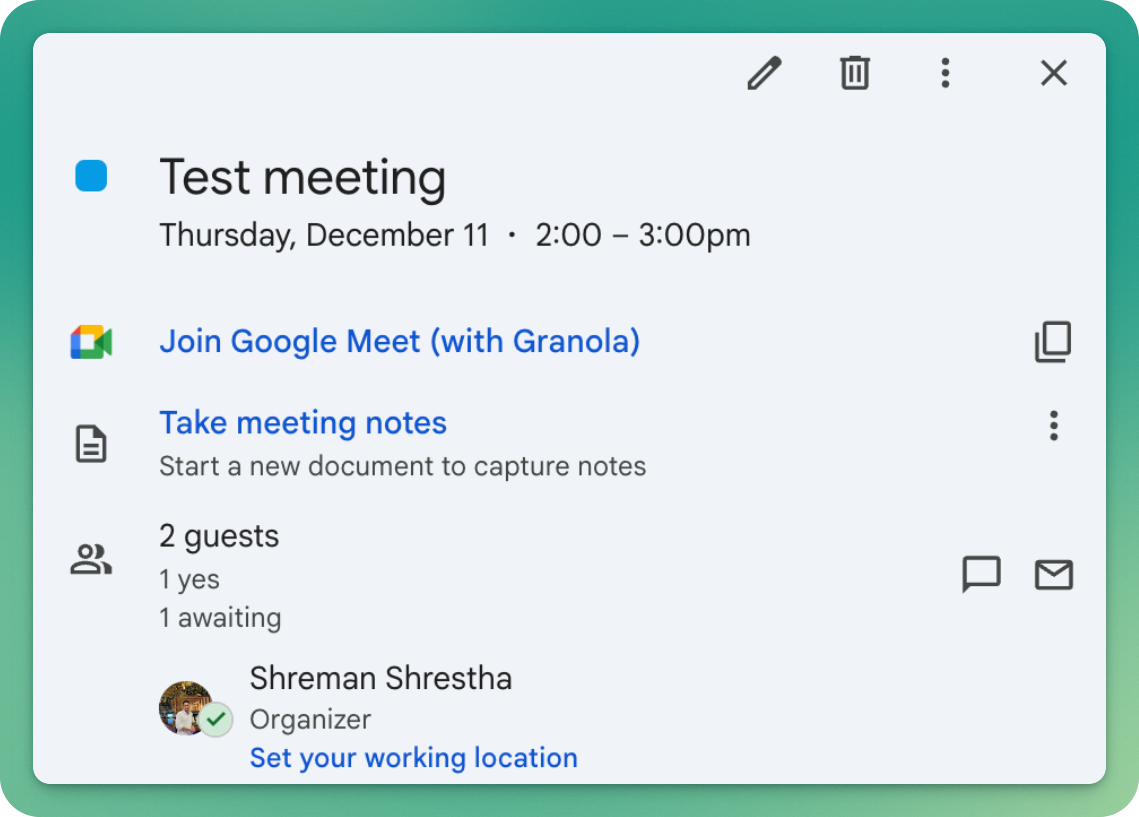
 The add-on creates a call with the selected meeting platform and adds a Heads Up link to the event. Google Meet calls use your normal admin settings.
Open the meeting link to check that it shows a Heads Up page. Select **Join meeting** to continue to Google Meet or Zoom.
The add-on creates a call with the selected meeting platform and adds a Heads Up link to the event. Google Meet calls use your normal admin settings.
Open the meeting link to check that it shows a Heads Up page. Select **Join meeting** to continue to Google Meet or Zoom.
 ## Stop using the add-on
For a new meeting, select a conferencing option without **(with Granola)**.
To uninstall, open the relevant [add-on page](#install-the-add-on) and select **Uninstall**. See Google's [add-on removal instructions](https://support.google.com/marketplace/answer/12408485) for admin-managed installations.
If your workspace also uses automatic setup, changing the conferencing option or uninstalling the add-on does not stop automatic updates. See [how to turn off automatic setup](/help-center/consent-security-privacy/heads-up-google-calendar-automatic#turn-off-automatic-setup).
This documentation is built and hosted on [Mintlify](https://mintlify.com), a developer documentation platform.
## Stop using the add-on
For a new meeting, select a conferencing option without **(with Granola)**.
To uninstall, open the relevant [add-on page](#install-the-add-on) and select **Uninstall**. See Google's [add-on removal instructions](https://support.google.com/marketplace/answer/12408485) for admin-managed installations.
If your workspace also uses automatic setup, changing the conferencing option or uninstalling the add-on does not stop automatic updates. See [how to turn off automatic setup](/help-center/consent-security-privacy/heads-up-google-calendar-automatic#turn-off-automatic-setup).
This documentation is built and hosted on [Mintlify](https://mintlify.com), a developer documentation platform.