> ## Documentation Index
> Fetch the complete documentation index at: https://docs.granola.ai/llms.txt
> Use this file to discover all available pages before exploring further.
# Heads Up for Enterprise
> Heads Up pages for Granola Enterprise. Pre-meeting confirmation pages for participants. Admin configuration.
This feature is available only for **Enterprise** users on a **pilot**.
Works for **Google Meet** events organised with **Google Calendar** on **macOS** or **Windows**.
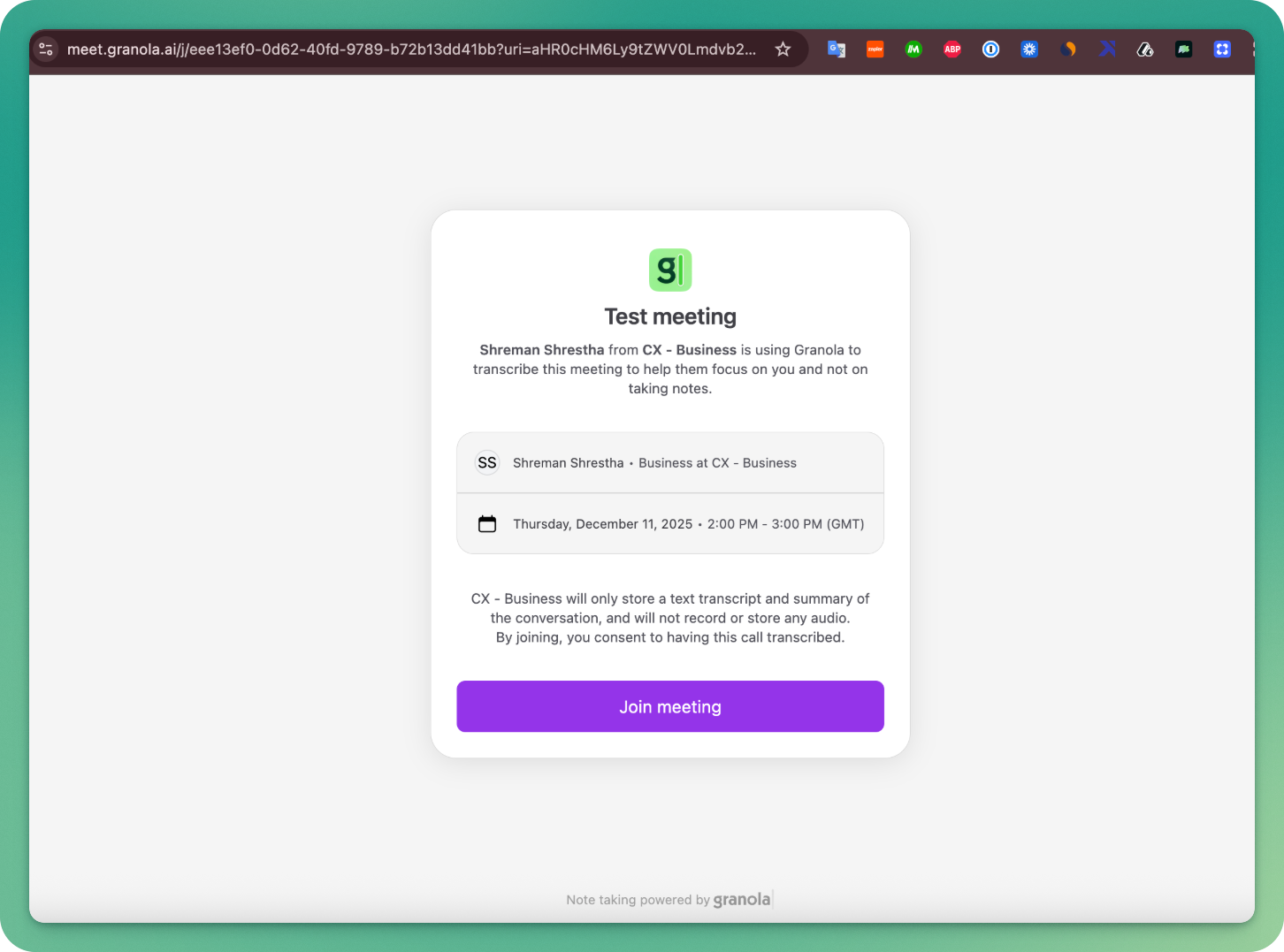
*Heads Up* tells meeting participants that you're using Granola before they join a Google Meet. Participants must click "Join meeting" to continue to your call.
 # How it works
## **For Google Workspace admins:**
To turn on *Heads Up* pages for your workspace, you only need to do one thing: install the Granola for Google Calendar add-on (and optionally set it as your default meeting provider).
Once installed, you can create meetings with the *Heads Up* page right from Google Calendar.
1. Navigate to the [Granola for Google Calendar add-on page](https://workspace.google.com/marketplace/app/granola_for_google_calendar/385148968918 "https://workspace.google.com/marketplace/app/granola_for_google_calendar/385148968918").
2. Click **"Admin install"**
3. Follow the prompts to authorize the add-on for your workspace.
# How it works
## **For Google Workspace admins:**
To turn on *Heads Up* pages for your workspace, you only need to do one thing: install the Granola for Google Calendar add-on (and optionally set it as your default meeting provider).
Once installed, you can create meetings with the *Heads Up* page right from Google Calendar.
1. Navigate to the [Granola for Google Calendar add-on page](https://workspace.google.com/marketplace/app/granola_for_google_calendar/385148968918 "https://workspace.google.com/marketplace/app/granola_for_google_calendar/385148968918").
2. Click **"Admin install"**
3. Follow the prompts to authorize the add-on for your workspace.
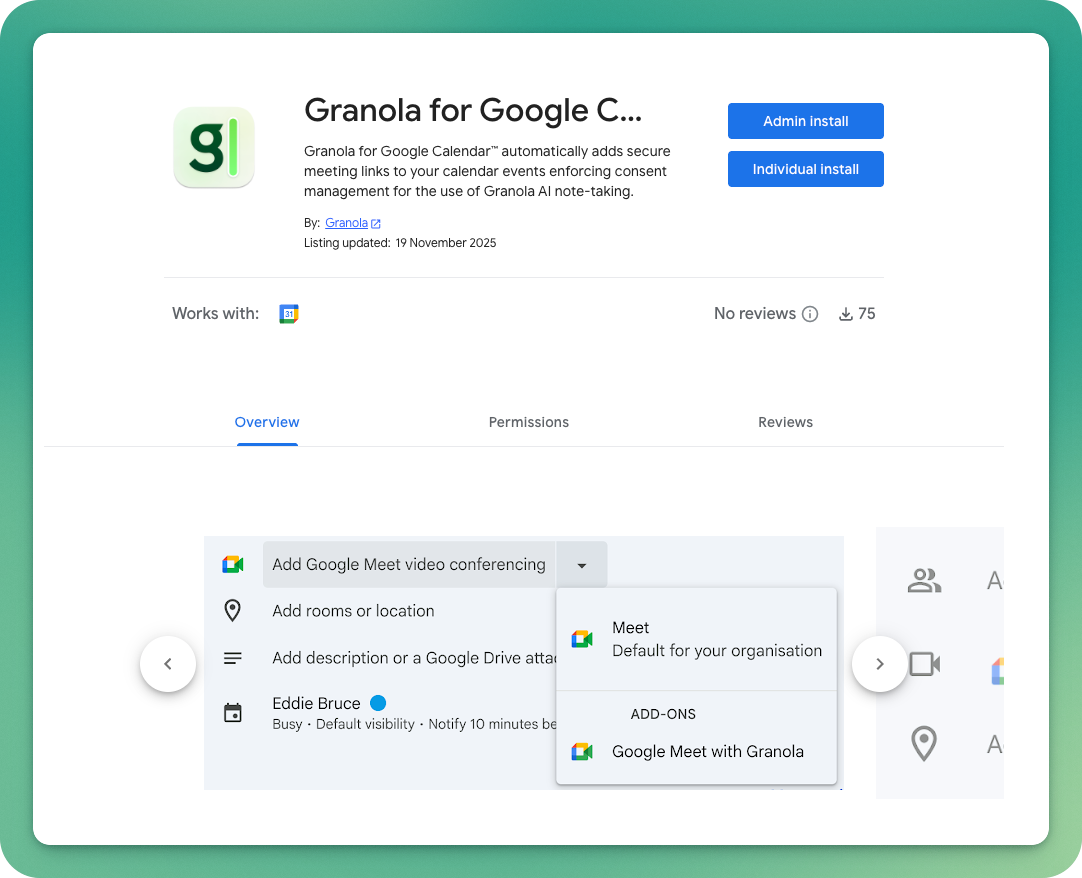 Once installed, users in your workspace will see new options when creating calendar events.
4. (Recommended) Turn off "Make Google Meet the default conferencing provider when available" [here](https://admin.google.com/ac/managedsettings/435070579839/sharing "https://admin.google.com/ac/managedsettings/435070579839/sharing"). Now, your workspace won't have to select "Google Meet with Granola" every time you create a meeting; it will be attached by default.
Once installed, users in your workspace will see new options when creating calendar events.
4. (Recommended) Turn off "Make Google Meet the default conferencing provider when available" [here](https://admin.google.com/ac/managedsettings/435070579839/sharing "https://admin.google.com/ac/managedsettings/435070579839/sharing"). Now, your workspace won't have to select "Google Meet with Granola" every time you create a meeting; it will be attached by default.
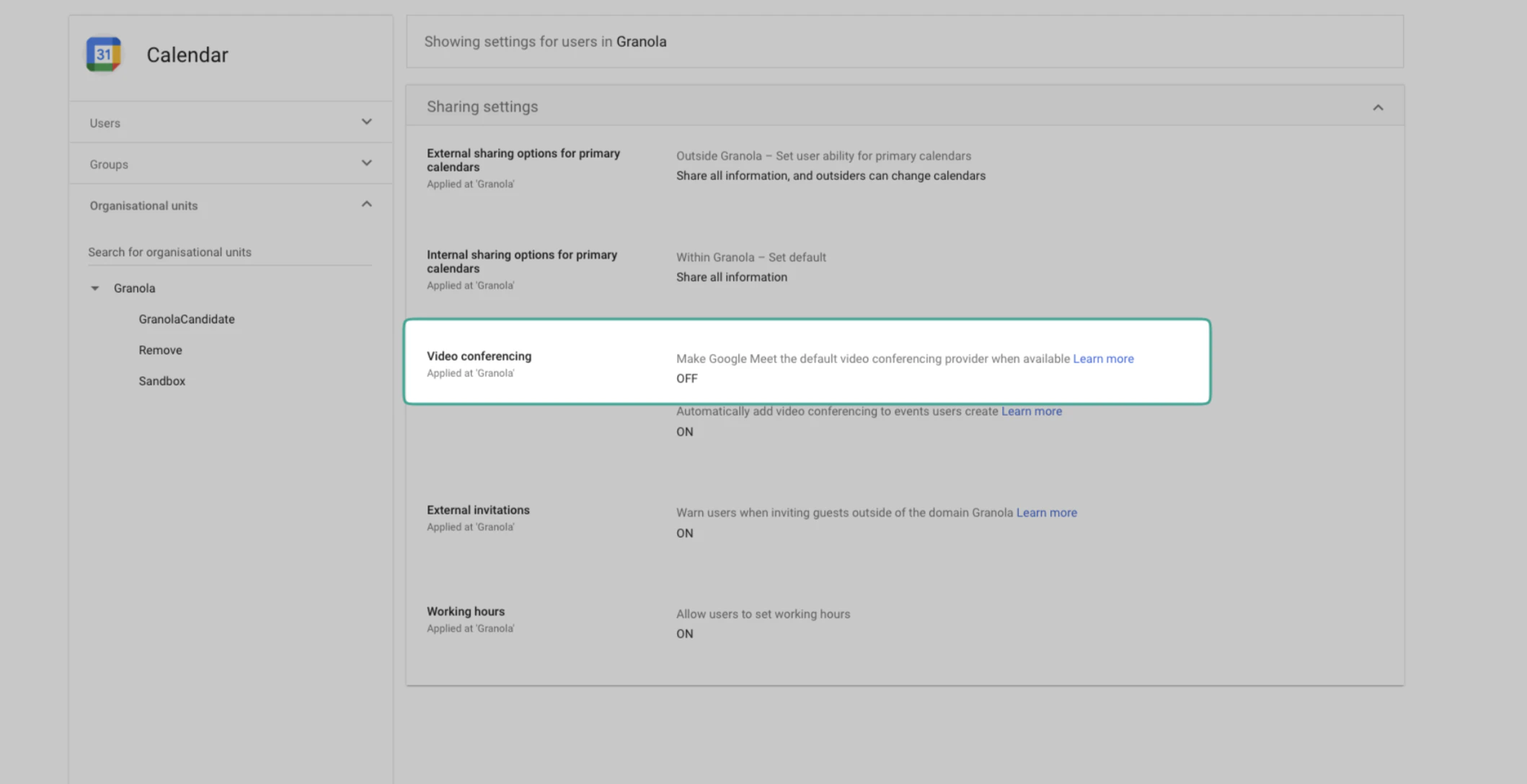 If you've disabled Google Meet as the default, you can skip steps 2 and 3 below in the future (Google Meet with Granola will be added automatically).
## **Optional step: notify Workspace members about *Heads Up***
Once you have installed the calendar add-on for your workspace, **Granola admins** can optionally notify their users about Heads Up by toggling a setting that sends their workspace an in-app notification.
Toggling this setting has no functional behaviour; it's only for notifying your workspace members by linking them to the *Heads Up* help article.
1. Navigate to your **Settings**
If you've disabled Google Meet as the default, you can skip steps 2 and 3 below in the future (Google Meet with Granola will be added automatically).
## **Optional step: notify Workspace members about *Heads Up***
Once you have installed the calendar add-on for your workspace, **Granola admins** can optionally notify their users about Heads Up by toggling a setting that sends their workspace an in-app notification.
Toggling this setting has no functional behaviour; it's only for notifying your workspace members by linking them to the *Heads Up* help article.
1. Navigate to your **Settings**
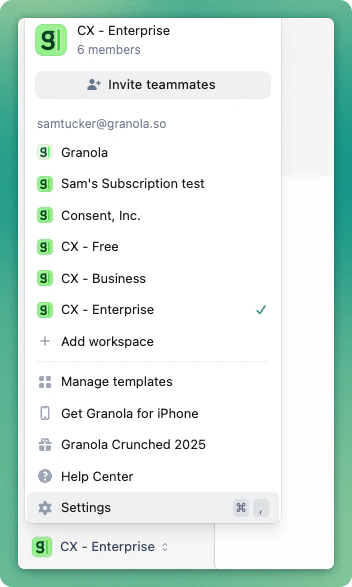 2\. Find the **Workspaces** section
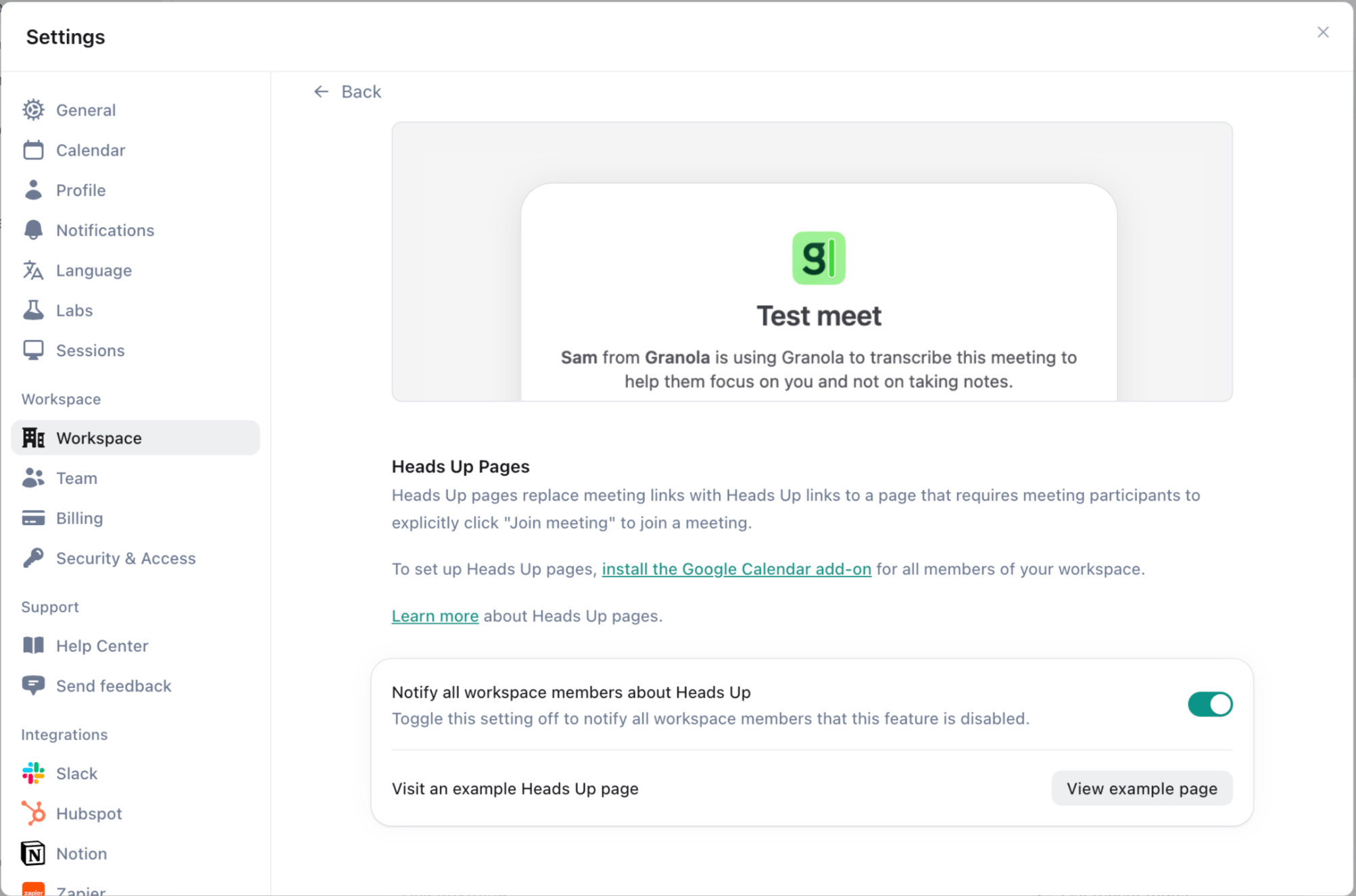
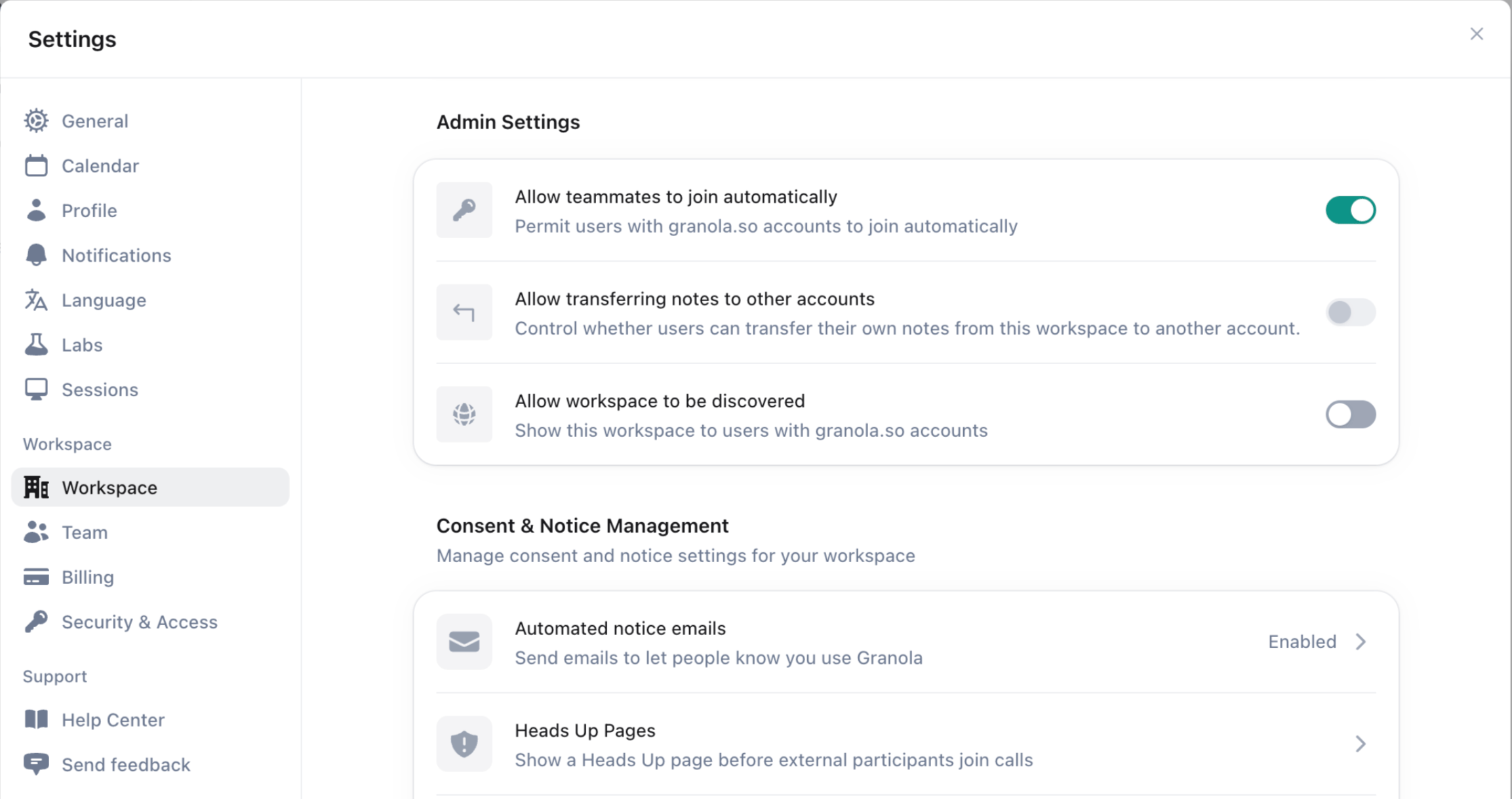 3\. Toggle on **Notify all workspace members about Heads Up**. Your workspace members will receive an in-app notification linking to the *Heads Up* help page.
4. See a preview page by clicking "View example page"
3\. Toggle on **Notify all workspace members about Heads Up**. Your workspace members will receive an in-app notification linking to the *Heads Up* help page.
4. See a preview page by clicking "View example page"
 # How do I create *Heads Up* meetings?
Heads Up is now setup for all your meetings! Any workspace member can now create and organize meetings using *Heads Up*.
### As a meeting organizer:
1. Create a new calendar event in Google Calendar.
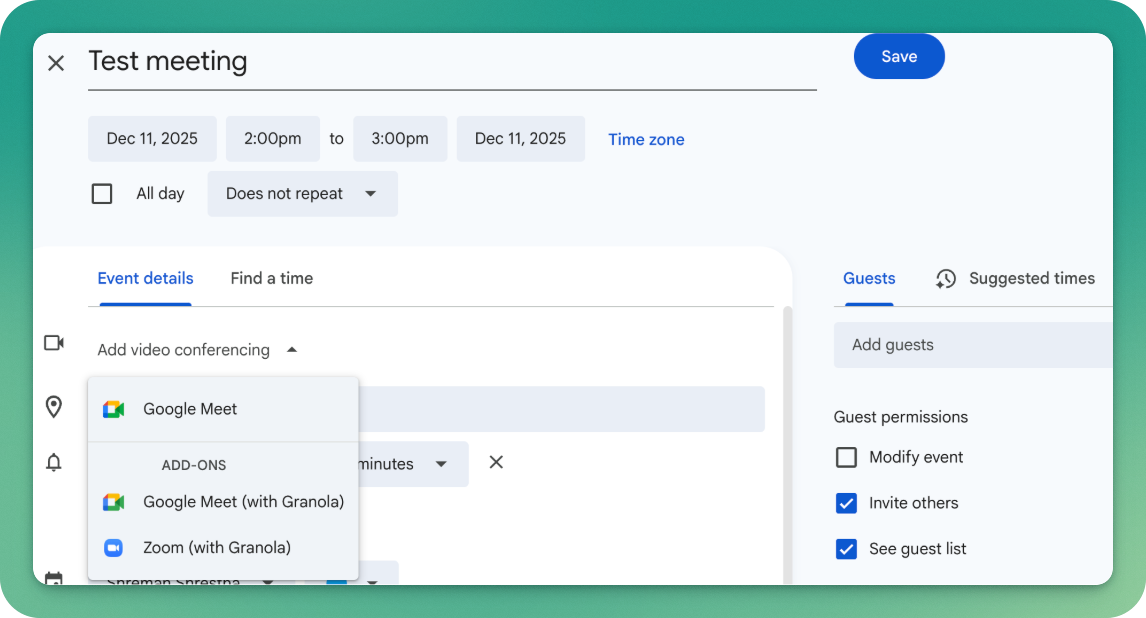
2. Once you have installed the Google Calendar Add-on, you’ll have a new option in the dropdown under *Add video conferencing* when arranging a new meeting: **“Google Meet (with Granola)”**.
3. Instead of clicking your default video conferencing provider, select *Google Meet with Granola*.
4. Add your meeting participants and other details as normal.
5. Save the event.
# How do I create *Heads Up* meetings?
Heads Up is now setup for all your meetings! Any workspace member can now create and organize meetings using *Heads Up*.
### As a meeting organizer:
1. Create a new calendar event in Google Calendar.
2. Once you have installed the Google Calendar Add-on, you’ll have a new option in the dropdown under *Add video conferencing* when arranging a new meeting: **“Google Meet (with Granola)”**.
3. Instead of clicking your default video conferencing provider, select *Google Meet with Granola*.
4. Add your meeting participants and other details as normal.
5. Save the event.
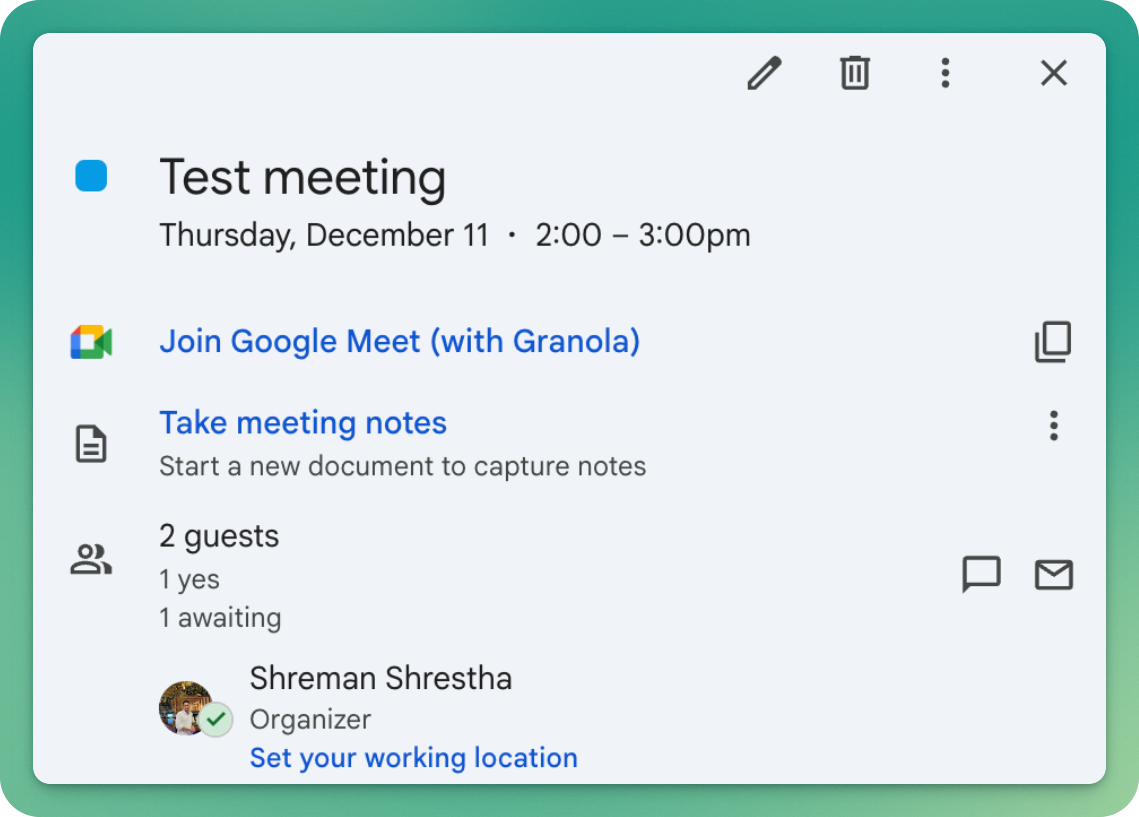
 6. A Google Meet link is created with all your normal admin settings applied
7. The meeting link is replaced with a Granola redirect link for all participants.
Users can choose to use another video conferencing provider (e.g. Google Meet, Zoom) if they do not want the participants of a meeting to see a *Heads Up* page.
# What participants see
On the calendar, participants will see "Join Google Meet (with Granola)".
6. A Google Meet link is created with all your normal admin settings applied
7. The meeting link is replaced with a Granola redirect link for all participants.
Users can choose to use another video conferencing provider (e.g. Google Meet, Zoom) if they do not want the participants of a meeting to see a *Heads Up* page.
# What participants see
On the calendar, participants will see "Join Google Meet (with Granola)".
 When a participant clicks the meeting link, participants will see a *Heads Up* page that includes:
* Meeting details (title, time, organizer)
* Clear explanation that Granola will be used for AI note-taking
* "Join meeting" button to confirm and proceed
* Your organization's information
After clicking "Join meeting," participants are immediately redirected to the Google Meet call. The process typically takes a fraction of a second.
# Audit logging
Every time someone clicks "Join meeting" on the consent page, Granola logs:
* Meeting ID
* Date and timestamp of consent
* User agent (browser/device information)
This creates an audit trail showing that participants gave confirmation before joining the call. Workspace admins can request access to these logs for compliance purposes by emailing [hey@granola.so](mailto:hey@granola.so "mailto:hey@granola.so").
# How to uninstall the add-on
1. Navigate to the Granola add-on [page](https://workspace.google.com/marketplace/app/granola_for_google_calendar/385148968918 "https://workspace.google.com/marketplace/app/granola_for_google_calendar/385148968918")
2. Click "Uninstall".
Note:
* We do not store any of your data after you uninstall.
* More information on uninstalling add-ons [here](https://support.google.com/marketplace/answer/12408485?hl=en-GB\&visit_id=639010637207959169-2328235479\&p=marketplace-messages\&rd=1 "https://support.google.com/marketplace/answer/12408485?hl=en-GB\&visit_id=639010637207959169-2328235479\&p=marketplace-messages\&rd=1").
When a participant clicks the meeting link, participants will see a *Heads Up* page that includes:
* Meeting details (title, time, organizer)
* Clear explanation that Granola will be used for AI note-taking
* "Join meeting" button to confirm and proceed
* Your organization's information
After clicking "Join meeting," participants are immediately redirected to the Google Meet call. The process typically takes a fraction of a second.
# Audit logging
Every time someone clicks "Join meeting" on the consent page, Granola logs:
* Meeting ID
* Date and timestamp of consent
* User agent (browser/device information)
This creates an audit trail showing that participants gave confirmation before joining the call. Workspace admins can request access to these logs for compliance purposes by emailing [hey@granola.so](mailto:hey@granola.so "mailto:hey@granola.so").
# How to uninstall the add-on
1. Navigate to the Granola add-on [page](https://workspace.google.com/marketplace/app/granola_for_google_calendar/385148968918 "https://workspace.google.com/marketplace/app/granola_for_google_calendar/385148968918")
2. Click "Uninstall".
Note:
* We do not store any of your data after you uninstall.
* More information on uninstalling add-ons [here](https://support.google.com/marketplace/answer/12408485?hl=en-GB\&visit_id=639010637207959169-2328235479\&p=marketplace-messages\&rd=1 "https://support.google.com/marketplace/answer/12408485?hl=en-GB\&visit_id=639010637207959169-2328235479\&p=marketplace-messages\&rd=1").