> ## Documentation Index
> Fetch the complete documentation index at: https://docs.granola.ai/llms.txt
> Use this file to discover all available pages before exploring further.
# Automated notice emails
> Automated emails sent before meetings to notify participants that Granola will be used for AI note-taking.
This feature is currently in **beta** for **Enterprise** plans.
# Overview
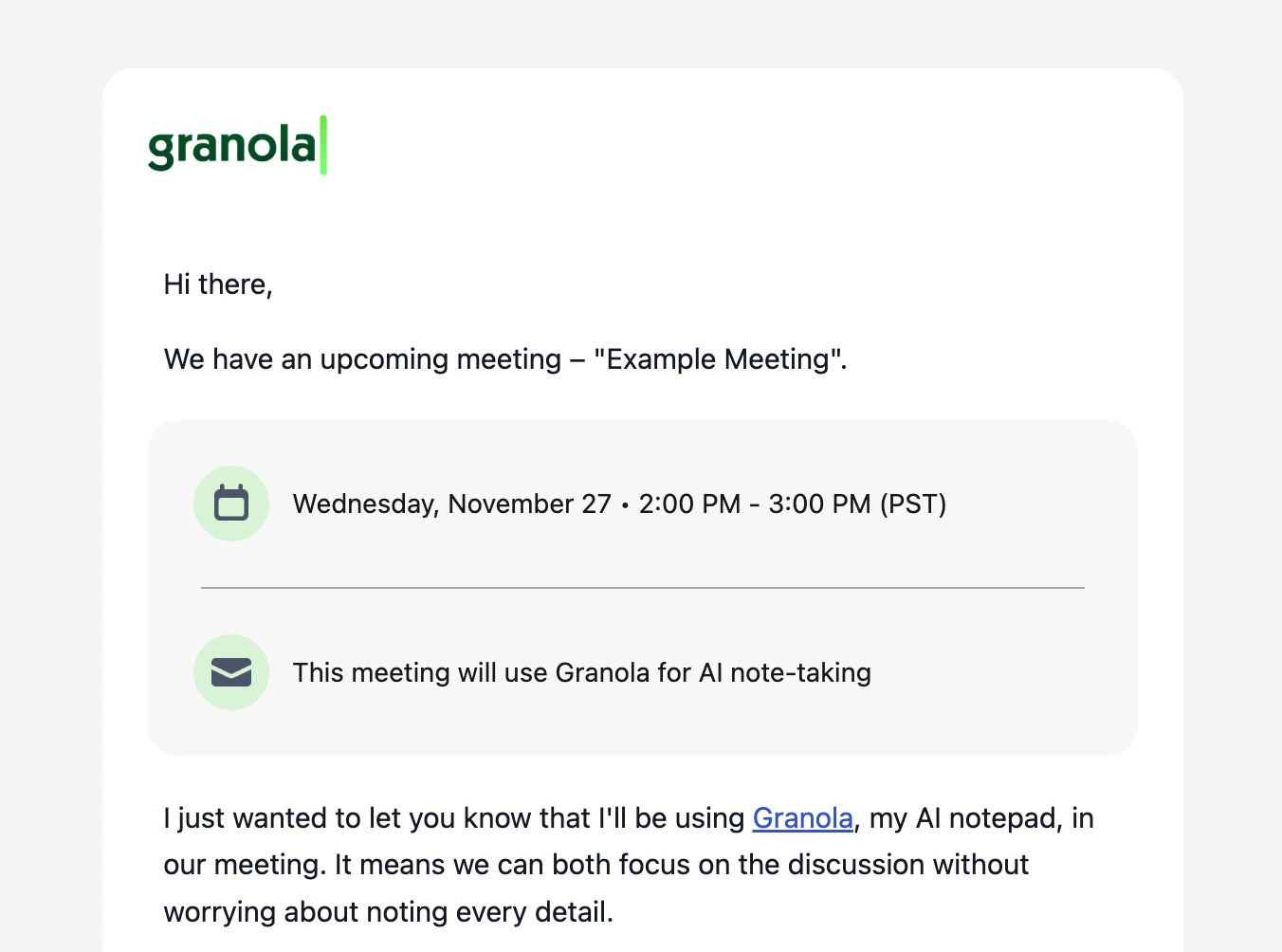
Automated notice emails automatically inform meeting participants that you'll be using Granola for AI note-taking. These emails are sent 30 minutes before scheduled meetings begin, giving participants advance notice that Granola may be used.
 ## Who can enable this
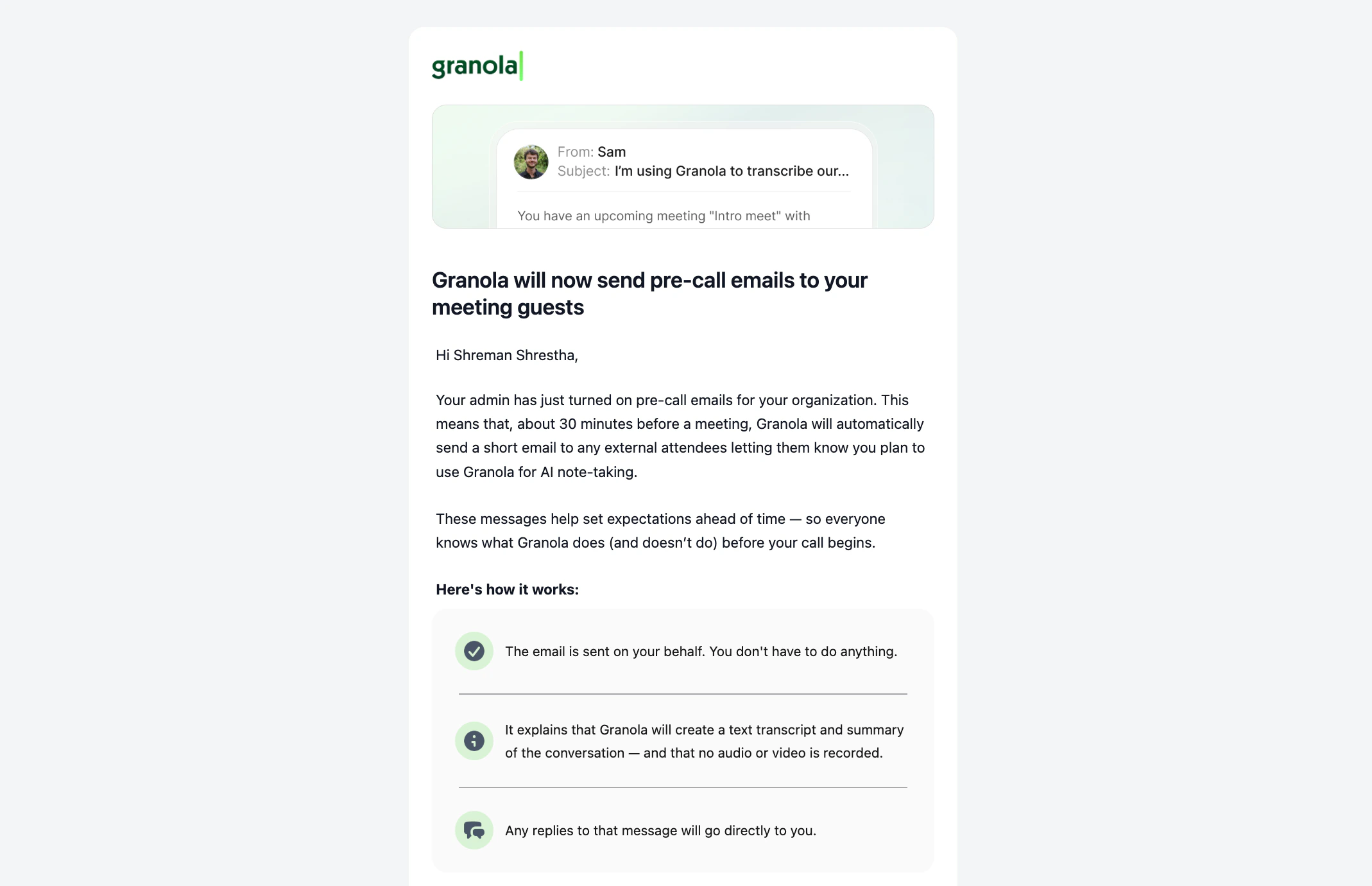
This feature is only available to a pilot group of Enterprise workspaces, and **can be enabled by** **workspace admins only.** Once enabled by an admin, automated notice emails are sent on behalf of all users in your workspace. Individual users cannot turn this feature off.
## How it works
When pre-meeting emails are enabled:
1. **\~30 minutes before a meeting starts**, Granola automatically sends an email to external meeting participants (anyone outside your organization's domain).
2. **The email is sent on behalf of the meeting organizer**, not from Granola directly, to participants who have accepted the calendar invitation. The meeting organizer should be a Granola user in the admin's workspace.
3. **Participants can respond** directly to the meeting organizer to withdraw consent
# Enabling pre-meeting emails
**For workspace admins:**
1. Click your workspace name in the bottom-left corner, then select **Settings**.
## Who can enable this
This feature is only available to a pilot group of Enterprise workspaces, and **can be enabled by** **workspace admins only.** Once enabled by an admin, automated notice emails are sent on behalf of all users in your workspace. Individual users cannot turn this feature off.
## How it works
When pre-meeting emails are enabled:
1. **\~30 minutes before a meeting starts**, Granola automatically sends an email to external meeting participants (anyone outside your organization's domain).
2. **The email is sent on behalf of the meeting organizer**, not from Granola directly, to participants who have accepted the calendar invitation. The meeting organizer should be a Granola user in the admin's workspace.
3. **Participants can respond** directly to the meeting organizer to withdraw consent
# Enabling pre-meeting emails
**For workspace admins:**
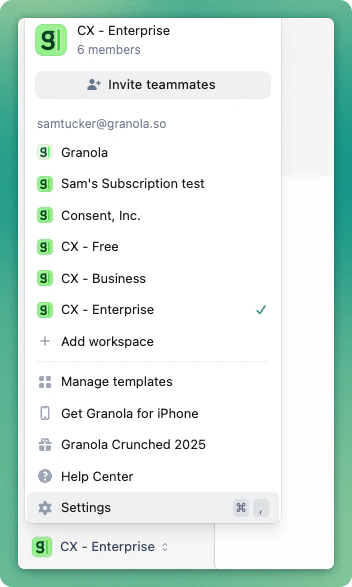
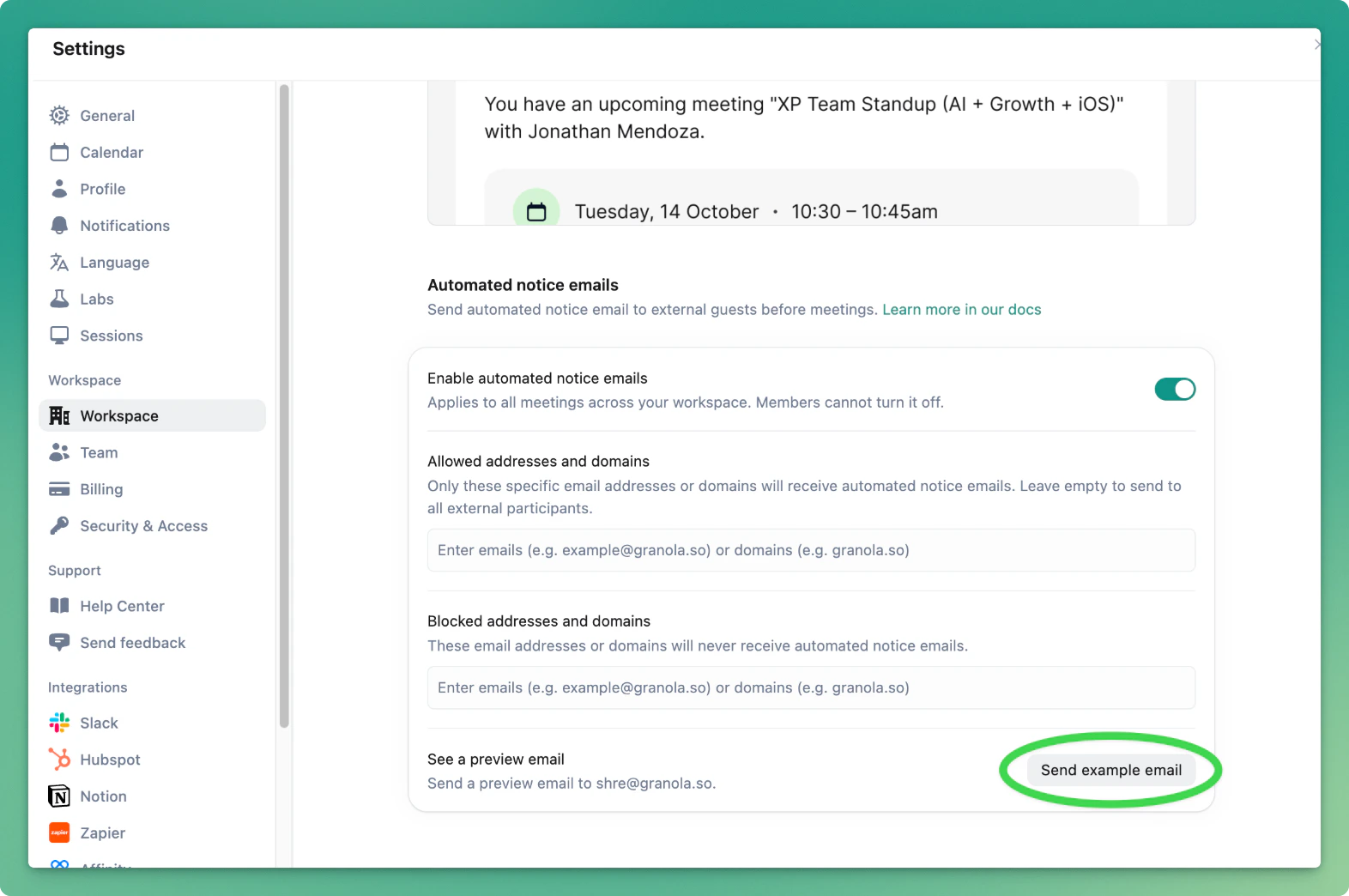
1. Click your workspace name in the bottom-left corner, then select **Settings**.
 2\. Find the **Workspaces** section
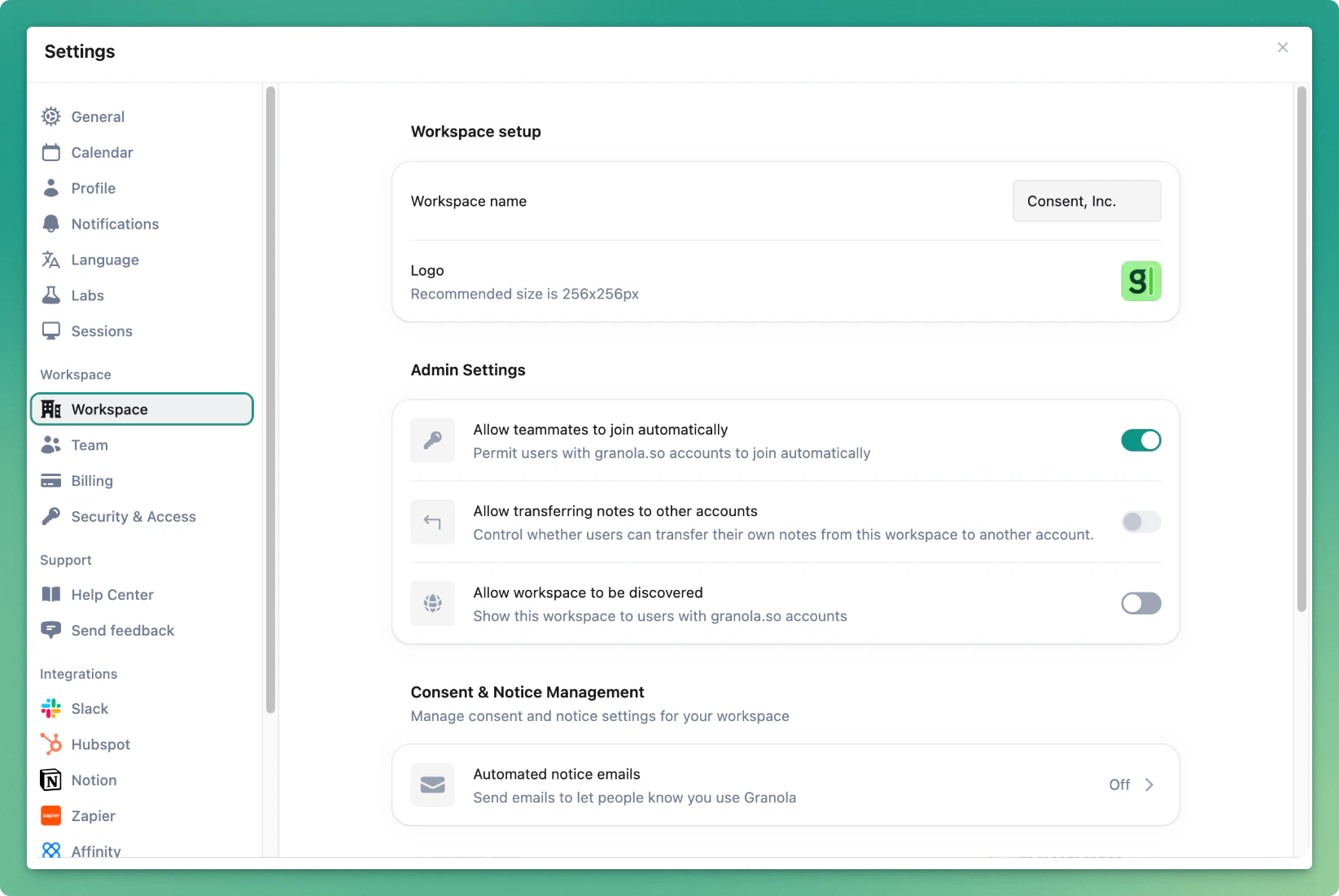 3\. Toggle on and enable **Automated notice emails** for your workspace members. Once enabled, all users in your workspace will receive a notification explaining that emails will be sent on their behalf before meetings with external participants.
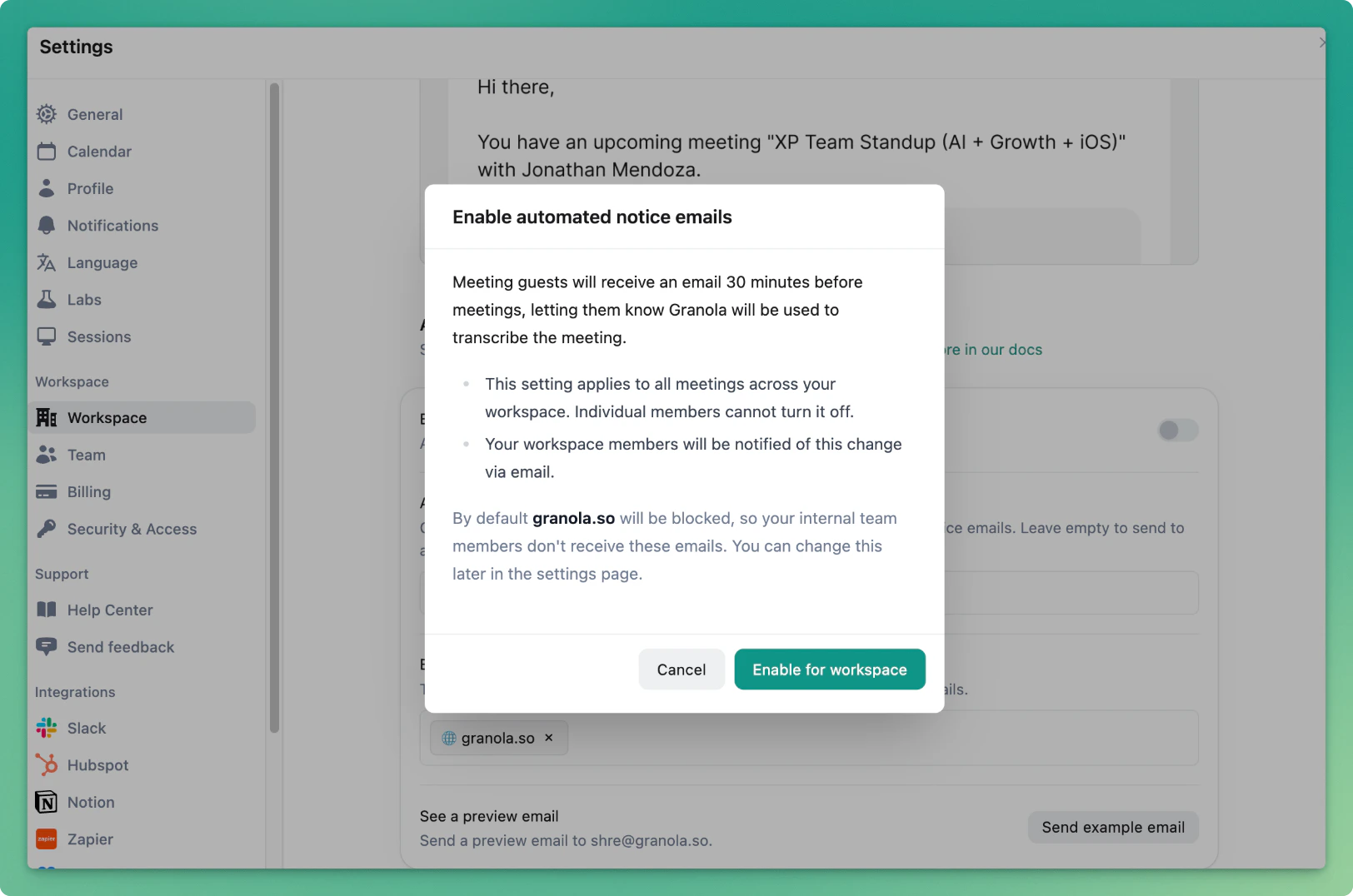
 4. See a preview email by clicking "Send example email"
 # Customizing who receives pre-meeting emails
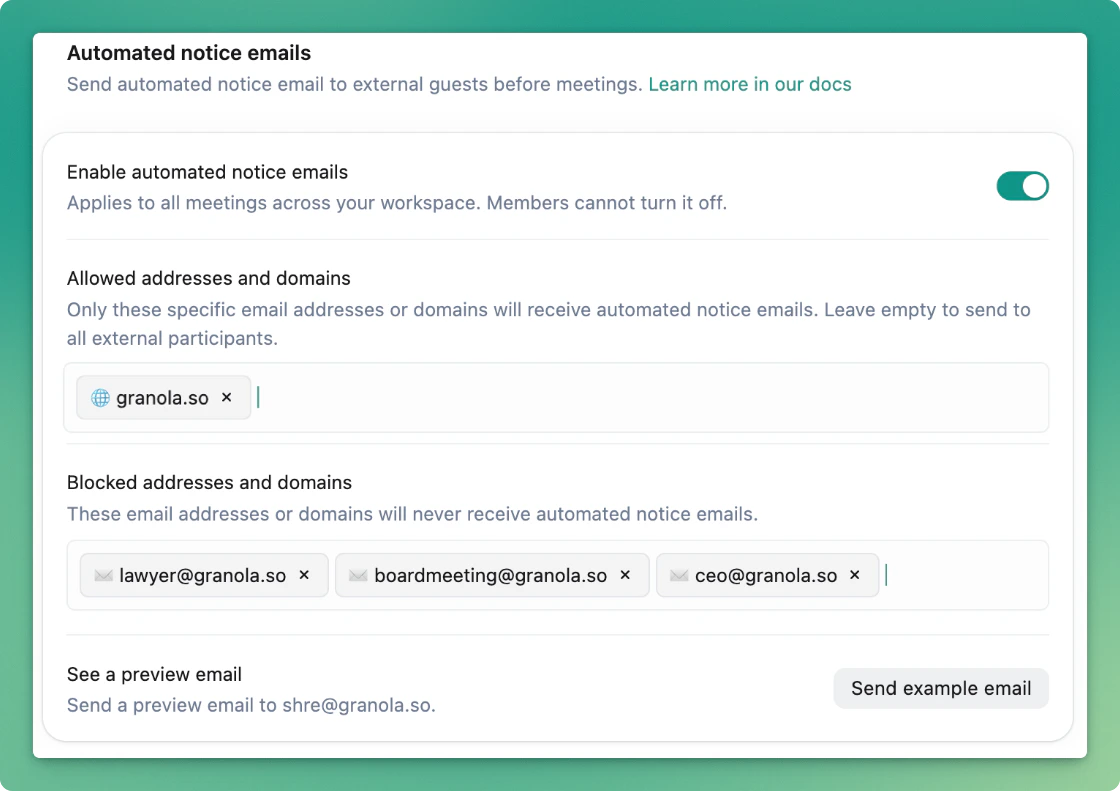
By default, only external (participants outside your domain) will receive these emails.
* If you *only* want to enable participants in your company to receive these emails (i.e. for internal use only), you can add your company's domain to "Allowed addresses and domains".
* Alternatively, you can also add specific emails (i.e. [shre@granola.so](mailto:shre@granola.so)) or email domains (i.e. granola.so) to *never* receive these emails. By default, your company domain is added here so only external (participants outside your domain) receive these emails.
# Customizing who receives pre-meeting emails
By default, only external (participants outside your domain) will receive these emails.
* If you *only* want to enable participants in your company to receive these emails (i.e. for internal use only), you can add your company's domain to "Allowed addresses and domains".
* Alternatively, you can also add specific emails (i.e. [shre@granola.so](mailto:shre@granola.so)) or email domains (i.e. granola.so) to *never* receive these emails. By default, your company domain is added here so only external (participants outside your domain) receive these emails.
 # What participants receive
When the setting is enabled, workspace members receive notice via email.
# What participants receive
When the setting is enabled, workspace members receive notice via email.
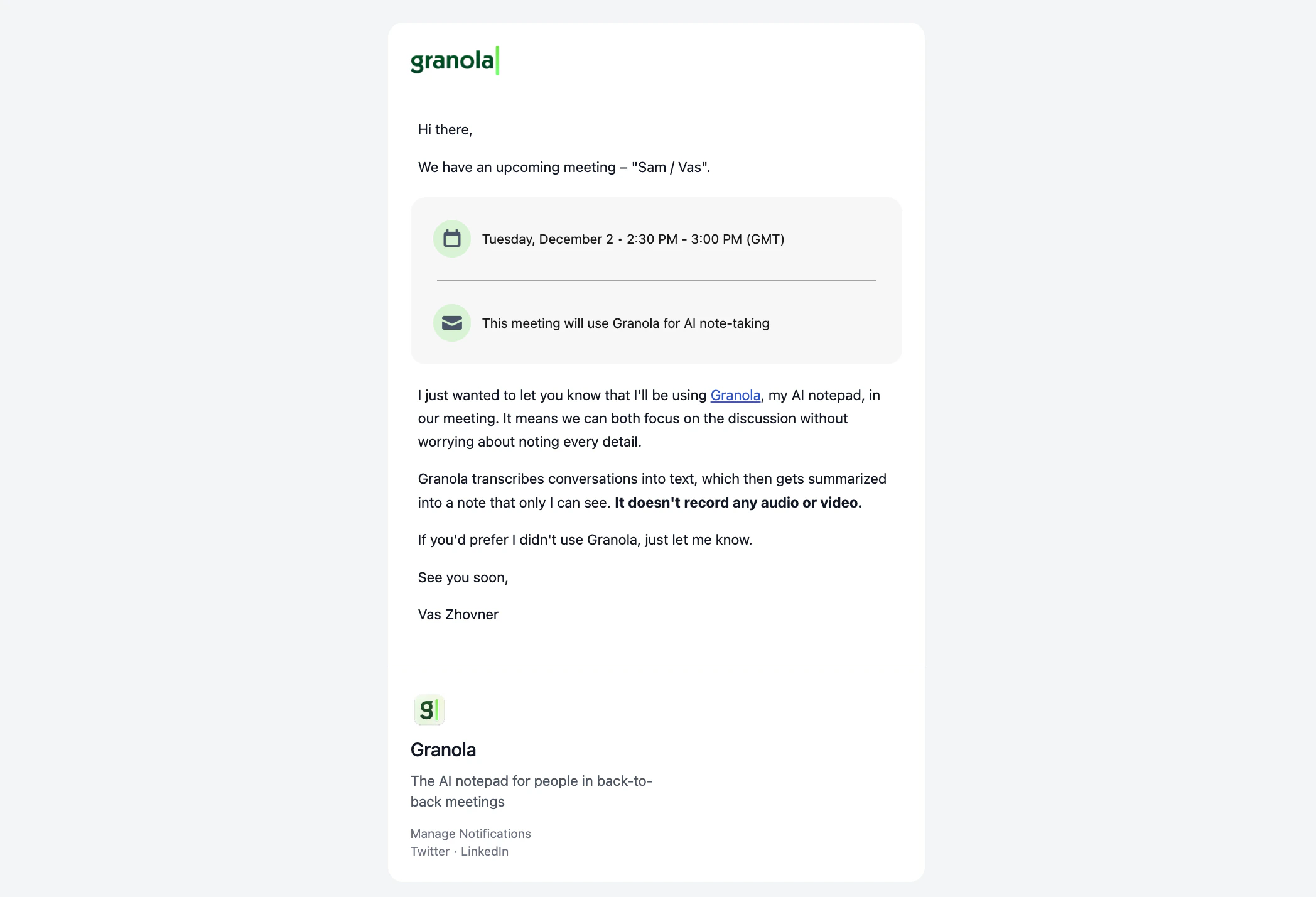 External meeting participants who have clicked 'attending' on the meeting will receive an email that includes:
* **Meeting details** (title, time, organizer)
* **Clear notice** that Granola will be used for AI note-taking
* **Information about Granola** and what it does
* **Option to respond** to the meeting organizer to withdraw consent
The email goes directly from the meeting organizer's email address, and any replies come back to them, not to Granola.
Meeting participants can opt out to receive these emails from a specific person, specific domain, or from any Granola user.
This documentation is built and hosted on [Mintlify](https://mintlify.com), a developer documentation platform.
External meeting participants who have clicked 'attending' on the meeting will receive an email that includes:
* **Meeting details** (title, time, organizer)
* **Clear notice** that Granola will be used for AI note-taking
* **Information about Granola** and what it does
* **Option to respond** to the meeting organizer to withdraw consent
The email goes directly from the meeting organizer's email address, and any replies come back to them, not to Granola.
Meeting participants can opt out to receive these emails from a specific person, specific domain, or from any Granola user.
This documentation is built and hosted on [Mintlify](https://mintlify.com), a developer documentation platform.